“Copilot” is not one product. Microsoft uses the name for its general-purpose assistant, Microsoft 365 features, and GitHub’s coding assistant. Other companies also use “copilot” as a generic term for an AI helper. That makes it easy to install the wrong app, sign in with the wrong account, or pay for a subscription that does not include the feature you expected.
Quick answer
Use the free Microsoft Copilot app or website for general questions, web research, and everyday writing; use Microsoft 365 Copilot when you want AI grounded in eligible Office documents, email, meetings, and work data; and use GitHub Copilot for code completion and coding chat inside supported developer tools. The phone app and web app are ways to access Copilot, not separate AI products. VS Code, Visual Studio, and current SSMS Copilot integrations are GitHub Copilot. Compare the exact task, account, data protections, usage limits, and license before paying.
What Does “Copilot” Mean?
In AI product names, a copilot is an assistant that helps a person work rather than taking full responsibility for the result. It can draft text, summarize information, answer questions, explain code, or suggest a next action. The assistant predicts useful output from a prompt and the context it is allowed to see. It can still invent facts, misread a spreadsheet, produce insecure code, or miss a business rule. Treat its answer as a proposal to review.
Microsoft Copilot is a collection of experiences tied together by a brand and, increasingly, a common app. A personal Microsoft account and a work or school Microsoft Entra account can show different features and data access in the same app. GitHub Copilot is a separate developer product with GitHub licensing and account controls. A Copilot button in a Microsoft application does not automatically mean a user has a paid Microsoft 365 Copilot license; some features are included in consumer plans, some have limited free access, and some require an organization license.
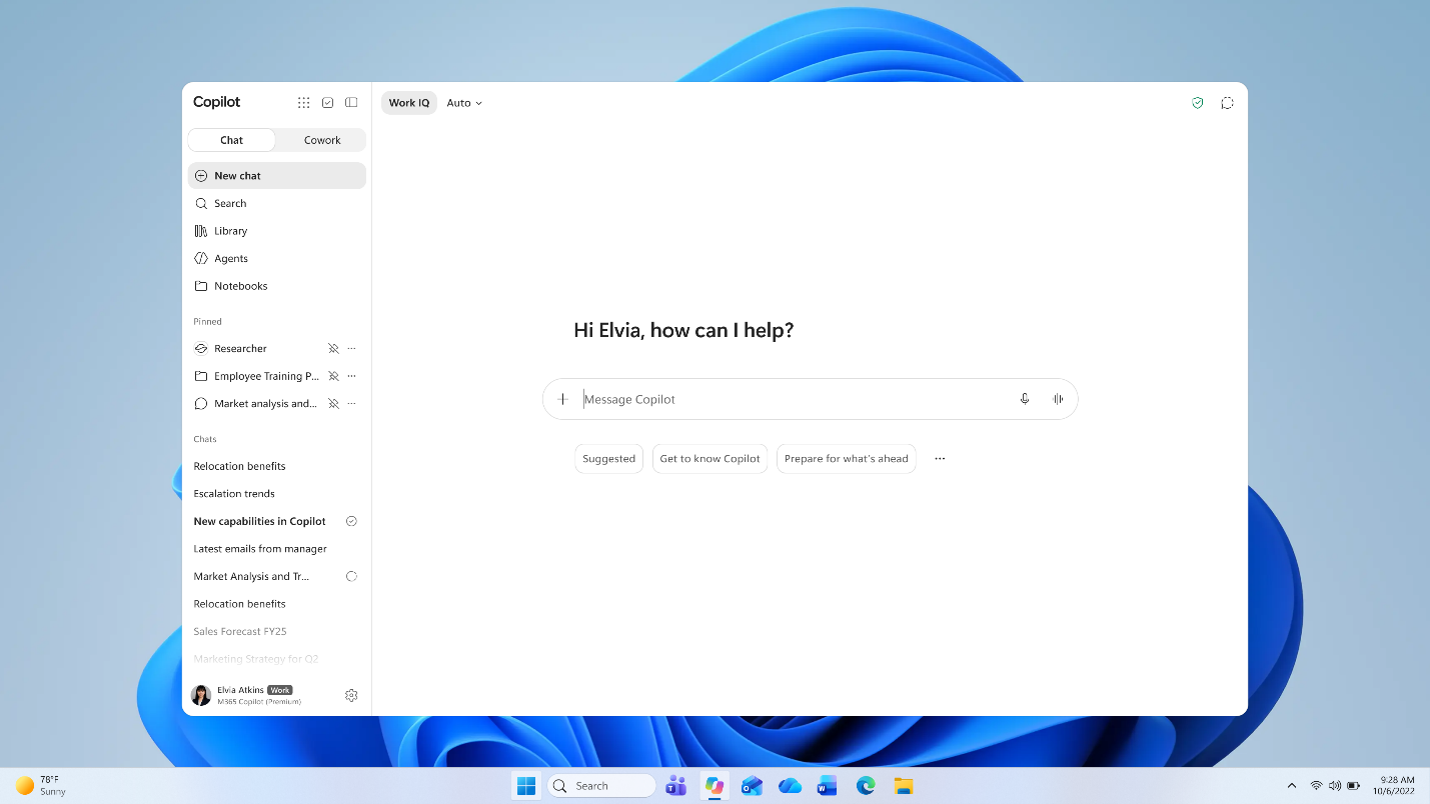
Microsoft screenshot: Get started with the Microsoft Copilot app.
Microsoft Copilot on Windows, the Web, and Your Phone
Windows Copilot
On Windows, “Copilot” generally means the Microsoft Copilot app that you can open from Start, the taskbar, a supported Copilot keyboard key, or a configured shortcut. On supported Windows 11 devices, Microsoft documents the Copilot key and Windows+ C as launch options, but available shortcuts and features vary by device and settings. Think of it as an app you launch on Windows, not an AI model embedded in every Windows command or a replacement for Settings, PowerShell, or an administrator.
Use it for general questions, explanations, brainstorming, image generation where available, and help with content you provide. If you need it to reason over a work mailbox or SharePoint files, check the signed-in account and license; opening the Windows app by itself does not grant access to company data.
Copilot on the web
The web experience is useful when you do not want to install an app. Open copilot.com or Microsoft’s current work-oriented web entry at copilot.cloud.microsoft, then sign in with the account appropriate to the task. A browser is convenient on a Chromebook, Mac, Linux workstation, or locked-down Windows PC, but the account still determines personal versus work features. The web client may also show features and usage limits that differ by region or plan.
Use web Copilot like a general assistant: ask a question, add the background it needs, specify the format you want, and verify factual claims. For current information, ask it to cite sources and open those sources yourself. A confident paragraph is not proof that a source says what the assistant claims.
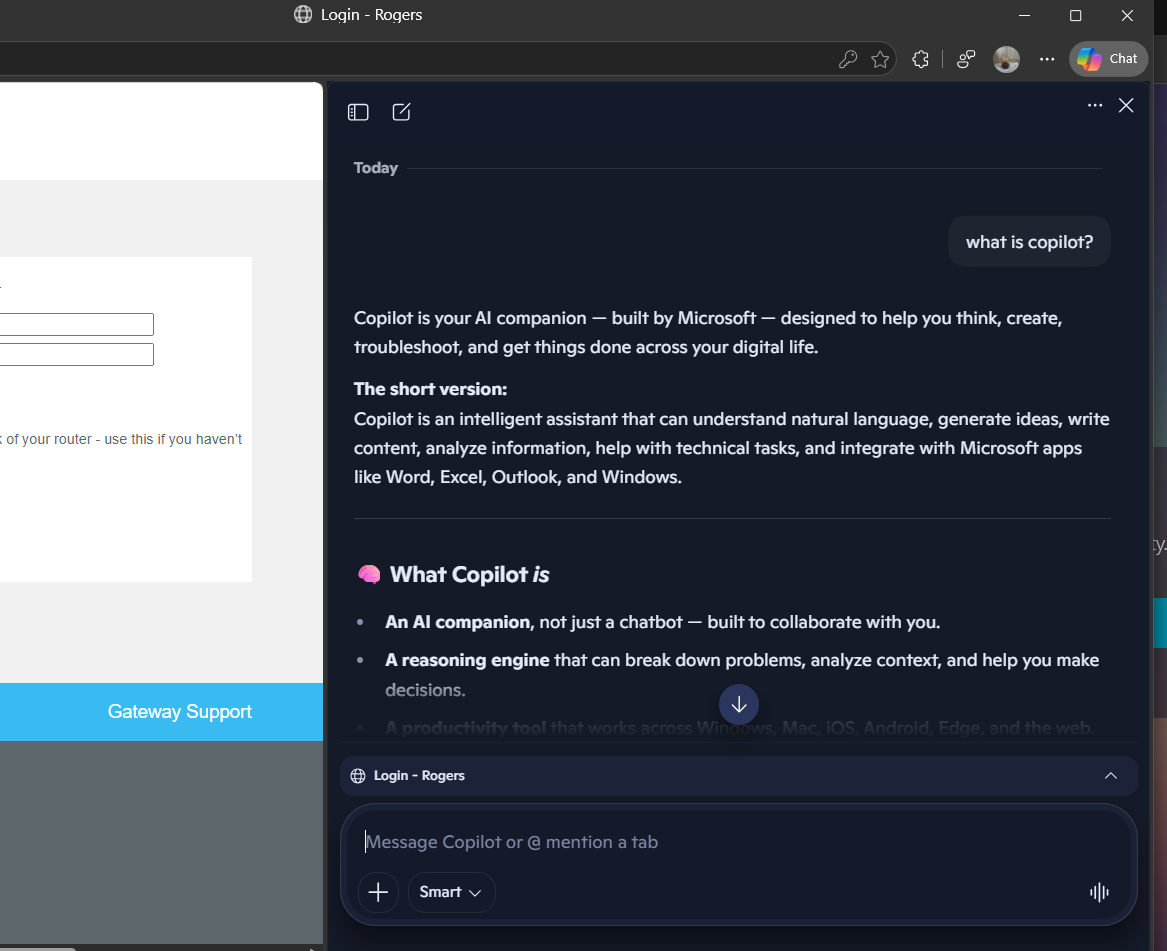
Screenshot: Copilot opened from GitHub.com, shown in the Microsoft Edge sidebar.
Copilot on a smartphone
The Microsoft Copilot app is available for iOS and Android. It can continue conversations from other Copilot surfaces when you sign in, and may provide voice interaction, file or image input, and other features depending on platform, region, and subscription. The app is not a phone-only model; it is another client for the Copilot service.
Before using it with work material, verify whether you are signed in with a personal Microsoft account or your organization’s work/school account. The account label matters. Don’t upload customer records, confidential screenshots, or internal documents to a personal account just because the phone app accepts the file. Follow your organization’s rules for AI tools and mobile devices.
Copilot in Microsoft 365 Is Different From the Consumer Chat App
Microsoft 365 Copilot brings assistance into apps such as Word, Excel, PowerPoint, Outlook, Teams, and other Microsoft 365 services. The consumer Microsoft Copilot app can answer general questions and handle files you provide, while a licensed work Copilot can use permitted Microsoft 365 work context, subject to the user’s existing access and the tenant’s policy. A work license does not make every company file visible to everyone; permissions and governance still matter, and overshared content can become easier to discover.
Examples include asking Word to draft from a document, asking Excel to explain a table, asking Outlook to summarize a thread, or asking Teams to recap a meeting. The exact feature set depends on the user’s Microsoft 365 subscription, tenant settings, app version, region, and Copilot license. Eligible work accounts may have web-grounded Copilot Chat at no additional charge, while richer in-app and work-data features require the applicable plan or add-on. Ask the Microsoft 365 administrator which license is assigned before assuming that a Copilot icon means the full work experience is enabled.
For an individual, Microsoft 365 Personal currently includes Copilot in supported Microsoft 365 apps and has higher AI usage than the free experience. Microsoft 365 Family can be shared for Office and storage, but the listed AI features are for the subscription owner; sharing the subscription does not necessarily share the owner’s Copilot allowance with every family member. The current individual plans also list Microsoft 365 Premium for higher Copilot usage. Review the plan page rather than buying from an old article or a third-party screenshot.
GitHub Copilot in VS Code, Visual Studio, and SSMS
GitHub Copilot is the choice for coding tasks. It can offer inline completions, explain selected code, answer questions about a repository, generate tests, suggest edits, and, in supported modes, carry out a multi-step task that you review. It runs in a number of editors and developer tools, including Visual Studio Code, Visual Studio, and SQL Server Management Studio. These are integrations of GitHub Copilot, not separate products named “VS Code Copilot” or “SSMS Copilot.”
In VS Code, sign in with the GitHub account that has Copilot Free, a paid personal plan, or an organization-provided seat. Install or enable the Copilot features offered by the current VS Code setup and use the Chat view or inline completions. Free access has usage caps; paid plans have larger allowances, and model or agent use can consume a plan’s AI credits. Before sending code, check your employer’s policy and the Copilot data settings for your account.
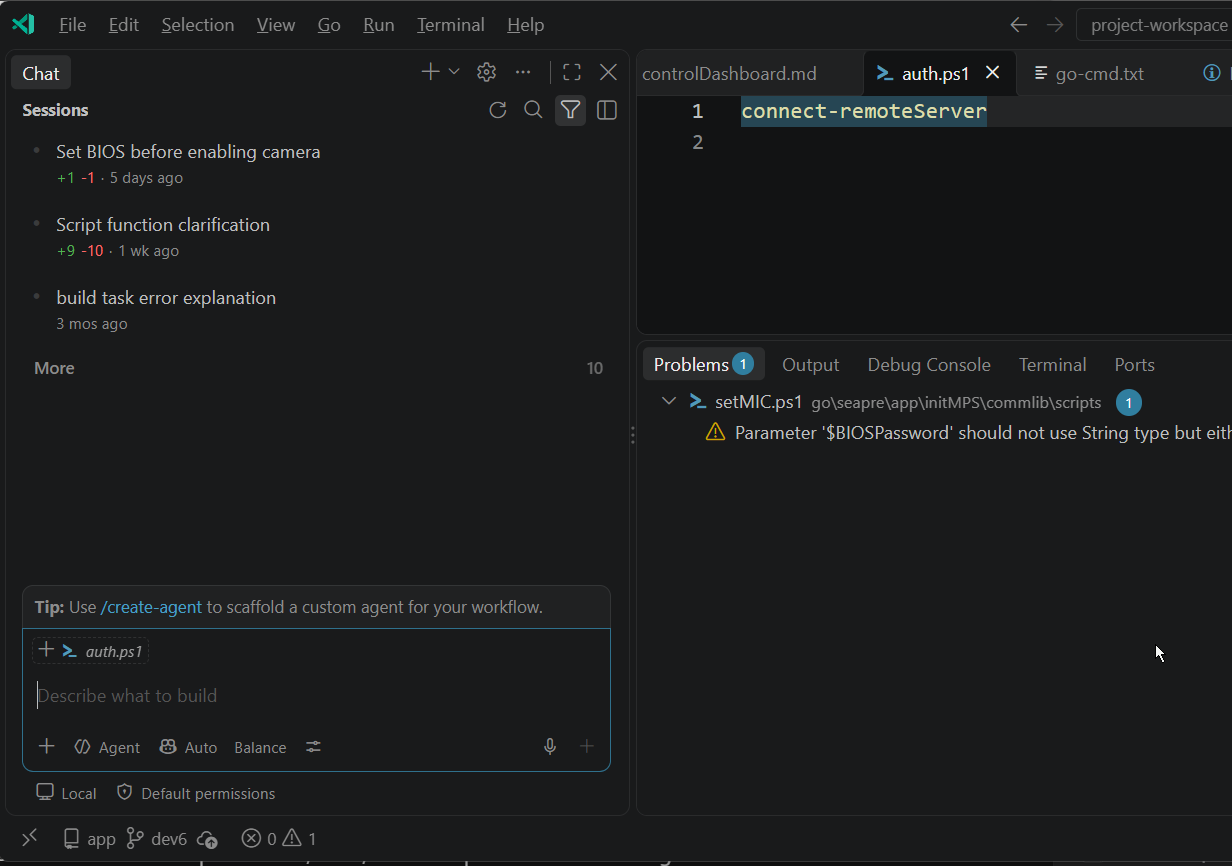
Screenshot: GitHub Copilot Chat open in Visual Studio Code.
In Visual Studio, sign in to GitHub and open Copilot Chat or use the inline features available in your version. Existing GitHub Copilot plans and organization policies determine access. The advantages are repository and editor context; the disadvantage is that a generated change may compile yet still break an invariant, test, or security boundary. Review diffs and run tests before accepting changes.
In SQL Server Management Studio, current GitHub Copilot support requires SSMS 22 or later with the AI Assistance workload and a GitHub account with Copilot access. The Chat panel can use connection and schema context to help write, explain, or refactor T-SQL. Generated SQL is still SQL: inspect the target server and database, read the full query, and run it under least-privilege credentials. SSMS documentation explicitly warns that the assistant’s read-only classification is not a security boundary. Database permissions, transactions, backups, and human review remain essential.
Copilot Compared With ChatGPT, Gemini, and Claude
These products overlap, but they are not interchangeable. The prices below are a US-dollar snapshot checked September 26, 2026. Taxes, currency, annual billing, promotions, app-store pricing, and feature limits vary. A subscription to a chat app normally does not include that provider’s API usage, and a coding subscription is not the same as a general chat subscription.
| Product or plan | Typical use | Example US price | Main advantage | Main tradeoff |
|---|---|---|---|---|
| Microsoft Copilot | General web and personal assistant | Free tier; limits apply | Easy access on Windows, web, and phone | Higher usage and specific features depend on plan and account |
| Microsoft 365 Personal | Office apps plus consumer Copilot | $9.99/month | Word, Excel, PowerPoint, Outlook, OneDrive, and Copilot together | AI usage is limited by plan; Family AI benefits are not shared with every member |
| Microsoft 365 Premium | Higher-use personal Copilot features | $19.99/month | Adds higher Copilot usage and a broader Microsoft 365 bundle | May be unnecessary if you only need occasional chat |
| Microsoft 365 Copilot Business add-on | Work-grounded Copilot in Microsoft 365 | Promotion starts at $18/user/month annual through Sep. 30, 2026; normally listed from $21 | Work-data grounding and in-app assistance under organization controls | Requires an eligible Microsoft 365 Business base plan; the offer is time-limited |
| GitHub Copilot | Code completion, coding chat, and supported agents | Free; Pro $10/month; Pro+ $39/month | Works in supported IDEs and on GitHub with code context | Model/agent use has plan limits or AI-credit consumption |
| ChatGPT Plus | General research, writing, files, analysis, and coding | $20/month | Broad general-purpose tools and model options in one app | Usage limits vary; API billing is separate |
| Google AI Pro | Gemini and Google ecosystem | $19.99/month | Integrates with Google apps and includes Google One storage benefits | Features and limits vary by country; it is a broader bundle, not just a chatbot |
| Claude Pro | Long-form writing, analysis, and coding | $20/month in the US | A focused assistant with a paid usage tier | Usage caps still apply; fewer direct Windows/Microsoft app integrations |
The Microsoft business price is especially easy to misread: a Copilot add-on is not the same as a Microsoft 365 plan bundled with Copilot. The promotion shown on Microsoft’s US page requires an eligible existing Business plan, an annual commitment, and applies to the first year. Always check the current page and total cost for the base Microsoft 365 subscription. The comparison uses representative personal plans; business and enterprise offers have different terms.
Pros and cons by task
Choose Microsoft Copilot if your everyday work already lives in Windows, Edge, Microsoft 365, Outlook, Teams, and OneDrive. Its strongest reason to pay is the workflow and permitted Microsoft 365 context, not a claim that every answer is more accurate than every competing model. It is less compelling if you use another office suite or only need occasional questions.
Choose GitHub Copilot if you spend the day coding in supported editors and want suggestions where you write code. Free is useful for trying the workflow; paid plans are for higher usage or more capable model/agent features. Don’t buy it expecting the full Microsoft 365 Copilot experience in Word or Teams.
Choose ChatGPT, Gemini, or Claude based on the tool and ecosystem you actually use. ChatGPT is a broad general-purpose assistant; Gemini can be attractive when your files and workflow are already in Google services; Claude is another general assistant with paid tiers for heavier use. Their app features and message limits change, so compare live plan pages using your own recurring tasks rather than relying on a leaderboard or a single model benchmark.
A Simple Way to Start
- Pick one recurring task, such as summarizing a long document, drafting a routine email, explaining a T-SQL query, or generating a unit test.
- Start with a free plan or a feature already included in a subscription you own.
- Use a non-sensitive example and provide the relevant context explicitly.
- Ask for a format you can check: a short summary with source links, a SQL query with assumptions, or a code change shown as a diff.
- Verify facts, citations, formulas, code, and data access. For database changes, test on a non-production system first.
- Track whether it saves enough time to justify the subscription. Check the renewal date and cancellation terms before starting a trial.
For example, a good coding prompt is: “Explain what this function does, identify possible null-handling issues, and suggest a minimal patch. Do not edit files yet.” For Microsoft 365, try: “Summarize the attached meeting notes into decisions, owners, and due dates. Mark anything that is not explicitly stated as unknown.” Clear scope helps you judge the result instead of receiving generic filler.
Privacy and Accuracy
Before pasting data into any assistant, identify whether you are using a personal or managed work account and read the current data terms for that product and license. Business protection features are not interchangeable with personal-account settings. Avoid sharing passwords, API keys, customer information, unreleased financial results, personal health information, or source code that your policy prohibits sending to an external AI service.
A model can produce plausible nonsense. Verify citations by opening the sources, calculate important totals independently, and test generated code. For SQL, use a least-privilege login, read the query plan and affected rows, and do not rely on Copilot’s “read-only” classification to protect production. For legal, medical, financial, and security decisions, use a qualified professional or authoritative primary source rather than treating a chatbot as the final authority.
Further Reading
- Microsoft Copilot app overview
- Microsoft Copilot individual plans
- Microsoft Copilot Business plans and pricing
- Set up Microsoft Copilot and assign licenses
- GitHub Copilot plans
- Set up GitHub Copilot in VS Code
- Use GitHub Copilot Chat in SSMS
- ChatGPT Plus details
- Google AI plans
- Claude plans and usage
💬 Comments