When I am connected to a Windows host through Enter-PSSession, I sometimes need to make a quick change to a configuration file. Starting Notepad is not the answer: a graphical window belongs to an interactive desktop, and PowerShell remoting does not forward that desktop to the machine where I am sitting. Other GUI editors have the same basic limitation. A terminal editor is the right shape for a remote shell, but the transport matters: SSH gives a conventional terminal, while a WinRM PowerShell session is a remoting host, not a complete remote console.
Quick answer
On a Windows 11 machine with WinGet available, install Microsoft Edit from the community repository with winget install --id Microsoft.Edit --exact --source winget, then open a file with edit C:\path\file.txt from a terminal that supports interactive terminal applications. This is a good fit over SSH with a pseudo-terminal. In a classic WinRM Enter-PSSession, native full-screen terminal programs may not receive the console input and screen behavior they expect; test it, and use Vim in a supported terminal or a file-transfer workflow if Edit cannot run reliably.
Why Notepad Does Not Appear in a PowerShell Remote Session
Enter-PSSession lets you type commands that execute on the remote computer and returns their output to your local PowerShell host. It is not Remote Desktop: it does not create a visible desktop session, show the remote Start menu, or stream graphical windows back to your computer. Running notepad.exe remotely can start a process in a noninteractive session or fail to display a useful window. The same issue applies to graphical editors such as Notepad++, VS Code, and other desktop apps.
The answer is to use an editor that runs inside the terminal and communicates through its input/output stream. Microsoft Edit (the executable is edit.exe, commonly invoked as edit) is a lightweight, open-source text user interface (TUI) editor for Windows. It has a modeless interface, menus, mouse support, find and replace, and word wrap. It is designed for editing from a command line rather than opening a separate desktop window.
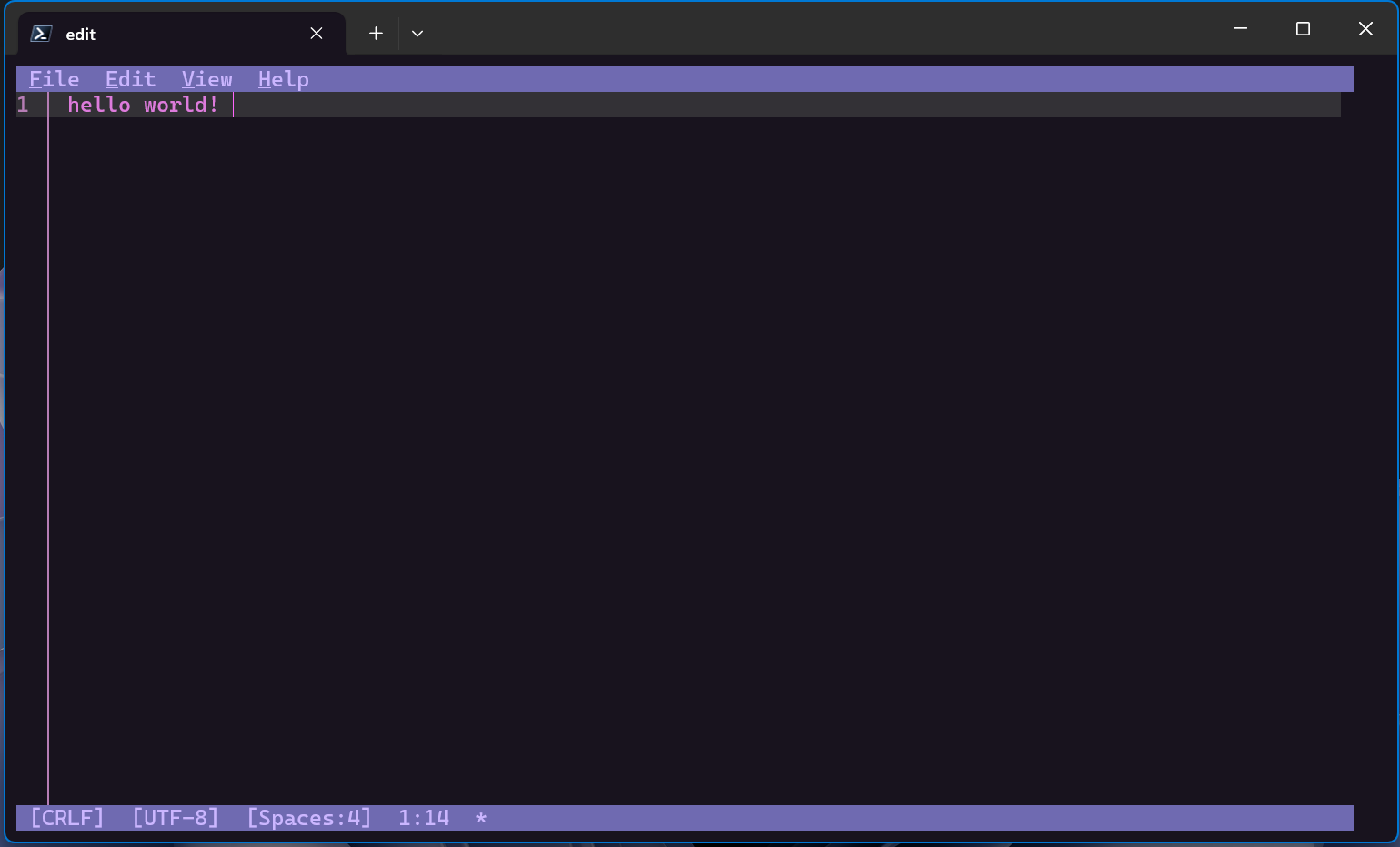
Microsoft screenshot from Edit command line tool documentation.
That distinction does not mean every remote shell can run every TUI. SSH normally allocates a pseudo-terminal (PTY) that forwards screen and keyboard interaction. PowerShell remoting over WSMan/WinRM presents an interactive PowerShell prompt but is not necessarily a native Windows console with the terminal capabilities Edit expects. PowerShell over SSH is still PowerShell remoting; whether an application can use a full-screen UI depends on how the session is hosted and whether a PTY is available. Think of transport and shell as two separate choices.
Check the Remote Host and Session Type
First identify where you are. At a remote PowerShell prompt, this prints the remote computer name and current PowerShell host:
$env:COMPUTERNAME
$Host.Name
$PSVersionTable.PSVersion
The prompt from Enter-PSSession typically includes the remote name in square brackets. A native SSH shell usually looks like a regular terminal prompt on the remote host. You can also inspect your local connection command history or use Get-PSSession from the originating PowerShell session.
Make sure the file is on the machine where you will run the editor. In a remote shell, edit C:\ProgramData\Example\settings.ini edits the file on the remote Windows computer, not a similarly named file on your local PC. Use a fully qualified path for important files, and check it before opening:
$path = 'C:\ProgramData\Example\settings.ini'
Test-Path -LiteralPath $path
Get-Item -LiteralPath $path | Select-Object FullName, Length, LastWriteTime
If you connect with SSH from Windows, a basic PowerShell SSH session can be started from your local terminal like this:
Enter-PSSession -HostName '[email protected]'That command requests a PowerShell SSH endpoint. It is different from starting a normal shell over SSH, for example ssh [email protected]. Both are remote workflows, but their shells, profiles, and terminal handling differ. For a full-screen text editor, a normal SSH terminal session with PTY allocation is often the most direct route.
Install Microsoft Edit From the winget Source
Edit is included in Windows 11 starting with the September 2025 optional update or later, including Windows 11 version 25H2. Check before installing; the command may already be present:
Get-Command edit -ErrorAction SilentlyContinueIf it is not available and WinGet is installed, explicitly select the winget source. This avoids resolving the package from msstore, which may be unavailable or intentionally restricted in an organization. The package ID is exact and casing is not significant, but --exact and --source winget make the intent clear:
winget install --id Microsoft.Edit --exact --source wingetWinGet may ask you to accept source or package agreements, or show an installer prompt. Review those prompts and follow the organization’s software approval process. For an unattended installation where policy permits accepting them automatically, add the agreement switches:
winget install --id Microsoft.Edit --exact --source winget `
    --accept-source-agreements --accept-package-agreements --silent
After installation, close and reopen the shell if command discovery is stale, then verify the command and package:
Get-Command edit
winget list --id Microsoft.Edit --exact --source winget
If winget itself is not recognized, the remote host may not have the Windows Package Manager client available to that account. WinGet is distributed with the App Installer package on supported Windows versions, and execution aliases and user PATH visibility can depend on how the session is launched. Check in a local interactive session on the remote computer or deploy the app through your approved software-management tool. Installing WinGet on your local workstation does not install Edit on the remote server.
The winget source is the WinGet community repository, not the Microsoft Store catalog. The source choice is not a way around organizational controls: network filtering, application control, proxy rules, package policies, and administrative restrictions still apply. If the source is disabled by policy, request an approved package route rather than changing those controls.
Use Edit Over SSH and PowerShell Remoting
Once installed on the remote host, pass a file path as an argument:
edit C:\ProgramData\Example\settings.iniFor paths containing spaces, quote the path so PowerShell passes it as one argument:
edit 'C:\Program Files\Example App\settings.ini'Edit supports common text-editing features such as Ctrl+F for find, Ctrl+P to switch between open files, and Alt+Z to toggle word wrap. Menus in the UI show available actions. Save changes explicitly and confirm the updated timestamp or file contents after quitting. When editing a service configuration, remember that saving a file does not necessarily reload the service; restart or reload it only after checking the service’s own operational requirements.
SSH terminal session
For an ordinary interactive SSH login to Windows, try launching Edit directly from the shell:
ssh [email protected]
edit C:\ProgramData\Example\settings.ini
The SSH client and server should negotiate an interactive terminal. If you are using a terminal emulator or automation wrapper, ensure it allocates a PTY and passes key presses through. Edit needs a terminal that can render its interface; a noninteractive command such as ssh host edit file may not provide that. Also note that the SSH login shell might be Command Prompt rather than PowerShell; edit can still be launched if it is on PATH.
WinRM Enter-PSSession
You can try Edit from an existing interactive PSSession, but do not assume that the experience is supported just because the command resolves:
Enter-PSSession -ComputerName 'server01'
Get-Command edit -ErrorAction SilentlyContinue
edit C:\ProgramData\Example\settings.ini
If the screen does not redraw, keystrokes do not reach the editor, or the session becomes difficult to exit, press Ctrl+C once to interrupt the foreground process. If needed, exit the PSSession and reconnect. Do not edit a production configuration through a broken full-screen session and assume it saved correctly. The limitation is the remoting host’s terminal/input model, not necessarily a defect in Edit.
Some Windows PowerShell remoting sessions can run simple console programs that read and write ordinary lines. A TUI editor uses cursor movement and richer input behavior, so it needs more than a stream of command text. The same caveat can affect Vim, pagers, and interactive installers. A remote session launched through a real console or SSH PTY is a better environment for those tools.
If the session is WinRM-only, use a workflow designed for it: read and update the file with PowerShell, transfer it with Copy-Item -ToSession / -FromSession, or use a management agent that provides an interactive terminal. For a small text change, Set-Content or Set-ItemProperty can be scripted, but preserve encoding, line endings, ACLs, and a backup. Avoid replacing a structured configuration wholesale when a targeted edit is possible.
Install Vim as a Terminal Editor Alternative
If Edit has trouble with a particular terminal, Vim is a mature alternative. Install the stable WinGet package on the remote Windows host:
winget install --id vim.vim --exact --source wingetRestart the terminal if PATH has changed, then open a file:
vim C:\ProgramData\Example\settings.iniVim is modal, so the first commands to remember are i to enter insert mode, Esc to return to normal mode, :w to save, :q to quit, and :wq to save and quit. If you opened a file and made no changes, :q exits. If you need to abandon unsaved edits, :q! discards them; use that deliberately. The modal interface is more powerful than Edit but less immediately familiar.
Vim is not a workaround for a transport that lacks terminal interaction. If Edit cannot receive keys in a WinRM PSSession, Vim may fail there for the same reason. Try it over SSH with a PTY or a local remote-console product before concluding the editor itself is broken.
Common Problems
edit is not recognized. Check Get-Command edit, reopen the shell after installation, and verify the package was installed on the remote machine and for an account visible to the current session. WinGet can install applications in user or machine contexts depending on the package and options. If multiple edit commands exist, inspect Get-Command edit -All and use the intended executable path.
WinGet searches the wrong catalog or the Store is blocked. Specify --source winget and the exact package ID. This selects the community repository instead of msstore, but it cannot bypass a disabled WinGet source or deployment policy. Check configured sources with winget source list; do not reset managed sources without authorization.
The editor starts but input or rendering is broken. Determine whether you are in a real SSH terminal, PowerShell over SSH, or WSMan/WinRM remoting. Test from a local console on the target and then from SSH. If local and SSH work but WinRM does not, switch transports or use a file-transfer/script editing method instead of repeatedly reinstalling the editor.
The file opens but changes do not appear in the application. Confirm you edited the remote path, saved the file, and restarted or reloaded the relevant service if required. Check that the service account can read the file and that the file’s encoding and line endings remain acceptable. Keep a copy before making high-impact changes.
💬 Comments