I received error 1618 when installing 7-Zip with winget. The package was found, the installer hash was verified, and the installation started, but Windows reported that another installation was already in progress.
This error is normally related to Windows Installer, also known as MSI. Windows Installer allows only one MSI installation transaction at a time. If another operation is running, waiting for input, or stuck after an earlier failure, a second package installation returns error 1618.
Quick answer
Error 1618 means Windows Installer is busy with another installation. Let the other installer finish or restart Windows when its state is unclear, then rerun the same 7-Zip command from an elevated PowerShell window. A successful winget retry ends with Successfully installed.
The error
The winget output looked like this:
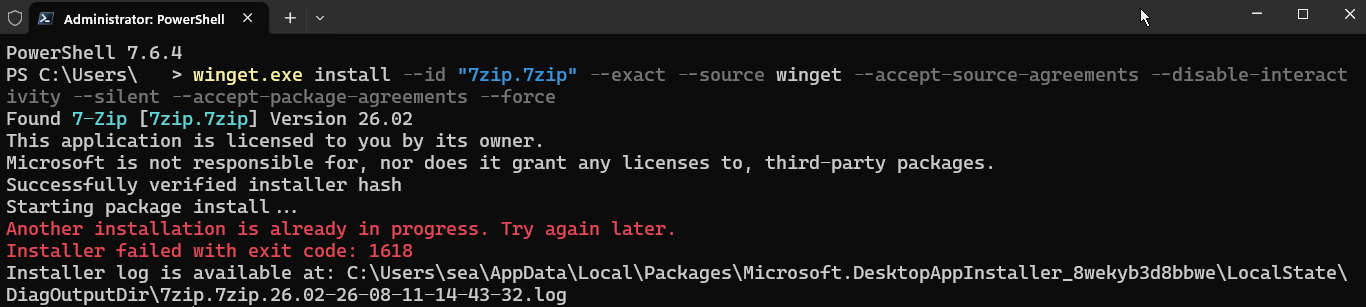
The 7-Zip installation fails because another installation is already in progress.
The important lines are:
Another installation is already in progress. Try again later.
Installer failed with exit code: 1618
The output also includes a diagnostic log path that can help identify the operation that was active.
What error 1618 means
Error 1618 means that another installation is already in progress. Windows Installer uses a system-wide installation lock because two MSI operations cannot safely modify the installer database and shared system components at the same time.
The other operation may be visible or hidden. Common examples include another winget package, Microsoft Office or Microsoft 365 Click-to-Run, a Visual C++ runtime, a driver setup program, Windows Update, or a previous installation that crashed and left msiexec.exe running.
The safest response is to wait briefly and determine whether the other installation is legitimate before ending processes.
How to fix it
1. Wait a few minutes
Wait two to five minutes and try again. Sometimes a previous installation is still completing in the background.
Check the desktop and taskbar for an installer window waiting for input. Also check Windows Update for active work or a pending restart.
winget install --id "7zip.7zip" --exact --source winget --accept-source-agreements --accept-package-agreements --force2. Check for running installers
Open Task Manager with Ctrl+Shift+Esc. Look for:
msiexec.exesetup.exe- Office or Microsoft 365 installers
- Visual C++ or runtime installers
- Driver installers
- Other setup or update programs
If an installer is visibly working, allow it to finish. If it is waiting for a prompt, bring it to the foreground and respond to it.
Only end a process when you know it is stuck and no legitimate installation is running. Ending an active Office update, driver installation, or Windows Update operation can leave the application or system incomplete.
3. Restart the Windows Installer service
If no legitimate installation is running, open PowerShell as Administrator and run:
net stop msiserver
net start msiserver
If the service refuses to stop, another operation may still be active. Wait, inspect the processes, or restart the computer instead of repeatedly forcing the service to stop.
Try the installation again:
winget install --id "7zip.7zip" --exact --source winget --accept-source-agreements --accept-package-agreements --force4. Restart the computer
Restarting Windows is the most reliable general fix when the installer state is unclear. A restart closes orphaned installer processes, completes pending operations, reloads the Windows Installer service, and releases file locks.
After restarting, open PowerShell as Administrator, wait for Windows Update activity to finish, and run the command again:
winget install --id "7zip.7zip" --exact --source winget --accept-source-agreements --accept-package-agreements --forceFor a one-time 1618 error, restarting Windows is safer than immediately force-killing every installer process.
5. Confirm the successful 7-Zip reinstall
After the installer lock cleared, rerunning the command installed 7-Zip successfully. winget found 7-Zip [7zip.7zip], verified the installer hash, and finished with Successfully installed.

The 7-Zip retry completes successfully after the installer conflict is resolved.
6. Check the log file
The error output provides a diagnostic log path. In this example, it was:
C:\Users\sea\AppData\Local\Packages\Microsoft.DesktopAppInstaller_8wekyb3d8bbwe\LocalState\DiagOutputDir\7zip.7zip.26.02-26-08-11-14-43-32.log
Use the current path from the winget output:
notepad.exe "C:\Users\sea\AppData\Local\Packages\Microsoft.DesktopAppInstaller_8wekyb3d8bbwe\LocalState\DiagOutputDir\7zip.7zip.26.02-26-08-11-14-43-32.log"The filename changes for each package and installation attempt.
Investigate why the installer is stuck
If error 1618 keeps returning, investigate before using forceful cleanup commands.
Check running processes
Open Administrator PowerShell and inspect Windows Installer:
Get-Process msiexec -ErrorAction SilentlyContinue |
    Format-Table Id, ProcessName, StartTime, CPU, Path -AutoSize
Check related setup and Office processes:
Get-Process |
    Where-Object { $_.ProcessName -match 'msiexec|setup|install|office|clicktorun' } |
    Select-Object Id, ProcessName, StartTime, CPU |
    Format-Table -AutoSize
Process names alone do not prove that a process is stuck. Consider its start time, CPU activity, visible windows, and whether Windows Update or another installer is active.
Check the Windows Installer service
Get-Service msiserver |
    Format-List Name, Status, StartType
The service is normally demand-started, so a stopped service alone is not an error. The important question is whether it can start when a valid installation begins.
View the exact msiexec command line
Get-CimInstance -ClassName Win32_Process -Filter "Name = 'msiexec.exe'" |
    Select-Object ProcessId, CommandLine, CreationDate |
    Format-List
The command line may identify the product or package that started the process. This helps distinguish an Office update from another installer and reduces the chance of stopping the wrong process.
Clear a confirmed stuck installer
Use these options from least disruptive to most disruptive. Before force-killing an installer, save work and confirm that Windows Update, Office, a driver update, or another legitimate installer is not active.
Option A: Soft restart
net stop msiserver
Start-Sleep -Seconds 3
net start msiserver
The pause gives the service time to release resources before it starts again.
Option B: Force-close msiexec.exe
If a specific msiexec.exe process is clearly stuck, run:
taskkill /F /IM msiexec.exe /T
net start msiserver
This terminates all matching msiexec.exe processes. Use it only after confirming that no legitimate installation is running.
Option C: Full cleanup sequence
This is the nuclear option for a confirmed stuck installer:
# Kill Windows Installer processes.
taskkill /F /IM msiexec.exe /T

# Stop the service.
net stop msiserver

# Wait for processes to settle.
Start-Sleep -Seconds 5

# Start the service again.
net start msiserver
If the computer recently started a major update, driver installation, or Office update, restart Windows and let that operation complete instead of using this sequence.
Check Windows Update activity
Windows Update can be the operation holding the installation lock. Check for these processes:
Get-Process |
    Where-Object { $_.ProcessName -match 'TiWorker|TrustedInstaller|wuauclt|UsoClient' } |
    Select-Object Id, ProcessName, StartTime, CPU |
    Format-Table -AutoSize
These processes can be legitimate during update installation or servicing. Do not kill them just because they appear. Check Windows Update in Settings and look for a pending restart.
View recent installer events
The Application event log can contain additional details:
Get-WinEvent -LogName Application -MaxEvents 30 |
    Where-Object { $_.ProviderName -eq 'MsiInstaller' } |
    Select-Object TimeCreated, Id, Message |
    Format-List
This can show which product was being installed and whether the operation failed, rolled back, or requested a restart.
Recommended sequence
For the common case, run these commands one by one in Administrator PowerShell:
# 1. See what's running.
Get-Process msiexec -ErrorAction SilentlyContinue

# 2. Force-kill only after confirming it is stuck.
taskkill /F /IM msiexec.exe /T

# 3. Restart the service.
net stop msiserver
net start msiserver

# 4. Verify the service is running.
Get-Service msiserver

# 5. Try installing 7-Zip again.
winget install --id "7zip.7zip" --exact --source winget --accept-source-agreements --accept-package-agreements --force
For a normal one-time failure, use the safer sequence first: wait, restart Windows, open Administrator PowerShell, and run the winget command again. Use process-kill commands only when the investigation shows that an installer is actually stuck.
Final checklist
| Order | Action | Reason |
|---|---|---|
| 1 | Wait two to five minutes. | The previous installer may still be finishing. |
| 2 | Check Task Manager for msiexec.exe, setup.exe, Office, or other installers. |
Find visible or stuck setup activity. |
| 3 | Restart Windows. | Safely clears most orphaned installer state. |
| 4 | Run winget in Administrator PowerShell. |
Retry with the required permissions. |
| 5 | Inspect processes, service state, and logs. | Investigate repeated failures. |
| 6 | Restart the service or force-close confirmed stuck msiexec.exe. |
Clear a verified stuck installer. |
The main lesson is to treat error 1618 as an installer-lock problem, not as a 7-Zip package problem. Let legitimate installations finish, restart Windows when the state is unclear, and use forceful process cleanup only after confirming that the process is actually stuck.
💬 Comments