A domain user might be unable to sign in to an otherwise healthy Windows workstation and receive this message:
The trust relationship between this workstation and the primary domain failed.
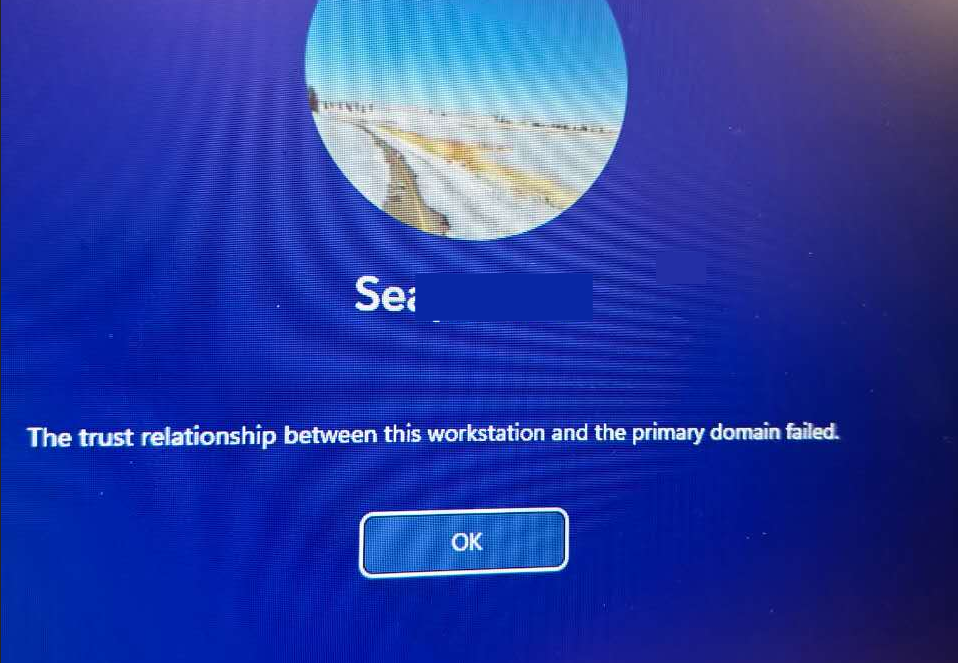
A Windows workstation cannot authenticate its computer account to the Active Directory domain.
This is an Active Directory computer-account problem, not usually a bad password for the person signing in. The workstation has a secure channel to the domain. Windows uses that channel to authenticate the computer account before it can complete normal domain operations. When the workstation and Active Directory no longer agree on that account’s machine password, Windows refuses the domain sign-in.
Quick answer
Sign in with a local administrator account first, confirm the workstation is using internal Active Directory DNS and can discover a domain controller, then test the secure channel with Test-ComputerSecureChannel -Verbose. If the result is False, repair it in place with Test-ComputerSecureChannel -Repair -Credential (Get-Credential) and restart. Removing and rejoining the domain is reliable, but it should be the fallback because it requires two restarts and can affect local profiles, group policy, and access to domain resources.
Do not use a domain account for the initial sign-in. The domain trust is what has failed, so a local administrator account is required to investigate and repair it.
The trust relationship error on a Windows workstation
Every domain-joined computer has a computer account in Active Directory, usually named after the workstation with a trailing dollar sign. The computer account has a password that Windows changes automatically on a schedule. The workstation keeps one copy and Active Directory keeps another.
If those copies no longer match, the domain controller cannot authenticate the workstation. That is why a valid domain user can see this error at the Windows sign-in screen. Cached credentials may allow a sign-in in some cases, but they are not a repair and should not be relied on.
This article applies to a domain-joined Windows client workstation. The commands should be run in an elevated PowerShell window on that workstation. Do not use Test-ComputerSecureChannel to troubleshoot a domain controller; use domain-controller-specific tools such as netdom instead.
Why the workstation trust fails
The mismatch normally has a specific operational cause. Common examples include:
- The workstation was disconnected from the domain for a long period and its machine-account password is stale.
- A virtual machine or computer was restored from an old snapshot, image, or backup.
- A workstation was cloned without running Sysprep first.
- An administrator reset, deleted, or recreated the computer account in Active Directory.
- DNS points to a public resolver or an unavailable DNS server, so the workstation cannot find the correct domain controller.
- The workstation clock differs from the domain controller by more than Kerberos permits.
The first four cases can create a genuine machine-password mismatch. DNS, network, and time problems can look identical from the sign-in screen because Windows cannot reach or validate against a domain controller. That is why I check name resolution and connectivity before resetting anything in Active Directory.
Sign in with a local administrator
At the Windows sign-in screen, select another user if needed and use a local administrator account. Either of these formats identifies a local account:
.\Administrator
COMPUTERNAME\LocalAdminUser
Replace COMPUTERNAME and LocalAdminUser with the local workstation name and account. A local administrator password may be managed through Windows LAPS in many organizations, so use the approved administrative process for your environment.
After signing in, open PowerShell as Administrator. Most of the commands below need elevation and several request credentials that are permitted to repair the computer account. Use a delegated account with the necessary rights where possible instead of routinely using a broad Domain Admin account.
Check DNS and domain-controller access first
The Windows client should normally use DNS servers hosted on domain controllers or internal DNS servers that can resolve the Active Directory zone. Public resolvers such as 8.8.8.8 or 1.1.1.1 cannot return the AD service records that Windows needs for domain-controller discovery.
Start by checking the configured IPv4 DNS servers:
Get-DnsClientServerAddress -AddressFamily IPv4 |
    Format-Table InterfaceAlias, ServerAddresses -AutoSize
Next, resolve the domain name. Replace yourdomain.com with the Active Directory DNS name. The query with a trailing dot requests the fully qualified DNS name and can help identify a search-suffix problem.
nslookup yourdomain.com
nslookup yourdomain.com.
Resolve-DnsName yourdomain.com
Ask Windows to discover a domain controller and list the controllers it knows about:
nltest /dsgetdc:yourdomain.com
nltest /dclist:yourdomain.com
The first command should return a reachable domain controller, its address, and flags such as DS LDAP KDC TIMESERV. If it cannot find a controller, fix DNS, routing, VPN connectivity, or firewall access before attempting a trust repair.
Once you know a domain controller name, test the relevant services. LDAP uses TCP 389 and DNS commonly uses TCP 53; these tests do not replace all AD connectivity checks, but they quickly expose a basic network block.
Test-NetConnection your-dc-name.yourdomain.com -Port 389
Test-NetConnection your-dc-name.yourdomain.com -Port 53
ping your-dc-name.yourdomain.com
If you correct DNS settings, clear the old cache and register the client again:
ipconfig /flushdns
ipconfig /registerdns
Also check the system clock. Kerberos normally rejects authentication when the client and domain controller differ by more than five minutes. On a connected domain workstation, run:
w32tm /resync /force
w32tm /query /status
Investigate any time-service error rather than repeatedly forcing a sync. A laptop that is off the corporate network may need its VPN connected before it can use the domain time hierarchy.
Test the computer secure channel
When DNS, domain-controller discovery, and time are healthy, test the workstation’s current trust:
Test-ComputerSecureChannel -VerboseTrue means the secure channel is currently working. In that case, revisit the specific sign-in account, cached credentials, network location, or event logs rather than resetting the computer account without evidence.
False means Windows could not validate the secure channel. Before repair, confirm that the computer account still exists in Active Directory and has not been intentionally replaced. An Active Directory administrator can verify this in Active Directory Users and Computers or with the ActiveDirectory PowerShell module on an appropriate management host.
Repair the secure channel without leaving the domain
For a normal client workstation with a valid computer account, repair the secure channel in place first:
Test-ComputerSecureChannel -Repair -Credential (Get-Credential)When prompted, enter an account with permission to reset the workstation’s computer-account password, for example DOMAIN\Administrator if that is the account your organization authorizes for this work. A successful repair returns True.
Restart the workstation after the repair:
Restart-ComputerThen try the affected domain account again. This method preserves domain membership and is usually the least disruptive solution. It is the repair I use when the workstation can find a controller and the computer object is correct, but the local and domain machine passwords are out of sync.
Fallback: reset the computer account password
If the direct secure-channel repair fails, reset the computer account password against a known good domain controller. Replace the server name with the controller you verified in the DNS and connectivity checks:
Reset-ComputerMachinePassword -Server YourDomainControllerName -Credential (Get-Credential)Restart Windows when it completes, then test the channel once more:
Test-ComputerSecureChannel -VerboseAvoid resetting the account repeatedly from multiple places. A reset changes the machine-account password, so two administrators working on the same problem can make diagnosis harder. Record which domain controller was contacted and whether the command completed before trying another method.
Last resort: remove and rejoin the domain
Removing and rejoining the domain is the most reliable recovery path when the computer account is missing, damaged, or cannot be repaired. It is more disruptive than an in-place repair: the workstation restarts twice, group policies reapply, and users may need profile or resource access checked after rejoining.
From an elevated PowerShell window while signed in as local administrator, remove the workstation to a workgroup:
Remove-Computer -UnjoinDomainCredential (Get-Credential) -WorkgroupName "WORKGROUP" -Force -RestartAfter the restart, sign in locally again. Confirm that DNS still points to the internal AD DNS servers, then join the domain:
Add-Computer -DomainName "yourdomain.com" -Credential (Get-Credential) -RestartUse the actual domain name, not a placeholder, and make sure the joining account is allowed to add computers to the domain or has the delegated rights for the target organizational unit. After the second restart, sign in with a domain account and confirm expected group policy, mapped drives, and line-of-business applications are available.
Extra commands for diagnosis
These commands provide a compact way to collect more evidence:
| Purpose | Command |
|---|---|
| View secure channel status | nltest /sc_query:yourdomain.com |
| Reset the secure channel | nltest /sc_reset:yourdomain.com |
| Confirm domain membership | systeminfo |
| View the computer account password age on an AD management host | (Get-ADComputer $env:COMPUTERNAME -Properties PasswordLastSet).PasswordLastSet |
nltest /sc_reset can repair a channel, but I prefer the PowerShell methods earlier in this post because they are explicit about the credential used and fit better into PowerShell troubleshooting. The Get-ADComputer command requires the ActiveDirectory module and should be run where that module is installed. When querying from a domain controller or management server, replace $env:COMPUTERNAME with the affected workstation name if necessary.
Recommended repair order
- Sign in as a local administrator.
- Confirm internal DNS, domain-controller discovery, basic network access, and time synchronization.
- Run
Test-ComputerSecureChannel -Verbose. - Repair with
Test-ComputerSecureChannel -Repair -Credential (Get-Credential)and restart. - Reset the computer machine password if the in-place repair fails.
- Remove and rejoin the domain only when the account is missing or the earlier repairs do not work.
The error is serious enough to block domain logons, but it is usually recoverable without rebuilding the workstation. Starting with DNS and a targeted secure-channel repair avoids the unnecessary disruption of removing a computer from the domain when a single machine-password repair is all that is needed.
💬 Comments