Installing PowerShell is easy on an internet-connected machine. It gets more interesting on servers, locked-down workstations, and networks that cannot reach package repositories. This post covers both cases: normal installs with package managers and offline installs where you need to move installers and modules by hand.
I learned this the hard way on a factory floor. The machine I needed to automate had no internet, no USB ports enabled, and a security policy that blocked every installer I tried. I spent two hours fighting it before someone mentioned the offline MSI was sitting on a network share three folders deep — put there by the previous admin who had hit the exact same wall. Now I keep a USB stick with offline installers in my bag. It has saved me more times than I can count.
In short
On connected Windows machines, install PowerShell 7 with winget install Microsoft.PowerShell and keep Windows PowerShell 5.1 for legacy modules. On offline machines, download the PowerShell installer, required modules, and trusted package sources on a connected computer, move them to the target system, then install from local files. Verify the install with $PSVersionTable.PSVersion.
Part 1: Installing PowerShell in an Online Environment
If you are still launching the blue icon named “Windows PowerShell”, you are using the older Windows-only shell. pwsh (PowerShell 7+) is the current cross-platform version and is usually the better default for new scripts.
Modern PowerShell runs side-by-side with the older Windows PowerShell, so you can safely install it without breaking legacy scripts.
Installing PowerShell on Windows
Here are the best methods for installing pwsh on Windows 10 and 11.
The Recommended Method: Using winget
The Windows Package Manager (winget) is the fastest and most reliable way to install and update PowerShell. On modern versions of Windows, winget is already included.
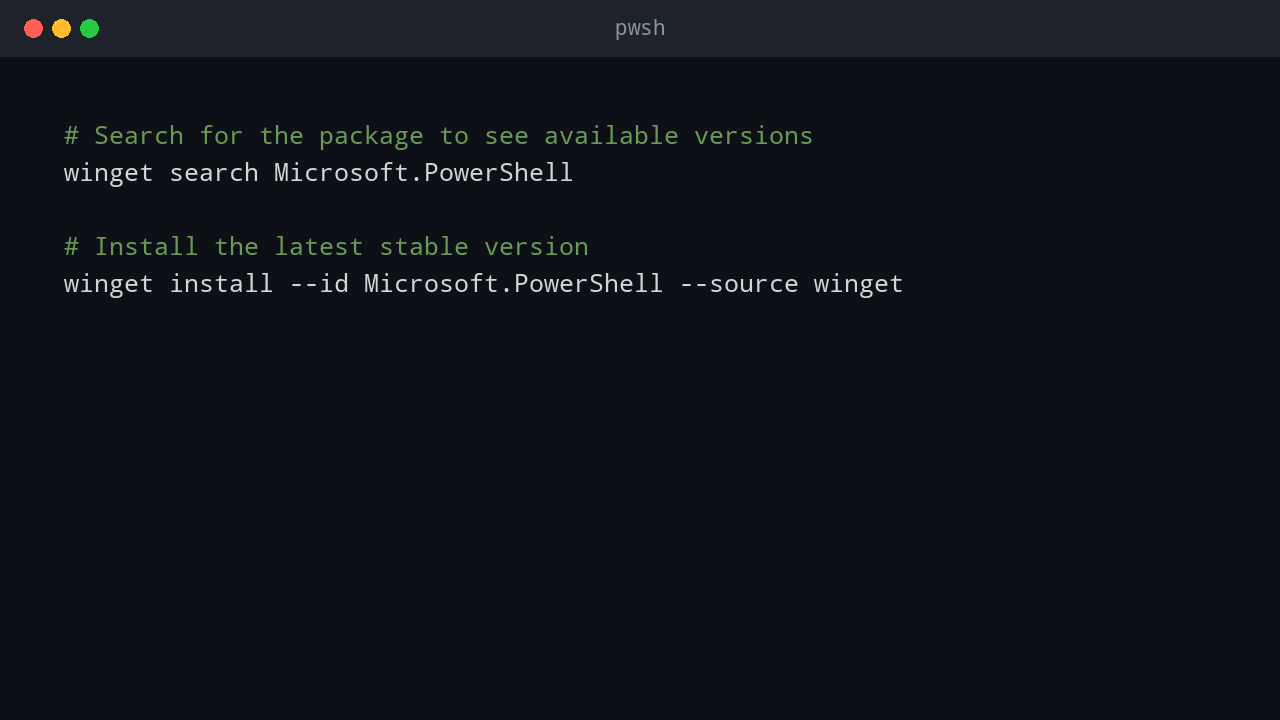
Open a terminal and run:
# Search for the package to see available versions
winget search Microsoft.PowerShell

# Install the latest stable version
winget install --id Microsoft.PowerShell --source winget
Alternative Methods for Windows
- Microsoft Store: Search for “PowerShell” in the Store and click Install. This is great for automatic background updates.
- Manual MSI Installer: Download the
.msifile from the PowerShell GitHub Releases page for offline use or specific version control.
Installing PowerShell on Linux
The best way to install PowerShell on Linux is through your distribution’s native package manager.
On Debian and Ubuntu
- Add the Microsoft GPG Signing Key:
# Using Ubuntu 22.04 as an example wget -q "https://packages.microsoft.com/config/ubuntu/22.04/packages-microsoft-prod.deb" sudo dpkg -i packages-microsoft-prod.deb rm packages-microsoft-prod.deb - Update and Install:
sudo apt update
sudo apt install -y powershell
On RHEL, CentOS, and Fedora
- Register the Microsoft RPM Repository:
# Using RHEL 8 as an example sudo rpm --import https://packages.microsoft.com/keys/microsoft.asc sudo dnf install -y https://packages.microsoft.com/config/rhel/8/packages-microsoft-prod.rpm - Install:
sudo dnf install -y powershell
After installation on any OS, open a new terminal and type pwsh. The prompt should change to PS>. Verify your version with $PSVersionTable.
Part 2: The Guide to Offline Installations
Managing servers in a secure or air-gapped environment presents a unique challenge: how do you install software and modules without an internet connection? The answer is a simple “Download, Transfer, Install” workflow.
Installing PowerShell Modules Offline
If you can’t use Install-Module, you can use an online computer to pre-download the module and its dependencies.
Step 1: Save the Module on an Online Machine
The Save-Module cmdlet is designed for this. On a machine with internet access, create a staging folder and run the command.
# 1. Create a staging directory
$stagingPath = "$env:USERPROFILE\OfflineModules"
New-Item -Path $stagingPath -ItemType Directory -Force

# 2. Save the module (e.g., Posh-SSH) and its dependencies
Save-Module -Name Posh-SSH -Path $stagingPath
Step 2: Transfer the Module Folder
Copy the entire Posh-SSH folder (and any other dependency folders) from your staging directory (C:\Users\YourUser\OfflineModules) to a USB drive.
Step 3: Install the Module on the Offline Machine
On the offline machine, copy the module folders into a location where PowerShell can find them. You can see these locations by running $env:PSModulePath.
- For the current user:
%USERPROFILE%\Documents\PowerShell\Modules - For all users (requires admin):
%ProgramFiles%\WindowsPowerShell\Modules
Step 4: Verify the Installation
Open a new PowerShell terminal on the offline machine.
# Check if the module is available
Get-Module -Name Posh-SSH -ListAvailable
# Import the module to start using its commands
Import-Module -Name Posh-SSH
Installing Software & Features Offline (Example: OpenSSH Server)
The same “Download, Transfer, Install” concept applies to Windows features.
Step 1: Obtain the Installer on an Online Machine
- Method A (Recommended): Download the latest
OpenSSH-Win64-vX.X.X.X.msifile from the Win32-OpenSSH GitHub releases page. - Method B: Download the Features on Demand (FOD) ISO that matches your Windows build and find the
OpenSSH-Server-Package~...~.cabfile.
Copy your chosen installer (.msi or .cab) to removable media.
Step 2: Install the Software on the Offline Machine
Transfer the file to the offline machine (e.g., to C:\Temp) and run the appropriate installer from an elevated PowerShell prompt.
- For the MSI Installer:
msiexec /i "C:\Temp\OpenSSH-Win64-v9.5.0.0p1-Beta.msi" /quiet - For the CAB File:
Add-WindowsCapability -Online -Name OpenSSH.Server~~~~0.0.1.0 -Source C:\Temp
Step 3: Post-Installation and Firewall Configuration
Start the service and open the firewall port.
# Start the service and set it to start automatically
Start-Service -Name sshd
Set-Service -Name sshd -StartupType Automatic

# Allow inbound traffic on port 22
New-NetFirewallRule -Name "OpenSSH Server (sshd)" -Direction Inbound -Protocol TCP -Action Allow -LocalPort 22
Part 3: Updating PowerShell
Keeping PowerShell up-to-date is just as important as the initial installation. Regular updates provide security patches, performance improvements, and new features.
On Windows
If you installed via winget or the Microsoft Store, updating is simple.
Using winget:
# See if an update is available
winget list Microsoft.PowerShell
# Upgrade to the latest version
winget upgrade --id Microsoft.PowerShell --source winget
Using the Microsoft Store: Updates are handled automatically by the Microsoft Store app in the background. You can manually check for updates by opening the Store, going to your Library, and clicking “Get updates”.
On Linux
If you used a package manager, updating PowerShell is part of the standard system update process.
On Debian/Ubuntu:
sudo apt update
sudo apt upgrade powershell
On RHEL/CentOS/Fedora:
sudo dnf update powershellBy using a package manager for installation, you ensure that keeping PowerShell current is a simple and repeatable process.
Conclusion
Managing PowerShell installations in any environment is straightforward with the right workflow. For online systems, package managers like winget and apt provide the simplest experience. For air-gapped systems, the “Download, Transfer, Install” method using Save-Module and offline installers ensures you can provision any machine, anywhere.
Post-Installation Validation
After installing PowerShell, validate the environment before handing it to users or automation jobs. Start by checking the executable that runs when you type pwsh, because older systems may have multiple versions installed side by side.
Get-Command pwsh
pwsh -NoLogo -Command '$PSVersionTable'
Confirm the version, edition, operating system, and architecture. This matters when scripts depend on newer PowerShell features, native command behavior, or module compatibility.
Next, verify module paths. A common issue after offline installs is placing modules in a folder that PowerShell does not search. Use $env:PSModulePath -split ';' on Windows or $env:PSModulePath -split ':' on Linux to confirm the expected directories.
For enterprise deployments, document these items:
- PowerShell version and install method.
- Required modules and exact module versions.
- Source used for offline installers or packages.
- Hashes for downloaded installers.
- Update process and rollback process.
That documentation makes future rebuilds predictable. It also helps security teams review where installers came from and whether a machine is running an approved version.
Choosing a Standard Install Method
Use one standard method per environment whenever possible. Mixing Microsoft Store, MSI, ZIP, and package-manager installs across the same fleet makes troubleshooting harder. For managed Windows workstations, winget or MSI deployment is usually easier to control. For servers, MSI-based installation may be more predictable. For Linux, use the vendor package repository so updates flow through the normal operating system patch process.
Common Install Problems I Check First
When pwsh does not start after installation, I first check the PATH and the actual executable location. On Windows, an MSI install and a Microsoft Store install can leave different paths. On Linux, a package install may succeed but the current shell session may need to be restarted before the new command is found.
For offline module installs, I check the module folder structure before blaming PowerShellGet. The module should normally live under a folder named after the module, with a version folder inside it. If the files are copied one level too high or too low, Get-Module -ListAvailable will not find them.
For locked-down servers, I also check execution policy, antivirus quarantine, and TLS inspection. Those are not PowerShell installation problems, but they often look like one when a script or module fails immediately after setup.
💬 Comments