Software inventory is one of those jobs that sounds simple until you need to do it across many Windows machines. For audits, license checks, cleanup work, or troubleshooting, I want a repeatable way to answer one question: what is installed, and where?
This post uses PowerShell to build that report. The workflow is: get a target computer list from DNS, connect to each machine, read installed-app registry keys, and export the result to CSV.
The short version
To inventory installed applications on remote Windows PCs, build a target list, test connectivity, read the uninstall registry keys from each reachable machine, and export the results to CSV. Query both 64-bit and 32-bit uninstall registry paths. Avoid Win32_Product for inventory because it is slow and can trigger MSI repair actions on remote systems.
1. Discovering Target Machines: Getting a PC List from DNS
Before querying applications, I need a list of target computers. In many domain environments, DNS is the quickest place to start. This example looks for machines that follow a naming convention: names starting with PPC, such as PPC1001 or PPC1002.
This method is highly scalable and ensures you’re targeting active machines registered in your network.
Why DNS?
- Accuracy: DNS records are typically kept up-to-date by your domain controllers or DHCP servers.
- Scalability: You can easily query thousands of potential hostnames without hardcoding a list.
- Dynamic Environments: It accounts for machines coming online or offline without manual intervention.
Step-by-Step: Querying DNS for “PPC” Computers
We’ll use the Resolve-DnsName cmdlet, available in modern PowerShell versions, to find machines. This cmdlet is powerful and can query various DNS record types. For our purpose, we’re interested in A (Host) records.
First, let’s define our domain and the prefix for our computers. Replace "yourdomain.com" with your actual domain name.
# Define your domain name
$Domain = "yourdomain.com"
# Define the prefix for your target computers
$ComputerPrefix = "PPC"
# Define the output file for the PC list
$PCListFile = "ppc-list.txt"

Write-Host "Searching for computers starting with '$ComputerPrefix' in domain '$Domain'..." -ForegroundColor Cyan

try {
    # Query all A records in the domain
    # This might return a large number of records, so we'll filter them.
    $DnsRecords = Resolve-DnsName -Name "*.$Domain" -Type A -ErrorAction Stop

    # Filter for hostnames that start with our defined prefix
    $TargetComputers = $DnsRecords |
        Where-Object { $_.Type -eq "A" -and $_.Name -like "$ComputerPrefix*" } |
        Select-Object -ExpandProperty Name |
        Sort-Object -Unique

    if ($TargetComputers.Count -gt 0) {
        # Save the list of target computers to a text file
        $TargetComputers | Out-File -FilePath $PCListFile -Encoding UTF8
        Write-Host "Found $($TargetComputers.Count) computers. List saved to '$PCListFile'." -ForegroundColor Green
    } else {
        Write-Warning "No computers found matching the prefix '$ComputerPrefix' in domain '$Domain'."
}
catch {
    Write-Error "An error occurred during DNS resolution: $($_.Exception.Message)"
    Write-Warning "Please ensure your DNS servers are reachable and the domain name is correct."
}

```text
PPC1001
PPC1002
PPC1003
PPC1004
PPC1005
PPC1006
PPC1007
PPC1008
PPC1009
PPC1010
Example Output: Top 10 entries from ppc-list.txt
#### Code Explanation:

*   **`$Domain` and `$ComputerPrefix`**: These variables make the script flexible. You can easily adapt it to different domains and naming conventions.
*   **`Resolve-DnsName -Name "*.$Domain" -Type A`**: This is the core of our DNS query.
    *   `-Name "*.$Domain"`: We use a wildcard (`*`) to request all host records within the specified domain.
    *   `-Type A`: We specifically ask for A (Host) records, which map hostnames to IPv4 addresses.
    *   `-ErrorAction Stop`: If there's an issue with DNS resolution (e.g., domain not found, DNS server unreachable), the script will stop and report the error.
*   **`Where-Object { $_.Type -eq "A" -and $_.Name -like "$ComputerPrefix*" }`**: This filters the potentially large list of DNS records. We ensure it's an A record and that the hostname (`$_.Name`) starts with our desired prefix (`PPC`).
*   **`Select-Object -ExpandProperty Name`**: This extracts just the hostname string from each filtered DNS record object.
*   **`Sort-Object -Unique`**: Ensures we have a sorted list of unique hostnames, removing any duplicates that might arise from DNS queries.
*   **`Out-File -FilePath $PCListFile -Encoding UTF8`**: This saves our clean list of computer names to the specified text file (`ppc-list.txt`), using UTF8 encoding for broad compatibility.

Now that we have our `ppc-list.txt` populated with target machine names, the next step is to iterate through this list and query each machine for its installed applications.


## 2. Collecting Installed Applications: Querying Remote Registries

Installed applications on Windows are primarily registered in the system's registry. We need to query specific registry paths to retrieve details like the application's display name, version, publisher, and installation date. Since we're dealing with remote machines, we'll use PowerShell Remoting (`Invoke-Command`) to execute these registry queries on each target computer.

### Understanding Application Registry Paths

Applications can register themselves in different locations in the Windows Registry:

*   **`HKLM:\SOFTWARE\Microsoft\Windows\CurrentVersion\Uninstall\`**: This path typically contains applications installed for all users on the system (64-bit applications on a 64-bit OS).
*   **`HKLM:\SOFTWARE\Wow6432Node\Microsoft\Windows\CurrentVersion\Uninstall\`**: This path is for 32-bit applications installed on a 64-bit Windows operating system. The `Wow6432Node` indicates a redirection for 32-bit applications.
*   **`HKCU:\Software\Microsoft\Windows\CurrentVersion\Uninstall\`**: This path contains applications installed for the currently logged-on user. For remote inventory, HKCU is usually less useful unless you are connecting as the specific user whose apps you need to check. I usually focus on HKLM first because most enterprise software installs for all users.

### Step-by-Step: Retrieving Apps from Remote PCs

To achieve this, we'll read the list of computers from `ppc-list.txt` and loop through each one, using `Invoke-Command` to run a script block that queries the registry locally on the remote machine. The results will then be aggregated into a single collection.

```powershell
# Read the list of computers
$Computers = Get-Content -Path $PCListFile

# Define the output CSV file
$AppListFile = "app-list.csv"
# Create an empty array to store results from all computers
$AllInstalledApps = @()

Write-Host "Starting application inventory for $($Computers.Count) computers..." -ForegroundColor Cyan

foreach ($Computer in $Computers) {
    Write-Host "Processing computer: $Computer" -ForegroundColor Yellow
    try {
        # Test connection to the computer first
        # We use -ErrorAction SilentlyContinue and check the result to handle offline machines gracefully
        $TestConnection = Test-Connection -ComputerName $Computer -Count 1 -ErrorAction SilentlyContinue -Quiet

        if ($TestConnection) {
            Write-Host "Successfully connected to $Computer. Querying installed applications..." -ForegroundColor Green

            # Use Invoke-Command to run the registry query on the remote machine
            $RemoteApps = Invoke-Command -ComputerName $Computer -ScriptBlock {
                # Define registry paths to check for installed applications
                $UninstallPaths = @(
                    "HKLM:\SOFTWARE\Microsoft\Windows\CurrentVersion\Uninstall\*",
                    "HKLM:\SOFTWARE\Wow6432Node\Microsoft\Windows\CurrentVersion\Uninstall\*"
                    # HKCU path is generally not useful for remote inventory as it's user-specific
                    # "HKCU:\Software\Microsoft\Windows\CurrentVersion\Uninstall\*"
                )

                # Initialize an empty array for apps on this remote computer
                $ComputerApps = @()

                foreach ($Path in $UninstallPaths) {
                    Get-ItemProperty $Path -ErrorAction SilentlyContinue |
                    Where-Object {
                        # Filter out empty or unmanaged entries
                        $_.DisplayName -and ($_.SystemComponent -ne 1) -and ($_.ParentKeyName -eq $null)
                    } |
                    Select-Object @{Name="ComputerName"; Expression={$env:COMPUTERNAME}},
                                  DisplayName,
                                  DisplayVersion,
                                  Publisher,
                                  InstallDate |
                    ForEach-Object { $ComputerApps += $_ } # Add each app to the array
                }
                $ComputerApps # Return the collected apps
            } -ErrorAction Stop

            if ($RemoteApps) {
                $AllInstalledApps += $RemoteApps
                Write-Host "Found $($RemoteApps.Count) applications on $Computer." -ForegroundColor Green
            } else {
                Write-Warning "No applications found or retrieved from $Computer."
            }
        } else {
            Write-Warning "Could not reach computer $Computer. It might be offline or unreachable."
        }
    }
    catch {
        Write-Error "An error occurred while processing $Computer: $($_.Exception.Message)"
        Write-Warning "Ensure WinRM is enabled and configured on $Computer, and you have appropriate permissions."
    }
}

# Export the aggregated list to a CSV file
if ($AllInstalledApps.Count -gt 0) {
    $AllInstalledApps | Export-Csv -Path $AppListFile -NoTypeInformation -Encoding UTF8 -Force
    Write-Host "Done! All installed applications saved to '$AppListFile'." -ForegroundColor Green
} else {
    Write-Warning "No applications were collected from any of the target computers. '$AppListFile' was not created."
}
Code Explanation:
Get-Content -Path $PCListFile: Reads each line (computer name) from our previously generatedppc-list.txt.$AllInstalledApps = @(): Initializes an array to store application data from all remote computers. This allows us to collect all results before exporting them once.Test-Connection -ComputerName $Computer -Count 1 -ErrorAction SilentlyContinue -Quiet: Performs a quick ping test to check if the machine is online. This helps in gracefully handling offline machines withoutInvoke-Commandtiming out.Invoke-Command -ComputerName $Computer -ScriptBlock { ... } -ErrorAction Stop: This is the core remoting mechanism.- It executes the provided
ScriptBlockon the remote$Computer. -ErrorAction Stop: Ensures that ifInvoke-Commanditself fails (e.g., WinRM not configured, access denied), the error is caught, and we can report it.
- It executes the provided
- Registry Paths within
ScriptBlock: The script block defines the exact registry locations to query for installed software. - Filtering within
ScriptBlock(Where-Object):$_.DisplayName: Ensures we only process entries that have a display name.($_.SystemComponent -ne 1): Filters out system components that are not typically considered “installed applications” for inventory purposes.($_.ParentKeyName -eq $null): Helps filter out some redundant entries that are components of a larger application suite.
Select-Object @{Name="ComputerName"; Expression={$env:COMPUTERNAME}}, DisplayName, ...: Selects the relevant properties. Crucially, it adds aComputerNameproperty to each app object, identifying the source machine.$env:COMPUTERNAMErefers to the remote computer’s name when executed viaInvoke-Command.$AllInstalledApps += $RemoteApps: Appends the collected applications from the current remote computer to our main$AllInstalledAppsarray.Export-Csv -Path $AppListFile -NoTypeInformation -Encoding UTF8 -Force: After processing all computers, this command exports the entire$AllInstalledAppscollection toapp-list.csv, ensuring proper formatting and encoding.
3. Advanced Considerations and Best Practices
The basic script is only the starting point. In a real environment, permissions, error handling, and scale determine whether the report is useful.
A. Permissions and Credentials for Remote Access
The Invoke-Command cmdlet operates under the security context of the user running the script on the initiating machine. For remote operations, this user typically needs administrative privileges on the target machines.
-
Domain Environments: If the script runs from a domain-joined machine under an account with delegated WinRM or remote-management rights,
Invoke-Commandis usually straightforward. -
Workgroup/Non-Domain Environments: In these scenarios, you’ll need to explicitly provide credentials. You can use the
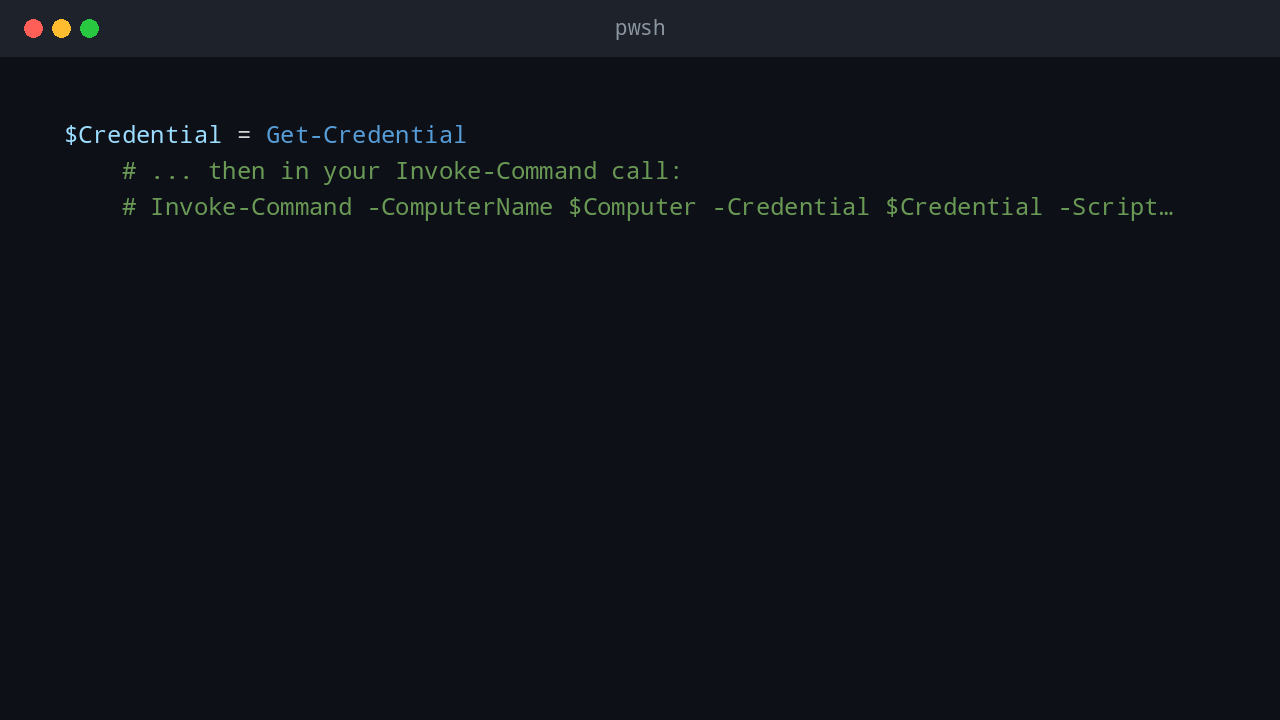
Get-Credentialcmdlet to prompt for credentials and pass them toInvoke-Commandusing the-Credentialparameter:$Credential = Get-Credential # ... then in your Invoke-Command call: # Invoke-Command -ComputerName $Computer -Credential $Credential -ScriptBlock { ... }Security Note: Avoid hardcoding credentials directly in scripts.
Get-Credentialis better for interactive use, or consider more secure options likeSecretManagementmodules or enterprise credential vaults for production automation.
B. PowerShell Remoting Setup (WinRM)
For Invoke-Command to work, PowerShell Remoting (WinRM) must be enabled and correctly configured on all target Windows machines.
- Enabling WinRM: On target machines, run the following in an elevated PowerShell prompt:
This command configures WinRM for remote management, sets up appropriate firewall rules, and starts the WinRM service.Enable-PSRemoting -Force - Firewall Considerations: Ensure that TCP port 5985 (for HTTP WinRM) or 5986 (for HTTPS WinRM) is open in the firewall between your initiating machine and the target computers.
Enable-PSRemotingusually handles this locally, but network firewalls might still block it. - Trusted Hosts: In workgroup environments or if your initiating machine is not in the same domain, you might need to configure
TrustedHostson the initiating machine to allow connections to the target computers. This can be done withSet-Item WSMan:\localhost\Client\TrustedHosts -Value "TargetComputer1, TargetComputer2".
C. Handling Offline or Unreachable Machines Gracefully
Our current script uses Test-Connection to pre-check connectivity. This is a good first step. However, machines can become unresponsive during the Invoke-Command call itself.
- Timeouts: For
Invoke-Command, you can specify a-SessionOptionwith a custom timeout. This prevents your script from hanging indefinitely on a problematic machine.$SessionOption = New-PSSessionOption -OperationTimeoutSeconds 60 # Timeout after 60 seconds # ... then in your Invoke-Command call: # Invoke-Command -ComputerName $Computer -SessionOption $SessionOption -ScriptBlock { ... } - Detailed Logging: Replace simple
Write-Hostoutput with logging to a file. This lets you review which machines succeeded, which failed, and why, without watching the console.
D. Scalability for Large Environments
Looping through hundreds or thousands of computers sequentially can be very slow. PowerShell offers ways to execute commands in parallel.
-
Invoke-Commandwith Multiple Computers: TheInvoke-Commandcmdlet can accept an array of computer names. When you pass multiple computers, PowerShell will automatically attempt to execute the script block on them concurrently (up to a default throttle limit of 32 concurrent operations).# Instead of a foreach loop, pass the entire array $AllComputers = Get-Content -Path $PCListFile $AllInstalledApps = Invoke-Command -ComputerName $AllComputers -ScriptBlock { # ... your existing script block to get apps from one computer ... } -ErrorAction SilentlyContinue | Select-Object ComputerName, DisplayName, DisplayVersion, Publisher, InstallDate # Select properties directly from the outputThis significantly speeds up the collection process. You can also adjust the throttle limit using
-ThrottleLimitonInvoke-Command. -
Background Jobs: For even more granular control over concurrency and to allow the script to continue running in the background, you could use
Start-JobandWait-Job.
E. Refining and Filtering Collected Data
The raw output of installed applications can be extensive. You’ll often want to filter or analyze this data further.
- Filter by Publisher:
$AdobeApps = $AllInstalledApps | Where-Object { $_.Publisher -like "*Adobe*" } - Filter by Installation Date:
(Note:
# Find apps installed in the last 30 days $LastMonth = (Get-Date).AddDays(-30) $RecentApps = $AllInstalledApps | Where-Object { [datetime]::ParseExact($_.InstallDate, 'yyyyMMdd', $null) -ge $LastMonth }InstallDatefrom the registry is often inYYYYMMDDformat, requiring parsing.) - Identify Duplicates/Conflicts: You could group by
DisplayNameandDisplayVersionto identify machines with different versions of the same software. - Missing Software: By comparing the collected inventory against a desired baseline, you can identify machines missing critical applications.
F. Alternative Methods: WMI and CIM
While querying the registry directly is effective, especially for the Uninstall keys, other methods exist for software inventory:
- WMI (Windows Management Instrumentation): WMI classes like
Win32_Product(though generally discouraged due to overhead) orWin32_OperatingSystem(for OS info) can provide additional data.Get-CimInstance(using CIM, Common Information Model) is the modern PowerShell cmdlet for WMI queries.For installed applications, the registry method usually matches what users see in “Programs and Features.”# Example using Get-CimInstance (modern WMI) to get OS details Get-CimInstance -ClassName Win32_OperatingSystem -ComputerName $Computer | Select-Object ComputerName, Caption, OSArchitecture
4. Full Script and Conclusion
Combining all the components, here is the complete script to discover “PPC” machines, collect their installed applications, and save the data to a CSV file.
# Define parameters
$Domain = "yourdomain.com" # !!! IMPORTANT: Replace with your actual domain !!!
$ComputerPrefix = "PPC"
$PCListFile = "ppc-list.txt"
$AppListFile = "app-list.csv"
$LogFile = "app-inventory.log" # For detailed logging

# --- Logging Function (Basic) ---
function Write-Log {
    param (
        [string]$Message,
        [ValidateSet("INFO", "WARN", "ERROR")]$Level = "INFO"
    )
    $Timestamp = Get-Date -Format "yyyy-MM-dd HH:mm:ss"
    "$Timestamp [$Level] $Message" | Add-Content -Path $LogFile
    Write-Host "$Timestamp [$Level] $Message"
}

# --- 1. Discovering Target Machines ---
Write-Log "Starting DNS discovery for computers starting with '$ComputerPrefix' in domain '$Domain'..."

try {
    $DnsRecords = Resolve-DnsName -Name "*.$Domain" -Type A -ErrorAction Stop
    $TargetComputers = $DnsRecords |
        Where-Object { $_.Type -eq "A" -and $_.Name -like "$ComputerPrefix*" } |
        Select-Object -ExpandProperty Name |
        Sort-Object -Unique

    if ($TargetComputers.Count -gt 0) {
        $TargetComputers | Out-File -FilePath $PCListFile -Encoding UTF8
        Write-Log "Found $($TargetComputers.Count) computers. List saved to '$PCListFile'." "INFO"
    } else {
        Write-Log "No computers found matching the prefix '$ComputerPrefix' in domain '$Domain'." "WARN"
    }
}
catch {
    Write-Log "An error occurred during DNS resolution: $($_.Exception.Message)" "ERROR"
    Write-Log "Please ensure your DNS servers are reachable and the domain name is correct." "WARN"
    exit # Exit if we can't get a computer list
}

# --- 2. Collecting Installed Applications ---
if (-not (Test-Path $PCListFile)) {
    Write-Log "PC list file '$PCListFile' not found. Exiting application collection." "ERROR"
    exit
}
$ComputersToProcess = Get-Content -Path $PCListFile

$AllInstalledApps = @()
$SessionOption = New-PSSessionOption -OperationTimeoutSeconds 120 # 2-minute timeout per machine

Write-Log "Starting application inventory for $($ComputersToProcess.Count) computers..."

foreach ($Computer in $ComputersToProcess) {
    Write-Log "Processing computer: $Computer"

    # Test-Connection first (optional, Invoke-Command will also fail if unreachable)
    try {
        $PingTest = Test-Connection -ComputerName $Computer -Count 1 -ErrorAction Stop -Quiet
        if (-not $PingTest) {
            Write-Log "Computer $Computer is not reachable via ping. Skipping." "WARN"
            continue
        }
    }
    catch {
        Write-Log "Ping failed for $Computer: $($_.Exception.Message). Skipping." "WARN"
        continue
    }

    try {
        # Credential handling (uncomment and configure if needed for non-domain machines)
        # $Credential = Get-Credential
        $RemoteApps = Invoke-Command -ComputerName $Computer -SessionOption $SessionOption -ScriptBlock {
            param($ComputerName) # Pass computer name as a parameter to the script block

            $UninstallPaths = @(
                "HKLM:\SOFTWARE\Microsoft\Windows\CurrentVersion\Uninstall\*",
                "HKLM:\SOFTWARE\Wow6432Node\Microsoft\Windows\CurrentVersion\Uninstall\*"
            )

            $ComputerApps = @()
            foreach ($Path in $UninstallPaths) {
                Get-ItemProperty $Path -ErrorAction SilentlyContinue |
                Where-Object {
                    $_.DisplayName -and ($_.SystemComponent -ne 1) -and ($_.ParentKeyName -eq $null)
                } |
                Select-Object @{Name="ComputerName"; Expression={$ComputerName}}, # Use the passed parameter
                              DisplayName,
                              DisplayVersion,
                              Publisher,
                              InstallDate |
                ForEach-Object { $ComputerApps += $_ }
            }
            $ComputerApps
        } -ArgumentList $Computer -ErrorAction Stop # Pass $Computer to the remote script block

        if ($RemoteApps) {
            $AllInstalledApps += $RemoteApps
            Write-Log "Found $($RemoteApps.Count) applications on $Computer." "INFO"
        } else {
            Write-Log "No applications found or retrieved from $Computer." "WARN"
        }
    }
    catch {
        Write-Log "An error occurred while collecting apps from $Computer: $($_.Exception.Message)" "ERROR"
        Write-Log "Ensure WinRM is enabled and configured, and you have appropriate permissions." "WARN"
    }
}

# --- 3. Exporting Results ---
if ($AllInstalledApps.Count -gt 0) {
    $AllInstalledApps | Export-Csv -Path $AppListFile -NoTypeInformation -Encoding UTF8 -Force
    Write-Log "Done! All installed applications saved to '$AppListFile'." "INFO"
} else {
    Write-Log "No applications were collected from any of the target computers. '$AppListFile' was not created." "WARN"
}

Write-Log "Application inventory script finished." "INFO"
"ComputerName","DisplayName","DisplayVersion","Publisher","InstallDate"
"PPC1001","Microsoft Edge","108.0.1462.46","Microsoft Corporation","20251201"
"PPC1001","Microsoft Visual C++ 2015-2019 Redistributable (x64)","14.29.30139.0","Microsoft Corporation","20251115"
"PPC1001","Notepad++","8.4.7","Don Ho","20251020"
"PPC1002","Google Chrome","108.0.5359.125","Google LLC","20251205"
"PPC1002","7-Zip 22.01 (x64)","22.01","Igor Pavlov","20251101"
"PPC1003","Microsoft Office Professional Plus 2021","16.0.15831.20204","Microsoft Corporation","20251210"
"PPC1003","VLC media player","3.0.18","VideoLAN","20250920"
"PPC1004","Zoom","5.12.9","Zoom Video Communications, Inc.","20251208"
"PPC1004","Adobe Acrobat Reader DC","22.003.20282","Adobe Systems Incorporated","20251125"
Example Output: Top 10 entries from app-list-20251225.csv
Conclusion
Software inventory is not glamorous, but it is useful. With PowerShell remoting and registry queries, I can collect installed application data across Windows machines without logging into each one.
Before using this in production, adjust the domain name, computer prefix, output path, and permission model for your environment. Also test against a small group first. Inventory scripts can generate a lot of network traffic if you point them at every workstation at once.
💬 Comments