Most admin work I do is not purely Windows or purely Linux. PowerShell may call Bash, Bash may call PowerShell, and old CMD commands still show up in scripts. This post covers the patterns I use to pass commands and data between those shells, then applies the same idea to USB access in WSL.
In short
For cross-platform administration, use PowerShell when you need structured objects and use Bash or CMD when you need native platform tools. When crossing between shells, treat the boundary as a text boundary unless you deliberately serialize data as JSON. In WSL, use Windows paths carefully, pass commands with clear quoting, and confirm disk or USB device names before running commands that read or write block devices.
Part 1: PowerShell Interoperability with Bash and CMD
In real environments, I rarely get to use one shell for everything. PowerShell is good at structured objects, Bash is everywhere on Linux, and CMD still matters for older Windows commands.
The Core Concept: Objects vs. Text
Understanding interoperability is simple if you remember one rule: PowerShell works with Objects; Bash and CMD work with Text.
- PowerShell’s Strength: It passes rich, structured objects down the pipeline. You can query properties like
$service.Statusor$process.CPUdirectly. - Bash/CMD’s Strength: They are expert text parsers, designed to manipulate streams of string data with tools like
grep,sed,awk, orfindstr.
Every time you cross the boundary between PowerShell and another shell, your data is converted:
- PowerShell -> Bash/CMD: Rich objects are “melted” into plain text (
.ToString()) - Bash/CMD -> PowerShell: Text output arrives in PowerShell as an array of strings
The key to success is to do your heavy data lifting in PowerShell and call out to the other shells only when necessary to run a legacy script or a native command.
PowerShell and Bash on Linux
On Linux, Bash is the native tongue. Combining it with PowerShell gives you the best of both worlds: Bash’s text-processing speed and PowerShell’s structured data and API integration.
Calling Bash from PowerShell
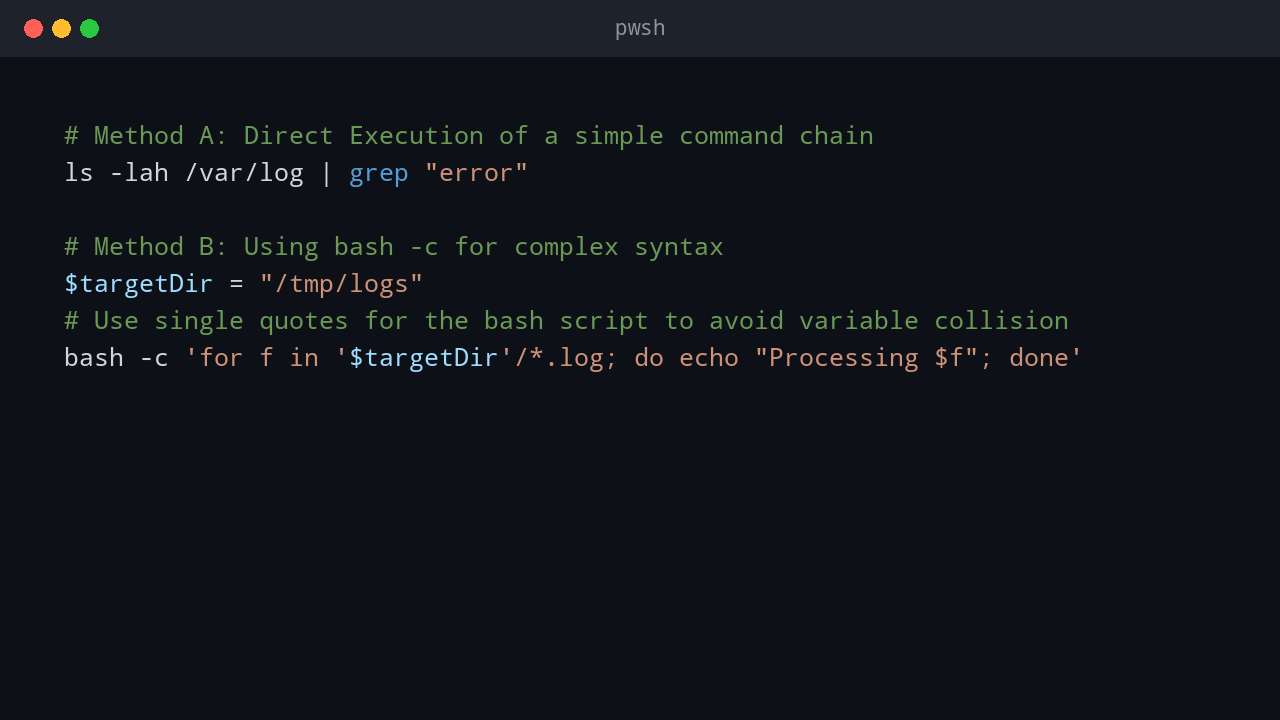
PowerShell on Linux treats native binaries just like Windows does. You can run them directly. For complex Bash syntax (loops, redirections), wrap it in bash -c.
# Method A: Direct Execution of a simple command chain
ls -lah /var/log | grep "error"

# Method B: Using bash -c for complex syntax
$targetDir = "/tmp/logs"
# Use single quotes for the bash script to avoid variable collision
bash -c 'for f in '$targetDir'/*.log; do echo "Processing $f"; done'
Calling PowerShell from Bash
This is common in CI/CD pipelines. Use pwsh -c (or pwsh -File) to hand off tasks to PowerShell.
# Get a structured date from PowerShell
TODAY=$(pwsh -c "Get-Date -Format 'yyyy-MM-dd'")
echo "Today is $TODAY"
Handling Data Exchange with JSON
When passing data between shells, plain text can be ambiguous. For anything more complex than a single value, I usually pass JSON.
PowerShell to Bash (with jq)
PowerShell’s ConvertTo-Json cmdlet makes it easy to serialize objects into a JSON string. You can then pipe this to a Bash-native tool like jq for parsing.
# Generate JSON in PowerShell, process it with jq in Bash
pwsh -c "Get-Process | Select-Object Name, Id | ConvertTo-Json" | jq '.[0]'
Bash to PowerShell
Conversely, if a Bash script produces JSON, PowerShell’s ConvertFrom-Json can parse it back into structured objects.
# Get JSON from a Bash command and convert it to a PowerShell object
$jsonOutput = bash -c "echo '{ \"user\": \"admin\", \"level\": 99 }'"
$dataObject = $jsonOutput | ConvertFrom-Json
Write-Host "User: $($dataObject.user)"
PowerShell and CMD on Windows
cmd.exe persists for legacy compatibility. Mastering its interoperability is key to modernizing old automation.
Calling CMD from PowerShell
For most external commands (ping.exe, ipconfig.exe), PowerShell can call them directly. For internal CMD commands (dir, mklink) or batch files, use cmd /c.
# Direct Execution
ipconfig /all

# Explicit call for internal commands or batch files
cmd /c "echo %USERNAME% && dir C:\ && C:\LegacyScripts\OldBackup.bat"
Passing Arguments Safely with the Stop-Parsing Token
When calling native Windows executables (like cmd.exe or other command-line tools) from PowerShell, argument parsing can sometimes be tricky. PowerShell may interpret quotes or special characters in ways you don’t intend.
To prevent this, use the stop-parsing token (--%). When PowerShell sees this, it stops parsing all subsequent characters on the line and passes them directly to the native executable.
# The /c argument is complex and contains quotes
$cmdArgument = '/c "dir "C:\Program Files"" && echo Done'

# Using --% ensures the argument is passed to cmd.exe literally
cmd.exe --% $cmdArgumentCalling PowerShell from CMD
This is essential for upgrading legacy batch files. Use powershell -Command or pwsh -File.
@echo off
echo Checking disk space from a legacy batch file...
powershell -Command "Get-PSDrive C | Format-Table Free, Used"
Part 2: Accessing a USB Drive in WSL
A common cross-platform task is accessing a USB drive plugged into a Windows host from within the Windows Subsystem for Linux (WSL). By default, WSL does not automatically mount removable drives, but the process is straightforward.
Prerequisite: These methods work best with WSL2.
Method 1: The Easy Way (Mounting a Windows Drive Letter)
This is the simplest method. It works by mounting the drive letter that Windows has assigned to the USB (e.g., E:).
Step 1: Identify the USB Drive Letter in Windows
Plug in your USB drive and note its drive letter in File Explorer (e.g., E:).
Step 2: Mount the Drive in WSL
- Open your WSL terminal (e.g., Ubuntu).
- Create a mount point.
sudo mkdir /mnt/e - Use the
mountcommand to attach the Windows drive.sudo mount -t drvfs E: /mnt/e
-t drvfs: Specifies thedrvfs(Drive File System) protocol WSL uses to communicate with the Windows filesystem.
You can now access your files in /mnt/e.
Method 2: The Advanced Way (Mounting a Raw Physical Disk)
For advanced use cases like using Linux tools such as fdisk or gparted, you need to access the raw physical disk.
Step 1: Identify the USB Disk in Windows
Open PowerShell as an Administrator and list all physical disks.
Get-DiskNumber of your USB drive (e.g., 1, which corresponds to \.\PHYSICALDRIVE1).
Step 2: Mount the Physical Disk into WSL
In the same administrative PowerShell terminal, use the wsl --mount command.
wsl --mount \\.\PHYSICALDRIVE1 --bare--bare flag attaches the physical disk without attempting to mount its filesystems.
Step 3: Identify and Mount the Partition in WSL
- Switch to your WSL terminal and list the block devices to find the new device (e.g.,
/dev/sdb).lsblk - Create a mount point and mount the partition (e.g.,
/dev/sdb1).You can now access the files atsudo mkdir /mnt/usb sudo mount /dev/sdb1 /mnt/usb/mnt/usband use tools likefdisk /dev/sdbon the raw disk.
How to Safely Unmount a USB Drive
Before unplugging the drive, you must unmount it.
- For Method 1:
sudo umount /mnt/e(in WSL) - For Method 2:
sudo umount /mnt/usb(in WSL), thenwsl --unmount \\.\PHYSICALDRIVE1(in PowerShell).
Troubleshooting Common Issues
| Issue | Cause | Fix |
|---|---|---|
USB not showing in /mnt/ |
It’s not mounted yet. | Use sudo mount -t drvfs E: /mnt/e. |
wsl --mount gives an error |
You are not running PowerShell as an Administrator. | Close and reopen PowerShell as an Administrator. |
mount: /mnt/e: wrong fs type, bad option |
drvfs may not be able to mount the drive if it has filesystem errors. |
Run chkdsk E: /f in Windows to fix filesystem errors on the USB drive. |
| Mounts as read-only | The drive may have been mounted read-only by default. | Try remounting with read-write permissions: sudo mount -t drvfs E: /mnt/e -o rw,metadata |
| Cannot mount exFAT drive | The necessary exFAT filesystem tools are not installed in your Linux distro. | Install the tools: sudo apt update && sudo apt install exfat-fuse exfat-utils (for Debian/Ubuntu). |
| WSL1 doesn’t show disks | This is a limitation of WSL1. | Upgrade your distribution to WSL2 with wsl --set-version <DistroName> 2. |
Conclusion
Do not force one shell to do everything. PowerShell, Bash, and CMD can work together if you are clear about what each command receives and returns. The same principle applies to WSL USB workflows: use Windows tools where Windows has the hardware view, and use Linux tools where Linux handles the filesystem or raw device better.
💬 Comments