These are the PowerShell basics I use most often when writing scripts that need to survive outside a one-off terminal session: pipeline operators, null handling, objects, CSV/JSON output, and script-relative paths. None of these features are complicated by themselves, but using them consistently makes scripts easier to read and easier to troubleshoot.
Short answer
Good PowerShell scripts depend on a few fundamentals: use pipeline chain operators for simple success and failure flow, use null-coalescing operators for defaults, pass objects instead of formatted text, export data as CSV or JSON when another tool needs it, and build file paths from $PSScriptRoot so scripts run correctly from any working directory.
Modern Operators for Cleaner Code (&&, ||, ??, ?:)
PowerShell 7 added operators that make common scripting patterns less noisy. They are especially useful in build scripts, deployment scripts, and small admin utilities where each line should make the control flow obvious.
Here is how I use the operators in day-to-day scripts.
The key operators I’ll cover are:
- && and || - Pipeline chain operators
- ?? and ??= - Null-coalescing operators
- ?: - Ternary operator
1. Conditional Execution: The Pipeline Chain Operators (&& and ||)
Introduced: PowerShell 7.0
These operators allow me to execute a command conditionally based on the success or failure of the previous one, just like in Bash or other shells.
- && (AND): Executes the next command only if the previous command succeeds.
- || (OR): Executes the next command only if the previous command fails.
In PowerShell, “success” is determined by the exit code of the previous command. A command is considered successful if its exit code is 0. Any non-zero exit code is considered a failure.
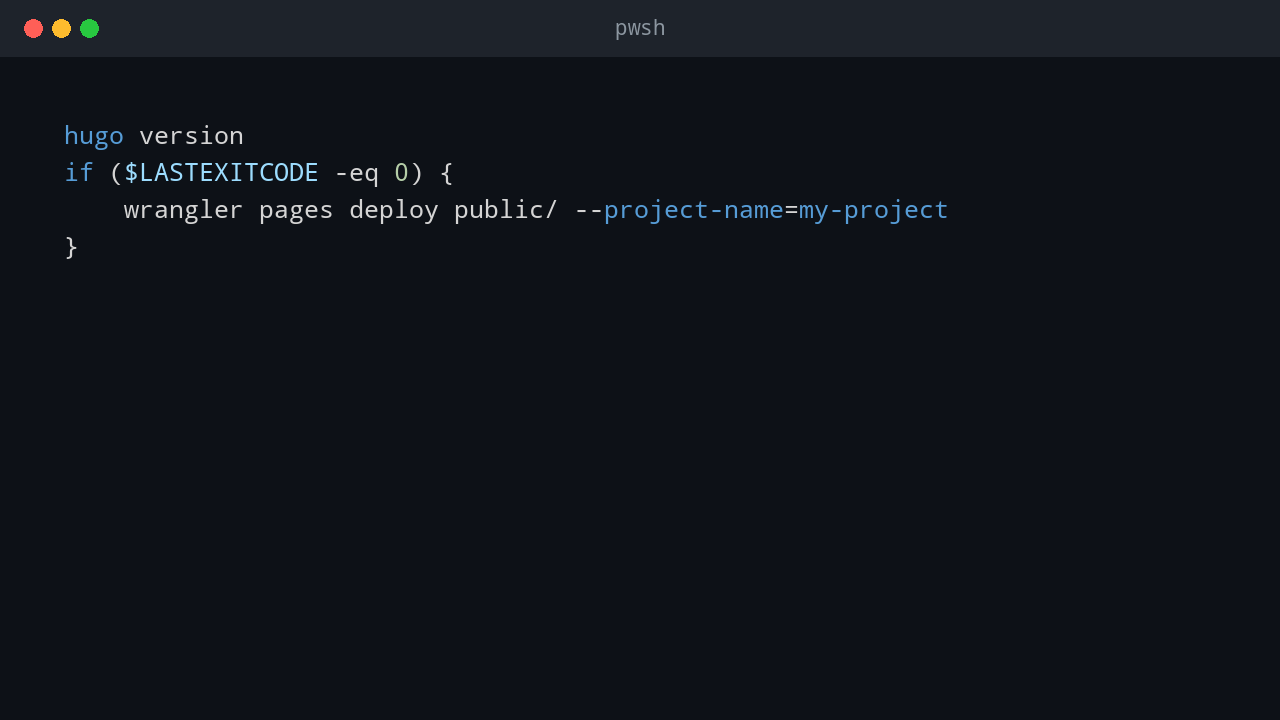
Before: The if Statement
hugo version
if ($LASTEXITCODE -eq 0) {
    wrangler pages deploy public/ --project-name=my-project
}
After: Using &&
The && operator makes this much more concise.
# This command will only run if 'hugo version' succeeds
hugo version && wrangler pages deploy public/ --project-name=my-project
Example: Handling Failures with ||
The || operator is perfect for fallback actions.
# This command will only run if 'hugo version' fails
hugo version || sudo apt install -y hugo
2. Handling null Values: The Null-Coalescing Operators (?? and ??=)
Introduced: PowerShell 7.0
These operators provide a clean and simple way to handle null values without verbose if statements.
- ?? (Null Coalescing): Returns the value of its left-hand operand if it isn’t
null; otherwise, it returns the value of the right-hand operand. - ??= (Null Coalescing Assignment): Assigns the value of the right-hand operand to the left-hand operand only if the left-hand operand is
null.
Before: The if Statement for Null Checks
$user = Get-ADUser -Identity "PSS1001" -Properties GivenName -ErrorAction SilentlyContinue
if ($null -eq $user.GivenName) {
    $firstName = "Unknown"
} else {
    $firstName = $user.GivenName
}
Write-Host "First Name: $firstName"
After: Using ?? for Safe Defaults
$user = Get-ADUser -Identity "PSS1001" -Properties GivenName -ErrorAction SilentlyContinue
$firstName = $user.GivenName ?? "Unknown"
Write-Host "First Name: $firstName"
Example: Default Assignment with ??=
This is incredibly useful for setting default values for variables that may not have been initialized.
# If $outputPath is not already set, assign it a default value
$outputPath ??= "C:\Reports\ADUsers.csv"
Write-Host "Exporting to: $outputPath"
3. Compact if-else: The Ternary Operator (?:)
Introduced: PowerShell 7.2
The ternary operator is a compact, inline if-else statement that allows me to choose one of two values based on a condition.
Syntax: <condition> ? <if-true> : <if-false>
Before: The Multi-line if-else Block
$user = Get-ADUser -Identity "PSS1001" -Properties Enabled
if ($user.Enabled) {
    $status = "Active"
} else {
    $status = "Disabled"
}
Write-Host "User PSS1001 is $status"
After: Using the Ternary Operator
$user = Get-ADUser -Identity "PSS1001" -Properties Enabled
$status = $user.Enabled ? "Active" : "Disabled"
Write-Host "User PSS1001 is $status"
Putting It All Together: A Safer Script
These operators are most powerful when combined, allowing me to write safe, readable, and concise scripts.
This example safely gets a user, checks for null values, and uses the ternary operator to determine their status, all in a very compact block.
$user = Get-ADUser -Identity "PSS1001" -Properties GivenName, Enabled -ErrorAction SilentlyContinue

$name = $user.GivenName ?? "User not found"
$status = $user ? ($user.Enabled ? "Active" : "Disabled") : "N/A"

Write-Host "User: $name, Status: $status"
Working with Objects: The Core of PowerShell
PowerShell is built around objects, not plain text. While shells like Bash usually pass text between commands, PowerShell passes structured .NET objects. That difference is the main reason PowerShell works well for reporting and administration scripts.
This section shows how I use the object pipeline to avoid fragile text parsing.
From Text Streams to Object Pipelines: The Big Shift
In a traditional shell, if I want to get a list of running processes, I might run ps aux. This command outputs a block of plain text. To get specific information, like the process ID of a single process, I have to manually parse that text with tools like grep, awk, or sed. This approach is fragile; if the output format of ps aux changes in a future OS update, my script will break.
PowerShell takes a different approach. When I run Get-Process, it doesn’t return text. It returns a collection of .NET objects (specifically, [System.Diagnostics.Process] objects). Each object is a structured bundle of information containing properties (like Id, ProcessName, and CPU) and methods (actions the object can perform).
Bash (Text-Based):
# Returns plain text that needs to be parsed
ps aux | grep 'chrome'
PowerShell (Object-Based):
# Returns a collection of process objects
Get-Process -Name 'chrome'
Because I’m working with objects, I never need to parse text. I can directly access the properties I need.
Meet My Best Friends: The Core Object Cmdlets
PowerShell’s real power comes from a set of core cmdlets designed to manipulate objects in the pipeline.
Get-Member: Discovering an Object’s Properties and Methods
Get-Member is my best friend for exploring objects. It tells me everything I need to know about an object, including its type, properties, and methods.
Get-Process -Name "powershell" | Get-Member
Select-Object: Picking the Properties I Need
Instead of parsing text columns, I can use Select-Object to pick the exact properties I want.
Get-Process | Select-Object -Property ProcessName, Id, WorkingSet
Where-Object: Filtering Objects Based on Their Properties
Where-Object allows me to filter a collection of objects based on the values of their properties.
# Find all services that are currently running
Get-Service | Where-Object -Property Status -EQ 'Running'
Sort-Object: Sorting Objects by Their Properties
I can sort any collection of objects using one or more of their properties.
# Find the top 5 most CPU-intensive processes
Get-Process | Sort-Object -Property CPU -Descending | Select-Object -First 5
Real-World Scenario: Managing Windows Services
I’ll show how these cmdlets work together in a practical scenario. I imagined I wanted to find all stopped services that are set to start automatically and then start them.
Step 1: Get all services.
Get-Service
Step 2: Filter for the services I want.
I only want services that are Stopped and have a StartType of Automatic.
Get-Service | Where-Object { ($_.Status -eq 'Stopped') -and ($_.StartType -eq 'Automatic') }
Step 3: Perform an action on each service.
Now, I can pipe these filtered objects to the Start-Service cmdlet.
Get-Service | Where-Object { ($_.Status -eq 'Stopped') -and ($_.StartType -eq 'Automatic') } | Start-Service -Verbose
This is the magic of the object pipeline. The Start-Service cmdlet understands the service objects passed to it and acts on them. No text parsing, no loops, just a clean, readable one-liner.
Creating My Own Objects with [PSCustomObject]
I’m not limited to the objects provided by cmdlets. I can easily create my own structured data using [PSCustomObject]. This is incredibly useful for creating custom reports or structured data to pass to other commands.
$server = [PSCustomObject]@{
    Name   = "WebServer01"
    IP     = "192.168.10.15"
    Status = "Online"
    OS     = "Windows Server 2022"
}

# The custom object can be used just like any other object
Write-Host "Pinging server $($server.Name) at IP $($server.IP)..."
The Universal Translators: ConvertTo-Json and ConvertTo-Csv
Because PowerShell works with structured objects, JSON and CSV output are usually straightforward.
# Get the top 5 processes and export them to a CSV file
Get-Process | Sort-Object -Property CPU -Descending | Select-Object -First 5 |
    Export-Csv -Path "C:\Reports\TopProcesses.csv" -NoTypeInformation

# Get a service object and convert it to JSON
Get-Service -Name "WinRM" | ConvertTo-Json
Reliable Script Paths with $PSScriptRoot and Batch Script Paths
Portable scripts should not assume that the current working directory is the same folder as the script file. Scheduled tasks, remote sessions, deployment tools, and shortcuts often start scripts from a different directory. When a script needs to load a config file, write a log, or call a helper script, it should build paths relative to the script location.
PowerShell: Use $PSScriptRoot
$PSScriptRoot is an automatic variable that contains the directory of the running PowerShell script. It is the safest default when a script needs companion files.
$configPath = Join-Path -Path $PSScriptRoot -ChildPath 'config.json'
$logPath = Join-Path -Path $PSScriptRoot -ChildPath 'logs\install.log'
Use Join-Path instead of manually concatenating strings. It handles path separators correctly and makes the script easier to read.
Batch Files: Use %~dp0
Classic batch files use %~dp0 for the drive and path of the running batch file. This is useful when a small batch wrapper launches a PowerShell script.
@echo off
set SCRIPT_DIR=%~dp0
pwsh.exe -NoProfile -ExecutionPolicy Bypass -File "%SCRIPT_DIR%Deploy.ps1"
This pattern keeps the wrapper reliable even when it is launched from File Explorer, a software deployment tool, or a scheduled task.
Practical Rule
For reusable automation, avoid Set-Location unless the script genuinely needs to change the process working directory. Prefer absolute paths built from $PSScriptRoot. That makes logging, error handling, and file access predictable.
Final Takeaways
Modern PowerShell is strongest when scripts use clear operators, structured objects, and predictable paths. Pipeline chain operators help express command flow, null-coalescing operators reduce repetitive checks, and the object pipeline avoids fragile text parsing.
For production scripts, the best habit is to keep data structured until the final output step. Filter with Where-Object, shape data with Select-Object, export with Export-Csv or ConvertTo-Json, and use $PSScriptRoot for files that travel with the script. These practices make scripts easier to test, easier to troubleshoot, and safer to reuse across machines.
💬 Comments