Routine Active Directory work does not require an RDP session or an interactive console sign-in on a domain controller. A separate, managed administration workstation is a better place to run the AD tools, inspect objects, make a narrow change, and keep a record of who performed it.
That separation matters. Domain controllers hold directory credentials, Kerberos keys, DNS data, and the tools that change the forest. Browsing the web, opening email, or running a general-purpose admin desktop workflow on a DC increases the chance that a workstation-style problem becomes a directory-wide incident.
This guide uses the Microsoft Remote Server Administration Tools (RSAT), the ActiveDirectory PowerShell module, Microsoft diagnostic commands, and Sysinternals AD Explorer. It assumes the workstation is domain joined, can resolve the AD DNS zone, and the operator has only the delegated rights needed for the task.
Bottom line
Manage Active Directory from a dedicated admin workstation with the RSAT AD DS tools. Install the ActiveDirectory PowerShell module, discover a writable domain controller with Get-ADDomainController, and pass that controller to the -Server parameter when a command needs a specific target. Use AD Users and Computers or Active Directory Administrative Center for focused GUI work, repadmin and dcdiag /s: for health checks, and Sysinternals AD Explorer for careful LDAP inspection and snapshots. Reserve interactive domain-controller logons for documented break-glass recovery, not normal user, group, OU, or replication administration.
Why an admin workstation is safer than a domain controller desktop
The goal is not to make domain controllers unreachable. The goal is to avoid treating them as ordinary application servers or admin desktops.
An administration workstation gives a clear boundary between the place where an administrator works and the systems that provide authentication. That boundary makes it easier to apply a hardened build, restrict software installation, separate privileged accounts from daily accounts, collect PowerShell logs, and limit which people can reach management interfaces.
For a small environment, this can be a dedicated Windows 11 Pro or Enterprise virtual machine with RSAT installed. In a larger environment, use a privileged access workstation design with separate accounts, MFA where available, network segmentation, and delegated groups for common tasks.
The workstation still needs secure network access to the domain controllers. Do not solve a blocked management connection by exposing LDAP, RPC, SMB, or WinRM broadly to untrusted networks. Keep management traffic inside the approved administrative network or VPN, and use the least privilege required for each task.
Install the Active Directory tools on the admin workstation
On current Windows 10 and Windows 11 releases, RSAT is installed as a Feature on Demand. Start an elevated Windows PowerShell session on the admin workstation and check the AD DS tools feature:
Get-WindowsCapability -Online -Name 'Rsat.ActiveDirectory*'Install the AD DS and AD LDS tools when the feature state is NotPresent:
Add-WindowsCapability -Online -Name 'Rsat.ActiveDirectory.DS-LDS.Tools~~~~0.0.1.0'The feature includes the ActiveDirectory PowerShell module and the familiar management consoles. If the installation cannot find the capability, check the Windows edition, Windows Update or Features on Demand source, and any organization policy that controls optional features.
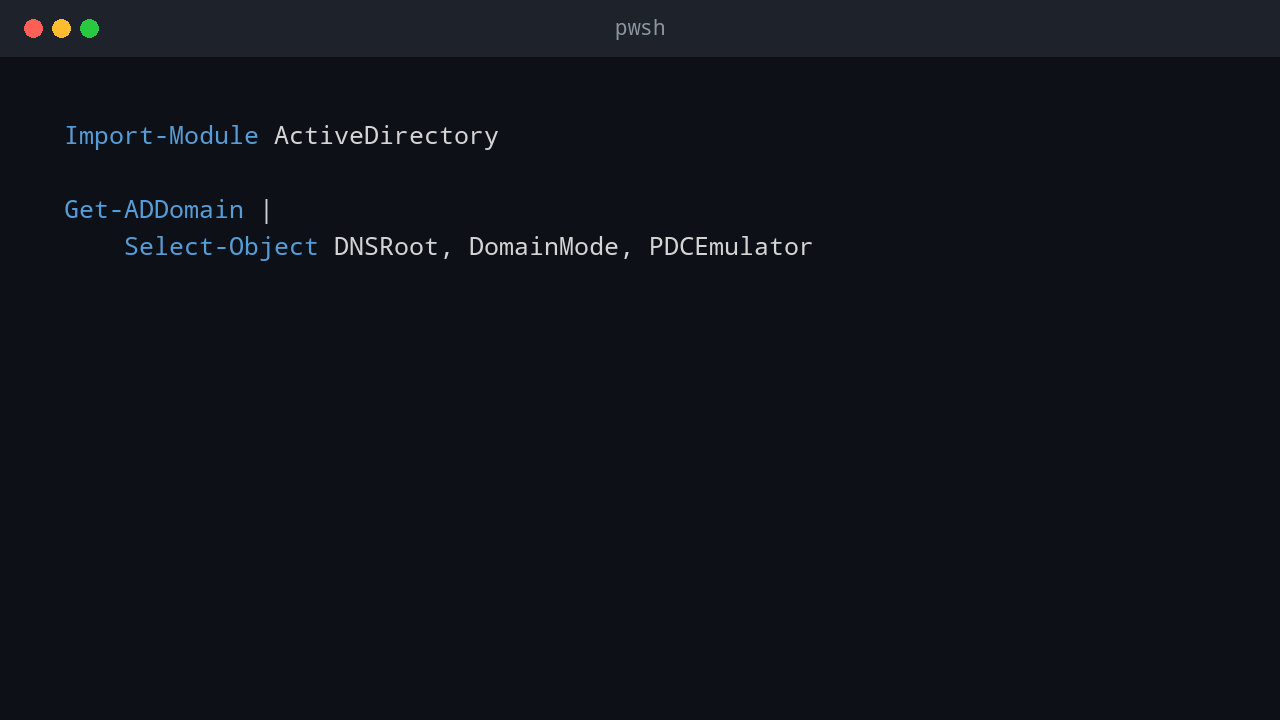
Confirm that the module loads and that the workstation can read the domain:
Import-Module ActiveDirectory

Get-ADDomain |
    Select-Object DNSRoot, DomainMode, PDCEmulator
This is a read-only check. It confirms that the workstation can locate Active Directory and that the module is available before any change is attempted.
Choose a writable domain controller deliberately
Many AD cmdlets discover a domain controller automatically. That is convenient for an everyday lookup, but being explicit is useful when diagnosing replication, working over a site link, or making a change that must go to a writable controller.
Use domain-controller discovery first:
$dc = Get-ADDomainController -Discover -Writable -ForceDiscover

$dc | Select-Object HostName, Site, IPv4Address, IsGlobalCatalog, IsReadOnly
-ForceDiscover avoids relying on an earlier cached result. Review the returned name and site before using it. If the domain has a read-only domain controller, do not direct write operations there; group membership and account changes require a writable controller.
Keep the selected name in a variable and use it consistently:
$server = $dc.HostName

Get-ADUser -Identity 'jdoe' -Server $server -Properties Enabled, Department, LastLogonDate |
    Select-Object Name, SamAccountName, Enabled, Department, LastLogonDate
This does not require logging on to the DC. The workstation uses the Active Directory management interfaces and the current credentials or a delegated credential to query the selected server.
Use RSAT consoles for focused directory administration
RSAT includes graphical tools that are still useful when a visual view of an OU, object properties, or delegation is faster than writing a one-off command.
- Active Directory Users and Computers: Use it for common user, computer, group, OU, and delegation tasks. Connect it to the appropriate domain controller when you need to verify which controller you are managing.
- Active Directory Administrative Center: Use it for a modern task-oriented interface, including the Active Directory Recycle Bin where it has been enabled.
- Active Directory Domains and Trusts: Use it for domain and forest trust configuration. Treat trust changes as planned, reviewed work.
- Active Directory Sites and Services: Use it for sites, subnets, replication connections, and topology work. A wrong change here can affect multiple controllers, so document the current state first.
For normal account administration, delegate permissions to an OU-specific group instead of using a broad Domain Admin account. For example, a service-desk group may be allowed to reset passwords and unlock accounts in one employee OU without being able to modify privileged groups or domain-controller OUs.
Avoid using ADSI Edit as an everyday console. It can make low-level directory changes that bypass the guardrails in the normal tools. Use it only with a known change procedure, a tested rollback plan, and a clear reason why a supported RSAT console or PowerShell cmdlet cannot perform the task.
Three consoles to keep on the admin workstation
These three Microsoft Management Console snap-ins cover much of the daily Windows infrastructure work. Run them from the admin workstation, then use Action > Connect to another computer or Connect to DNS Server to select the approved remote server. Opening a console locally does not mean it is managing the local workstation.
# DNS Manager: zones, records, forwarders, and DNS server settings
dnsmgmt.msc

# Active Directory Users and Computers: users, groups, computers, and OUs
dsa.msc

# DHCP Manager: scopes, reservations, leases, options, and DHCP DNS updates
dhcpmgmt.msc
DNS Manager (dnsmgmt.msc) manages DNS zones and records stored on the selected DNS server. In an AD-integrated environment, confirm which DNS server and zone you are connected to before adding, changing, or deleting a record. A record change can replicate through Active Directory, so use the smallest possible change and verify name resolution afterward.
Active Directory Users and Computers (dsa.msc) is the primary GUI for users, groups, computer accounts, organizational units, and delegation. It is the same console included with the RSAT AD DS tools. Connect to a chosen domain controller when troubleshooting replication or when a change must be verified against a specific writable controller.
DHCP Manager (dhcpmgmt.msc) manages DHCP scopes, address leases, reservations, scope options, failover, and DHCP-to-DNS update settings on the selected DHCP server. It does not directly edit DNS zone records; it controls the DHCP service settings that can register or update DNS records for DHCP clients. Treat scope options, reservations, and DNS dynamic-update settings as production changes because they can affect many client devices at once.
Use PowerShell for repeatable, scoped changes
PowerShell is the best fit when the task must be logged, reviewed, repeated, or limited to a predictable search base. Start by reading the target object and the current state. Then use -WhatIf for cmdlets that support it before performing the real change.
The following example shows the current group membership and previews a group addition. Replace the sample values with real, approved values in the target environment.
$server = 'dc01.contoso.com'
$group = 'VPN-Users'
$user = 'jdoe'

Get-ADGroupMember -Identity $group -Server $server |
    Select-Object Name, SamAccountName, ObjectClass

Add-ADGroupMember -Identity $group -Members $user -Server $server -WhatIf
-WhatIf prints the operation that would occur without changing membership. After the target group, user, controller, and approval are verified, remove -WhatIf to perform the change. Then read the membership again and record the ticket or change reference in the normal system of record.
For reports, always scope large queries. Querying every object in a large domain just to answer a small question can be slow and makes it easier to handle more data than necessary.
$params = @{
    Filter     = 'Enabled -eq $true'
    SearchBase = 'OU=Operations,DC=contoso,DC=com'
    Server     = $server
    Properties = 'Department', 'Title', 'EmailAddress'
}

Get-ADUser @params |
    Select-Object Name, SamAccountName, Department, Title, EmailAddress |
    Sort-Object Name |
    Export-Csv -Path 'C:\AdminReports\OperationsUsers.csv' -NoTypeInformation
Protect exported reports. User attributes, group membership, and computer information can be sensitive even when the query itself is read-only.
Run remote diagnostics without interactive DC sign-in
Microsoft’s AD diagnostic tools can collect useful evidence from the administration workstation when the account has the necessary permissions and the network permits the required management traffic.
Start with a broad replication summary:
repadmin /replsummaryLook for failures, a large number of consecutive failures, or an unexpectedly old last replication time. A clean result is evidence only for the moment the command ran; it does not replace monitoring.
For a detailed replication view, export the output before changing anything:
repadmin /showrepl * /csv > C:\AdminReports\AD-Replication.csvFor a specific controller, ask dcdiag to run supported tests remotely:
dcdiag /s:dc01.contoso.com /test:Advertising /test:Services /test:DNS /v `
    /f:C:\AdminReports\dc01-dcdiag.txt
Some dcdiag tests are local-only, and a remote run may expose a network or permission problem instead of a DC failure. Read the command output in that context. If an error points to DNS, confirm that the workstation and the DC use the internal AD DNS infrastructure before resetting replication or changing directory objects.
nltest is also useful for a quick domain-controller discovery check from the workstation:
nltest /dsgetdc:contoso.com
nltest /dclist:contoso.com
These commands should return expected controllers and site information. If they do not, investigate DNS, VPN routing, firewall policy, and time synchronization first.
Use Sysinternals AD Explorer for inspection and comparisons
AD Explorer is a Microsoft Sysinternals LDAP viewer and editor. It can connect from the admin workstation, browse objects and attributes, search the directory, save favorite locations, and take snapshots for offline review and comparison.
For an audit or troubleshooting task, connect AD Explorer to a known controller, browse to the object, and inspect the attributes before changing anything. A snapshot before and after a planned change can show which attributes or access-control entries changed. Save those snapshots in an approved administrative location because they can contain sensitive directory data.
AD Explorer is powerful enough to edit attributes and permissions. Treat it as an inspection tool by default. Do not use it to make a quick production change when an RSAT console or audited PowerShell cmdlet provides a clearer, supported path.
A practical admin workstation checklist
Before changing Active Directory from a workstation, confirm the following:
- The workstation is a managed admin device, not a daily-use browser and email desktop.
- It resolves the internal AD DNS zone and can discover a domain controller.
- The account is delegated only the required rights and is not a broad emergency account for routine work.
- The selected domain controller is writable and is appropriate for the task.
- The current state has been read and recorded before a write operation.
- The change is scoped to the correct OU, group, or object and has been previewed with
-WhatIfwhere available. - Replication and the final object state are checked after the change.
When an interactive domain-controller logon is justified
There are exceptions: forest recovery, a failed remote-management path during an outage, initial repair of a broken management configuration, or a documented break-glass procedure. Those should be exceptional sessions with a ticket, a defined operator, a limited time window, and a post-incident review.
For normal directory administration, an RSAT-equipped workstation is simpler to secure and easier to audit. It also makes routine work safer: a user unlock, group update, OU delegation, replication check, or object comparison should not require turning a domain controller into an interactive admin desktop.
💬 Comments