Go and PowerShell work well together on Windows. PowerShell is convenient for orchestration, object filtering, scheduled tasks, and Windows management APIs. Go is useful when a small tool needs a single compiled executable, predictable startup behavior, or easy distribution to machines that do not have a PowerShell module installed.
The useful split is simple: use PowerShell to prepare inputs, call the Go program, inspect its output, and react to its exit code. Let the Go program own the focused task it was written for. Do not make PowerShell scrape a human-oriented console screen when the Go command can return structured JSON or a clear exit code instead.
This walkthrough creates a small Go command, runs it from PowerShell during development, compiles it into a Windows executable, passes arguments safely, and uses the executable from a PowerShell automation script.
The short version
Install Go, create a module with go mod init, then use go run . while changing the source. For repeatable PowerShell automation, compile the command with go build -o .\bin\inventory.exe . and invoke the resulting .exe with the PowerShell call operator: & .\bin\inventory.exe -computer DC01. Check $LASTEXITCODE immediately after the native command. A zero value means success; any other value should stop the PowerShell workflow or be handled explicitly.
When a Go command is useful beside PowerShell
PowerShell is already capable of calling .NET, WMI, CIM, REST APIs, and native executables. Adding Go makes sense when it gives a concrete operational benefit:
- A task needs a small, self-contained executable for Windows systems.
- A cross-platform utility should run unchanged on Windows and Linux.
- The program needs strict argument parsing and a documented exit-code contract.
- A long-running task benefits from a compiled command with a narrow responsibility.
- A team wants to distribute one tested binary instead of a script plus several dependencies.
Go is not automatically better for every Windows task. If PowerShell already has a clear cmdlet that returns objects, use the cmdlet. For example, Get-Service, Get-ADUser, and Get-CimInstance are often easier to audit and maintain as PowerShell. A Go command is most valuable when it fills a specific gap rather than replacing the shell that coordinates the work.
Verify that Go is available
Open a new PowerShell session after installing Go and verify the command is found:
go version
go env GOROOT GOPATH GOOS GOARCH
go version confirms the installed toolchain. go env shows where Go is installed, where Go stores its workspace data, and which operating system and architecture it targets.
If PowerShell reports that go is not recognized, do not hard-code a Go installation path in a script. First confirm that the Go bin directory is on the current process PATH, then open a fresh PowerShell window after fixing the system or user environment variable.
Create a small Go command that accepts a PowerShell argument
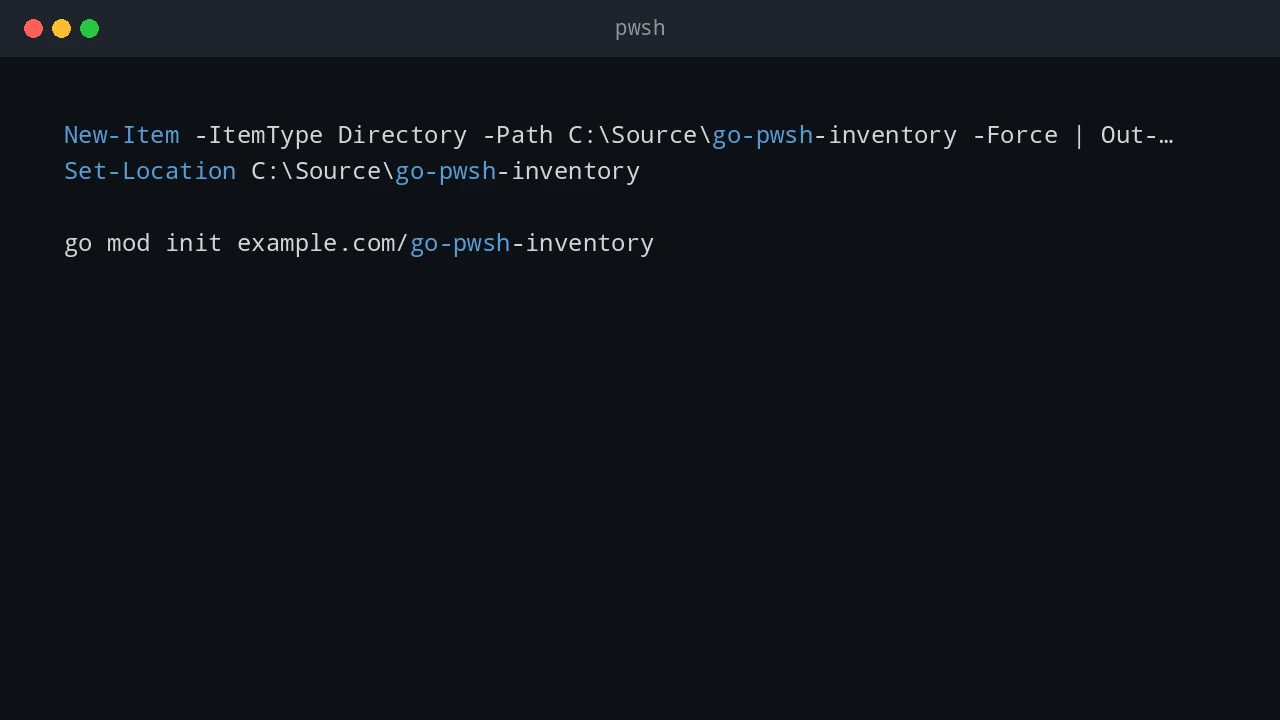
Create a working folder and initialize a module. The module file records the module path and dependencies used by the project.
New-Item -ItemType Directory -Path C:\Source\go-pwsh-inventory -Force | Out-Null
Set-Location C:\Source\go-pwsh-inventory

go mod init example.com/go-pwsh-inventory
Create main.go with a small command that accepts a computer name. The example intentionally uses only the Go standard library so that it can be run without downloading third-party packages.
package main

import (
    "encoding/json"
    "flag"
    "fmt"
    "os"
)

type result struct {
    Computer string `json:"computer"`
    Message  string `json:"message"`
}

func main() {
    computer := flag.String("computer", "", "computer name to report")
    format := flag.String("format", "text", "output format: text or json")
    flag.Parse()

    if *computer == "" {
        fmt.Fprintln(os.Stderr, "-computer is required")
        os.Exit(2)
    }

    output := result{
        Computer: *computer,
        Message:  "Go command completed successfully",
    }

    switch *format {
    case "text":
        fmt.Printf("Go command received computer: %s\n", output.Computer)
    case "json":
        if err := json.NewEncoder(os.Stdout).Encode(output); err != nil {
            fmt.Fprintln(os.Stderr, err)
            os.Exit(1)
        }
    default:
        fmt.Fprintln(os.Stderr, "-format must be text or json")
        os.Exit(2)
    }
}
The program uses exit code 2 for invalid input. That is a deliberate contract: the PowerShell caller can tell the difference between a bad invocation and a successful result. For a real inventory tool, replace the fmt.Printf line with the actual focused work, such as reading an API, parsing a file, or querying an approved remote endpoint.
Run the Go source during development
While changing source code, run the current module directly from PowerShell:
Set-Location C:\Source\go-pwsh-inventory
go run . -computer DC01
Expected output is similar to:
Go command received computer: DC01go run . compiles and runs the main package as a development shortcut. It is useful for quick feedback because there is no output executable to manage in the project folder.
Test the validation path as well:
go run .
Write-Host "Go runner exit code: $LASTEXITCODE"
The Go program prints -computer is required to standard error. However, do not build automation logic around the exact exit code returned by go run. The Go command documentation notes that the exit status of go run is not the exit status of the compiled binary. That distinction matters when a scheduled PowerShell script must respond differently to an input error, a network failure, or a successful run.
Use go fmt and go test before treating a command as reusable automation:
go fmt .
go test ./...
Even a small command benefits from a test for argument validation or the function that performs the actual work. A PowerShell script can call a Go executable reliably only when the executable itself has a tested behavior.
Build a reusable Windows executable
Build the command into a project-local bin directory:
New-Item -ItemType Directory -Path .\bin -Force | Out-Null
go build -o .\bin\inventory.exe .
On Windows, go build produces an executable. The -o option gives it a stable path and name, which is better than relying on the default output name when a PowerShell script or Scheduled Task calls it later.
Run the compiled file with the call operator. The & matters when a path contains spaces or when the command is stored in a variable.
& .\bin\inventory.exe -computer DC01

if ($LASTEXITCODE -ne 0) {
    throw "inventory.exe failed with exit code $LASTEXITCODE"
}
For the validation case, the compiled executable preserves the exit code set by os.Exit(2):
& .\bin\inventory.exe
$exitCode = $LASTEXITCODE

if ($exitCode -eq 2) {
    Write-Warning "The Go command was called without -computer."
} elseif ($exitCode -ne 0) {
    throw "inventory.exe failed with exit code $exitCode"
}
Read $LASTEXITCODE immediately. Running another native program can replace it. PowerShell sets $? to $true or $false for native commands based on $LASTEXITCODE, but the numeric value is more useful when the Go command intentionally documents several failure cases.
Pass arguments and paths safely from PowerShell
Do not assemble a command line into one long string. Give the executable and each argument to PowerShell separately. This preserves spaces in names and paths without relying on fragile quotation rules.
$tool = Join-Path $PSScriptRoot 'bin\inventory.exe'
$computer = 'FILE SERVER 01'

& $tool -computer $computer -format json

if ($LASTEXITCODE -ne 0) {
    throw "The inventory command failed with exit code $LASTEXITCODE"
}
The point is the calling pattern: the call operator passes $computer and json as distinct arguments. Add a report path or other option only when the Go command implements and documents that flag. Do not build this with Invoke-Expression; it creates quoting problems and can turn untrusted text into code.
When a Go command needs PowerShell data, prefer a temporary JSON or CSV input file over a complex command-line payload. PowerShell can export objects, and Go can parse the file with the standard encoding/json or encoding/csv packages. This keeps the interface visible, testable, and less likely to break when values contain spaces, quotes, or special characters.
Capture output and handle exit codes
For human-readable status text, let the Go program write normal output to standard output and errors to standard error. PowerShell can capture the combined stream when an automation log needs both:
$tool = Join-Path $PSScriptRoot 'bin\inventory.exe'
$output = & $tool -computer 'DC01' 2>&1
$exitCode = $LASTEXITCODE

$output | ForEach-Object { Write-Information $_ }

if ($exitCode -ne 0) {
    throw "Inventory collection failed with exit code $exitCode"
}
For data that PowerShell must process, JSON is a better interface than aligned console columns. A Go command can write one JSON object to standard output, while PowerShell converts it into an object:
$json = & $tool -computer 'DC01' -format json
$exitCode = $LASTEXITCODE

if ($exitCode -ne 0) {
    throw "Inventory collection failed with exit code $exitCode"
}

$result = $json | ConvertFrom-Json
$result
Only use ConvertFrom-Json after checking the exit code. Otherwise an error message from the Go command can be mistaken for valid data and produce a confusing PowerShell parsing error.
Run the compiled program from an automation script
The following pattern works in a scheduled task, a deployment script, or a CI job. It resolves the executable relative to the PowerShell script, writes a dated log, and fails the PowerShell script when the native command fails.
[CmdletBinding()]
param(
    [Parameter(Mandatory)]
    [string]$Computer
)

$tool = Join-Path $PSScriptRoot 'bin\inventory.exe'
$logDirectory = Join-Path $PSScriptRoot 'logs'
$logPath = Join-Path $logDirectory ("inventory-{0:yyyyMMdd-HHmmss}.log" -f (Get-Date))

New-Item -ItemType Directory -Path $logDirectory -Force | Out-Null

if (-not (Test-Path -LiteralPath $tool -PathType Leaf)) {
    throw "Go executable was not found: $tool"
}

$output = & $tool -computer $Computer 2>&1
$exitCode = $LASTEXITCODE
$output | Set-Content -LiteralPath $logPath

if ($exitCode -ne 0) {
    throw "inventory.exe failed for $Computer with exit code $exitCode. See $logPath"
}

Write-Information "Inventory completed for $Computer. Log: $logPath"
Run it from the project folder with a known target:
.\Invoke-Inventory.ps1 -Computer DC01Keep the Go binary and PowerShell wrapper versioned together. If a new Go release changes flags or JSON fields, update the wrapper and its tests in the same change. Do not silently replace a production executable on a shared path without recording the version and verifying the expected hash or release process.
Common mistakes
- Using
go runin a scheduled task: Build the.exefirst.go runadds compile time and does not preserve the program’s exact exit status. - Ignoring
$LASTEXITCODE: A native command can print an error and still leave PowerShell continuing into later steps unless the script checks the result. - Concatenating an argument string: Use
& $tool -flag $valueso PowerShell passes separate arguments correctly. - Returning display-only text: Return JSON or CSV when PowerShell must consume data, and reserve friendly text for logs.
- Putting secrets in arguments: Command-line arguments can be visible to process-inspection tools and logs. Use an approved secret store, Windows Integrated Authentication, or a protected input mechanism instead.
References
- Get started with Go
- Compile and install the application
- Go command documentation
- PowerShell automatic variables
See also: Run PowerShell Scripts from Go
💬 Comments