Office deployment and Active Directory maintenance often land on the same admin desk. This post collects the PowerShell workflows I use for silent Office installs, Office activation firewall rules, Get-ADUser reporting, and domain rejoin cleanup when a Windows device has stale identity state.
Bottom line
Use PowerShell to make Office and Active Directory work repeatable: deploy Office with the Office Deployment Tool and a checked configuration.xml, open only the firewall rules needed for activation, export AD user data with Get-ADUser, and fix stale device identity by checking domain join, Azure AD join, and dsregcmd output before rejoining the computer.
Part 1: Automate Office 2021 Installation & Removal of Old Versions
When deploying Microsoft Office 2021, I first check what older Office versions are already installed. The modern Office installer can remove old versions automatically, but automated deployments need predictable behavior. The Office Deployment Tool (ODT) gives that control.
The Challenge: Click-to-Run vs. MSI
You can’t have Office 2010 and Office 2021 installed side-by-side because they use different installer technologies:
- Office 2010 uses the traditional MSI (Windows Installer) technology.
- Office 2021 uses the modern Click-to-Run (C2R) technology. The Office 2021 installer is designed to remove older MSI-based versions to prevent conflicts.
Creating the configuration.xml File
The configuration.xml file is the heart of the ODT. Create a file named configuration.xml with the following content to silently install Office 2021 and automatically remove older versions.
<Configuration>
  <Add OfficeClientEdition="64" Channel="PerpetualVL2021">
    <Product ID="ProPlus2021Volume">
      <Language ID="en-us" />
      <ExcludeApp ID="Groove" />
      <ExcludeApp ID="Lync" />
    </Product>
  </Add>

  <RemoveMSI All="True" />

  <Display Level="None" AcceptEULA="TRUE" />
  <Property Name="AUTOACTIVATE" Value="1" />
  <Property Name="FORCEAPPSHUTDOWN" Value="TRUE" />
</Configuration>
<RemoveMSI All="True" />: This is the most important part. It instructs the installer to automatically and silently remove any older MSI-based Office versions.<Display Level="None" ...>: This makes the installation completely silent.
Running the Installation
Once you have downloaded the ODT (which includes setup.exe) and created your configuration.xml file in the same directory, run the installation from an elevated Command Prompt or PowerShell:
setup.exe /configure configuration.xmlThe installation will run completely silently in the background, removing Office 2010 and then installing Office 2021.
Part 2: Fixing Office Activation Firewall Issues
After installation, Office activation can fail in a corporate network if it cannot communicate with Microsoft’s activation servers. This is almost always a firewall issue.
Required Domains for Activation
Your firewall must allow outbound TCP traffic on ports 80 (HTTP) and 443 (HTTPS) to the following domains:
*.microsoft.com*.office.com*.live.comactivation.sls.microsoft.comols.officeapps.live.comodc.officeapps.live.comofficecdn.microsoft.comcrl.microsoft.comgo.microsoft.comnexus.officeapps.live.com
Configuring Windows Firewall with PowerShell
This PowerShell script creates the necessary outbound firewall rules. Run it as an Administrator.
# Microsoft Office Activation - Allow Outbound to Required Domains
$domains = @(
    "*.microsoft.com", "*.office.com", "*.live.com", "activation.sls.microsoft.com",
    "ols.officeapps.live.com", "odc.officeapps.live.com", "officecdn.microsoft.com",
    "crl.microsoft.com", "go.microsoft.com", "nexus.officeapps.live.com"
)
$ports = @(80, 443)

foreach ($domain in $domains) {
    foreach ($port in $ports) {
        $ruleName = "Allow Office Activation - $domain`:$port"
        if (-not (Get-NetFirewallRule -DisplayName $ruleName -ErrorAction SilentlyContinue)) {
            New-NetFirewallRule -DisplayName $ruleName `
                -Direction Outbound -Action Allow `
                -Protocol TCP -RemotePort $port `
                -RemoteAddress $domain -Profile Any
            Write-Host "Created rule: $ruleName"
        }
    }
}
Write-Host "Office activation firewall rules applied!"
After applying the rules, test connectivity:
Test-NetConnection activation.sls.microsoft.com -Port 443TcpTestSucceeded is True, Office activation should now work.
Part 3: Querying Active Directory with Get-ADUser
Querying Active Directory (AD) is a fundamental task for any Windows administrator. PowerShell’s Get-ADUser cmdlet is the most powerful and flexible tool for the job.
Prerequisites
You need the Active Directory module for PowerShell, which is part of the Remote Server Administration Tools (RSAT). You can install it via “Optional features” on Windows 10/11 or Install-WindowsFeature on a server.
Basic Usage
# Get a single user
Get-ADUser -Identity "jdoe"

# Get all users (can be slow in large environments)
Get-ADUser -Filter *
Filtering Users
The real power comes from the -Filter parameter.
# Find users with the last name "Smith"
Get-ADUser -Filter 'Surname -eq "Smith"'

# Find users in a specific OU
Get-ADUser -Filter * -SearchBase "OU=Sales,DC=mydomain,DC=com"

# Find all enabled users
Get-ADUser -Filter 'Enabled -eq $true'
Selecting Properties and Exporting to CSV
By default, Get-ADUser only returns a few properties. Use -Properties to get more, and Export-Csv to create a report.
# Find all enabled users in the Sales OU, select properties, and export
Get-ADUser -Filter 'Enabled -eq $true' -SearchBase "OU=Sales,DC=mydomain,DC=com" -Properties EmailAddress, Department |
    Select-Object Name, SamAccountName, EmailAddress, Department |
    Export-Csv -Path "C:\Reports\SalesUsers.csv" -NoTypeInformation

Write-Host "Report has been saved to C:\Reports\SalesUsers.csv"
Part 4: Troubleshooting Domain Join & Windows Identity with dsregcmd
Leaving and rejoining a computer to an AD domain can create “ghost” identities in hybrid environments, leading to conflicts. This workflow helps you diagnose and fix these issues.
Step 1: Decode Device Identity with dsregcmd
dsregcmd /status is your primary tool for troubleshooting device identity. The Device State section tells you if the machine is DomainJoined, AzureAdJoined, or in a workgroup (All NO).
Step 2: The Clean Rejoin Workflow
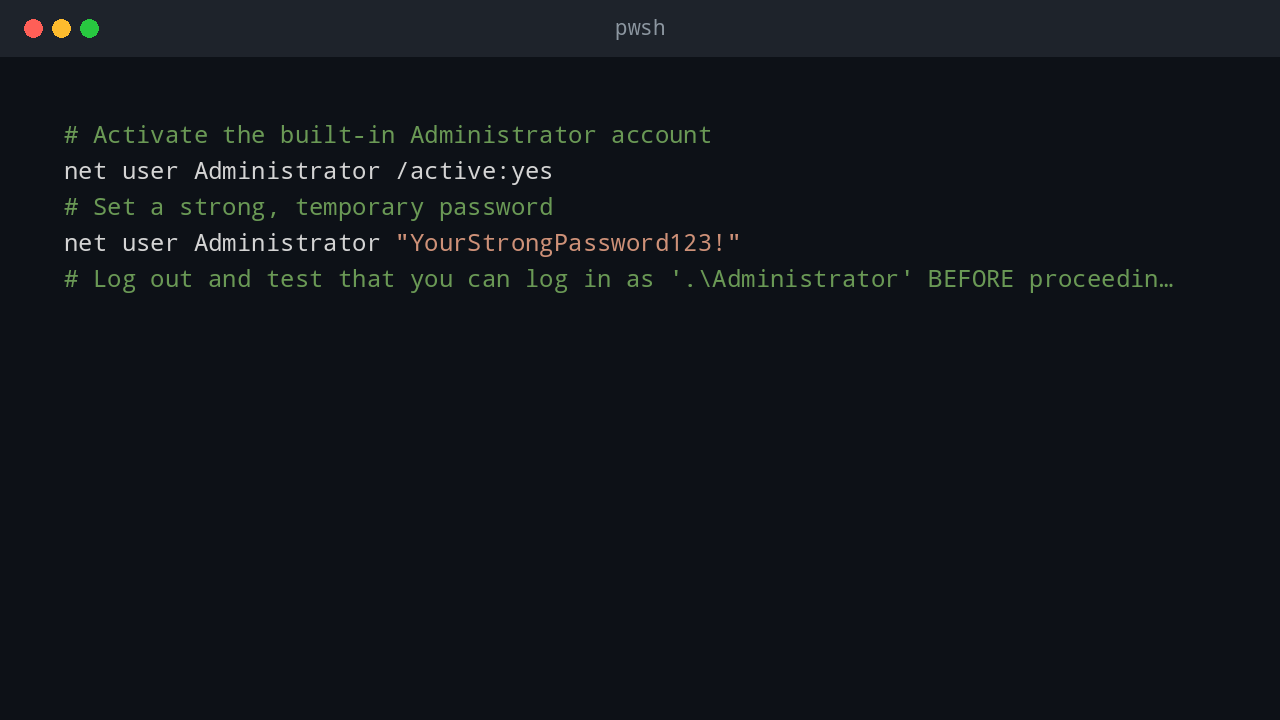
A. Enable the Local Administrator (CRUCIAL SAFETY STEP)
Before you start, ensure you have a “backdoor” into the machine to prevent getting locked out. Run this in an elevated PowerShell prompt:
# Activate the built-in Administrator account
net user Administrator /active:yes
# Set a strong, temporary password
net user Administrator "YourStrongPassword123!"
# Log out and test that you can log in as '.\Administrator' BEFORE proceeding.
B. Leave the Cloud and On-Prem Domains
If the machine is Hybrid Joined, leave Azure AD first.
# Leave Azure AD
dsregcmd /leave
# Leave On-Prem Domain (will prompt for credentials)
Remove-Computer -UnjoinDomain -Credential (Get-Credential) -Restart
C. Bust the Ghosts (Cleanup Stale Records)
While the machine is rebooting, immediately go to your management servers and delete the old computer object from:
- Active Directory Users & Computers
- DNS Manager (A and PTR records)
- Azure AD / Entra ID Portal
D. Rename and Rejoin
Once the machine has restarted, log in as the local .\Administrator. Renaming the computer is the best way to avoid lingering cache issues.
# Rename the computer
Rename-Computer -NewName "Workstation-New" -RestartAdd-Computer -DomainName "mydomain.com" -Credential (Get-Credential) -RestartAfter it restarts, dsregcmd /status should now correctly show DomainJoined : YES. This clean workflow prevents the vast majority of identity conflicts.
Validation Checklist
After making Office, Active Directory, or device-join changes, validate the result before returning the computer to the user. A quick reboot is not enough. The machine can appear healthy at the desktop while still having stale identity, DNS, licensing, or policy state.
For Office activation, confirm that the user can open an Office application, sign in, and reach the activation service without repeated prompts. If activation still fails, collect the exact error code before changing more network rules. Many activation problems are caused by proxy inspection, blocked TLS traffic, incorrect system time, or stale cached credentials.
For Active Directory queries, test with both a known user and a known computer object. That confirms the module works and that the account has permission to read the expected organizational units. If a query is slow, narrow the search base and request only the properties you need.
For domain rejoin work, check these items:
dsregcmd /statusshows the expected join state.- The computer object exists in the correct OU.
- DNS has the correct A and PTR records.
- Group Policy refresh completes without authentication errors.
- The user can sign in with a domain account.
- The device does not show duplicate or stale records in Entra ID.
This validation step matters because identity issues often reappear after the first reboot, especially when hybrid join, cached credentials, VPN connectivity, and old computer objects are involved.
Change Control Notes
These commands affect user identity, device trust, firewall policy, and licensing. Run them during a maintenance window when possible. Before removing a machine from a domain, make sure you have a working local administrator account and the BitLocker recovery key if the device is encrypted.
For repeatable administration, keep the destructive steps separate from the discovery steps. A script that reports Office activation status, domain status, and stale records is safe to run broadly. A script that removes computer objects or leaves a domain should be limited to specific devices and reviewed before execution.
💬 Comments