When installing or updating Discord through Windows Package Manager (winget), the installation can suddenly abort right after the installer package downloads and verifies. Instead of launching the app, winget reports a failure with exit code 4294967295, and a setup dialog displays “Installation has failed”.
This error is common during unattended deployments, scripted workstation setups, or manual package upgrades where an older copy of Discord was already running or partially installed.
The error
When running winget install for the Discord.Discord package in PowerShell, the command successfully downloads the package and verifies the SHA-256 installer hash. However, during the execution phase, the installer halts:

The winget installation fails immediately after starting package install with exit code 4294967295.
The terminal output shows:
PS C:\Users\sea> winget.exe install --id "Discord.Discord" --exact --source winget --accept-source-agreements --disable-interactivity --silent --accept-package-agreements --force
Found Discord [Discord.Discord] Version 1.0.9254
This application is licensed to you by its owner.
Microsoft is not responsible for, nor does it grant any licenses to, third-party packages.
Successfully verified installer hash
Starting package install...
Installer failed with exit code: 4294967295
When the command is run without silent flags, or when checking the graphical installer output, Windows displays the DiscordSetup.exe error window:
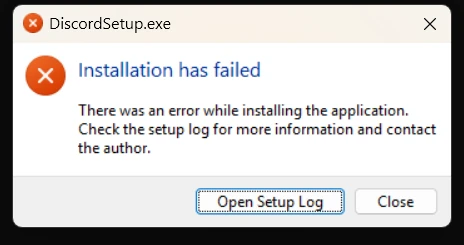
The Discord setup wizard prompts to check the setup log file.
Clicking Open Setup Log reveals the Squirrel installer log located at %LocalAppData%\Discord\SquirrelSetup.log:

The Squirrel setup log reports System.IO.IOException: Access to the path is denied while attempting to clean up the existing directory.
The critical section from the log states:
Program: About to install to: C:\Users\sea\AppData\Local\Discord
Program: Install path C:\Users\sea\AppData\Local\Discord already exists, burning it to the ground
IEnableLogger: Failed to remove existing directory on full install, is the app still running???: System.IO.IOException: Access to the path 'C:\Users\sea\AppData\Local\Discord' is denied.
   at System.IO.Directory.InternalMove(String sourceDirName, String destDirName, Boolean checkHost)
   at Squirrel.Utility.<DeleteDirectory>d__22.MoveNext()
--- End of stack trace from previous location where exception was thrown ---
Short answer
To resolve error 4294967295, stop all active Discord background processes, clear the existing local app folders, and run the winget installation again from PowerShell:
# 1. Kill any running Discord processes
Get-Process -Name "Discord*" -ErrorAction SilentlyContinue | Stop-Process -Force

# 2. Delete the locked installation directory
Remove-Item -Path "$env:LOCALAPPDATA\Discord" -Recurse -Force -ErrorAction SilentlyContinue

# 3. Reinstall Discord using winget
winget.exe install --id "Discord.Discord" --exact --source winget --accept-source-agreements --accept-package-agreements
If a file remains locked, restart Windows or use Sysinternals Handle to identify the locking process before re-running the installation command.
Why error 4294967295 occurs in Discord installations
The number 4294967295 is 0xFFFFFFFF in hexadecimal, which corresponds to -1 when interpreted as a 32-bit signed integer. Many Windows installers and framework launchers return exit code -1 as a generic failure indicator when an unhandled exception terminates the installation process.
Discord uses the Squirrel.Windows deployment framework for installation and automatic updates. Squirrel installs desktop applications into the per-user %LocalAppData%\Discord directory rather than C:\Program Files.
When Squirrel performs a fresh install or a full update, it executes the following sequence:
- It checks whether the target directory
%LocalAppData%\Discordalready exists. - If the folder exists, Squirrel attempts to wipe it clean (“burning it to the ground” in the log) by renaming and deleting the folder tree.
- If Discord is still running in the background, minimized to the system tray, or hung in memory, Windows maintains open file handles on DLLs and executable binaries inside
%LocalAppData%\Discord\app-<version>\. - Because Windows locks files that are in active use, the .NET
System.IO.Directory.InternalMoveorDirectory.Deleteoperation fails withSystem.IO.IOException: Access to the path is denied. - Squirrel cannot proceed with the clean directory structure, raises an unhandled exception, logs
Failed to remove existing directory on full install, is the app still running???, and exits with return code-1(4294967295).
Common triggers include:
- Discord minimized to the system tray while an automated
winget upgraderuns. - A zombie
Discord.exechild process (such as a voice engine or renderer worker) remaining active after closing the main window. - A previous installation attempt that crashed midway, leaving corrupted file permissions or read-only flags.
- Antivirus or file indexer services holding temporary locks on newly created directories in
%LocalAppData%.
Step 1: Terminate all lingering Discord processes
Before attempting any folder deletion or package installation, ensure no Discord processes are running under your user session or in the background.
Discord runs multiple helper processes for its Electron runtime, GPU rendering, voice processing, and crash handling. Closing the Discord window with the X button usually minimizes it to the system tray instead of terminating the process.
Open PowerShell and stop all Discord processes:
Get-Process -Name "Discord*", "DiscordSetup*" -ErrorAction SilentlyContinue | Stop-Process -ForceTo verify that all processes have stopped, query the process table:
Get-Process -Name "Discord*" -ErrorAction SilentlyContinueIf this command returns no output, all Discord processes have exited cleanly.
Step 2: Remove the locked AppData directories
Once all processes are stopped, clear the target installation directory so Squirrel can create fresh files without attempting a directory replacement.
Discord stores its core application binaries in LocalAppData and its user profile/cache in AppData (Roaming):
- Application binaries & Squirrel logs:
%LocalAppData%\Discord(C:\Users\<username>\AppData\Local\Discord) - User profile, cache, and state:
%AppData%\discord(C:\Users\<username>\AppData\Roaming\discord)
Run the following command in PowerShell to remove the local application directory:
$localDiscord = "$env:LOCALAPPDATA\Discord"

if (Test-Path -Path $localDiscord) {
    Remove-Item -Path $localDiscord -Recurse -Force
    Write-Host "Removed $localDiscord" -ForegroundColor Green
} else {
    Write-Host "$localDiscord does not exist." -ForegroundColor Yellow
}
If you also want to perform a completely fresh install (clearing cached tokens, cache data, and corrupted local databases), remove the roaming profile folder as well:
$roamingDiscord = "$env:APPDATA\discord"

if (Test-Path -Path $roamingDiscord) {
    Remove-Item -Path $roamingDiscord -Recurse -Force
    Write-Host "Removed $roamingDiscord" -ForegroundColor Green
}
Removing
%AppData%\discordclears local cache and stored preferences, requiring you to log in with your Discord credentials again after reinstallation.
Step 3: Run the winget installation command again
With the lingering processes stopped (and stale directories cleared if needed), run the winget install command again:
winget.exe install --id "Discord.Discord" --exact --source winget --accept-source-agreements --accept-package-agreementsOnce background locks are released, winget detects the package, extracts the installer, and completes the installation without encountering the access denied exception:

The winget installation completes with “Successfully installed” after stopping active Discord processes.
The terminal output confirms the clean execution:
PS C:\Users\sea> winget.exe install --id "Discord.Discord" --exact --source winget --accept-source-agreements --accept-package-agreements
Found an existing package already installed. Trying to upgrade the installed package...
Found Discord [Discord.Discord] Version 1.0.9254
This application is licensed to you by its owner.
Microsoft is not responsible for, nor does it grant any licenses to, third-party packages.
Successfully verified installer hash
Starting package install...
Successfully installed
Let us review the parameters used in this command:
| Parameter | Purpose |
|---|---|
--id "Discord.Discord" |
Targets the official Discord package manifest in the community repository. |
--exact |
Prevents partial or fuzzy matching with other packages like Discord Canary or PTB. |
--source winget |
Ensures the package is pulled directly from the official Microsoft winget source. |
--accept-source-agreements |
Automatically accepts the Windows Package Manager repository terms. |
--accept-package-agreements |
Accepts Discord’s software license agreement automatically. |
If you are running the command inside an automated provisioning script where no UI interaction should occur, you can add --silent --disable-interactivity:
winget.exe install --id "Discord.Discord" --exact --source winget --accept-source-agreements --accept-package-agreements --disable-interactivity --silent --forceWhen the folder is free of file locks, winget completes the package installation successfully with exit code 0.
Step 4: Verify the installation and launch Discord
Confirm that winget recognizes the newly installed version:
winget list --id "Discord.Discord" --exactYou can launch Discord directly from PowerShell:
Start-Process -FilePath "$env:LOCALAPPDATA\Discord\Update.exe" -ArgumentList "--processStart Discord.exe"Alternatively, launch Discord from the Windows Start menu or desktop shortcut.
Advanced troubleshooting: Identify locked files and handle issues
If running Remove-Item -Path "$env:LOCALAPPDATA\Discord" -Recurse -Force outputs Access is denied or The process cannot access the file because it is being used by another process, a background service or handle is locking a file inside that directory.
1. Check with openfiles or Sysinternals Handle
You can use the official Microsoft Sysinternals handle.exe tool to inspect which process ID holds locks on %LocalAppData%\Discord:
# Search for handles targeting the Discord directory
handle.exe "$env:LOCALAPPDATA\Discord"
If a process such as an antivirus scanner (MsMpEng.exe), backup agent, or lingering third-party overlay is holding a handle, note the PID and terminate or pause the conflicting tool.
2. Restart Windows Explorer or reboot
Sometimes Windows Explorer itself retains a folder lock if you had the folder open in File Explorer or if an icon overlay handler is active.
Restart Windows Explorer from PowerShell:
Stop-Process -Name "explorer" -ForceWindows will automatically restart explorer.exe. If the lock persists, a standard system reboot clears all non-persistent file locks and orphan handles.
3. Check folder security permissions
If the folder was created under an elevated Administrator context or during a different user session, your current user account might lack write permissions.
Verify and reset permissions on the folder using PowerShell:
$path = "$env:LOCALAPPDATA\Discord"
if (Test-Path $path) {
    # Take ownership of the folder
    takeown.exe /F $path /R /D Y
    # Grant Full Control to current user
    icacls.exe $path /grant "${env:USERNAME}:(OI)(CI)F" /T /C
    # Remove directory
    Remove-Item -Path $path -Recurse -Force
}
Summary of PowerShell cleanup commands
Here is the complete PowerShell recovery routine you can save as a script or run directly from your terminal when encountering exit code 4294967295:
# Stop Discord processes
Write-Host "Stopping Discord processes..." -ForegroundColor Cyan
Get-Process -Name "Discord*", "DiscordSetup*" -ErrorAction SilentlyContinue | Stop-Process -Force

# Wait briefly for process handles to release
Start-Sleep -Seconds 2

# Remove stale Local AppData directory
$localPath = "$env:LOCALAPPDATA\Discord"
if (Test-Path $localPath) {
    Write-Host "Cleaning up $localPath..." -ForegroundColor Cyan
    Remove-Item -Path $localPath -Recurse -Force -ErrorAction SilentlyContinue
}

# Run winget installation
Write-Host "Installing Discord via winget..." -ForegroundColor Cyan
winget.exe install --id "Discord.Discord" --exact --source winget --accept-source-agreements --accept-package-agreements --force
Exit code 4294967295 in Discord installations is rarely a problem with the downloaded package or the winget client itself. It is the signature indicator that Squirrel encountered an Access is denied directory conflict while attempting to replace an existing installation. Stopping all background Discord processes and clearing %LocalAppData%\Discord allows Squirrel to install cleanly.
💬 Comments