Running wsl --update in an administrative PowerShell terminal is the standard way to update the Windows Subsystem for Linux kernel and user-mode packages. However, on machines running active background updates, scheduled software deployments, or incomplete reboots, the update process can terminate immediately with exit code 1618 and error code Wsl/UpdatePackage/0x80070652.
This error occurs because the modern decoupled WSL package installs via the Windows Installer engine (msiexec.exe). Windows Installer allows only one active installation transaction across the entire operating system. When another process holds the global installer mutex, WSL cannot start its transaction and exits with a Win32 installation conflict.
Quick answer
Error 1618 (0x80070652) indicates that Windows Installer is currently busy processing another setup task. Check for active background installations or Windows Update workers (TiWorker.exe or msiexec.exe) using Get-Process msiexec, TiWorker -ErrorAction SilentlyContinue. If a legitimate update is running, wait 2 to 5 minutes for it to complete. If the installer engine is orphaned or unresponsive, open an elevated PowerShell prompt, restart the installer service with Stop-Service msiserver -Force; Start-Service msiserver, and execute wsl --update again. If Windows Update is pending a system reboot, restart Windows before retrying.
The wsl –update Exit Code 1618 Error
When running wsl --update, the command line client contacts GitHub or the Microsoft update catalog, verifies the latest package version, downloads the payload to the local temporary folder, and invokes the installation routine.
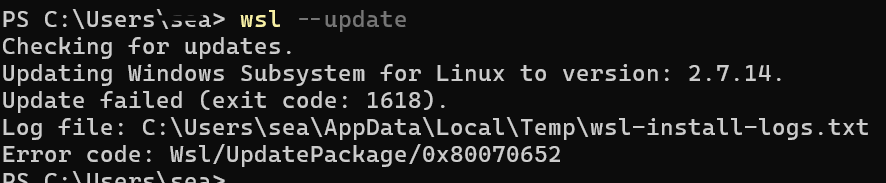
The wsl –update command fails during package execution because another installer lock is active.
The output highlights key diagnostics:
- Target version: The client resolved version
2.7.14. - Exit code 1618: Corresponds to the standard Win32 system error
ERROR_INSTALL_ALREADY_RUNNING. - Error code 0x80070652: The standard HRESULT wrapper for Win32 error code 1618 (
0x80070000facility mask +0x0652in hex). - Log file location: A detailed MSI execution log written to
%LOCALAPPDATA%\Temp\wsl-install-logs.txt.
Root Cause: Windows Installer Mutex and HRESULT 0x80070652
Historically, WSL was a built-in Windows optional feature managed entirely by the Component-Based Servicing (CBS) stack and dism.exe. In modern releases, Microsoft decoupled WSL from the underlying Windows OS build. WSL is now packaged as an MSI package (or MSIX package on the Microsoft Store) delivered independently.
When you invoke wsl.exe --update:
- The binary downloads the appropriate architecture package (such as
wsl.2.7.14.0.x64.msi) into your user%TEMP%directory. - The binary calls the Windows Installer API
MsiInstallProductWor launchesmsiexec.exein the background. - Windows Installer (
msiserver) attempts to acquire the named system mutexGlobal\_MSIExecute. - Only one process can hold
Global\_MSIExecuteat any given time. This guarantees atomic transactions, preventing two installers from overwriting shared dynamic link libraries or registry hives simultaneously. - If another application (for example, Microsoft Visual C++ Redistributable, an Edge/Chrome background update, an enterprise agent, or Windows Update) holds that mutex,
msiserverdenies the request and returns Win32 status code 1618. - The WSL update utility converts this Win32 error to an HRESULT:
$$\text{HRESULT} = \text{0x80070000} \mid \text{0x0652} = \text{0x80070652}$$
Because the mutex acquisition failed immediately, the WSL update halts without altering the currently installed WSL binaries.
Prerequisites and Diagnostic Scope
Before troubleshooting and terminating background tasks, ensure your environment meets the necessary administrative requirements:
- Operating System: Windows 11 (21H2 or later) or Windows 10 (21H2 or later, Build 19044+).
- PowerShell Version: PowerShell 7+ (
pwsh) or Windows PowerShell 5.1. - Privilege Level: Elevated administrator rights (
Run as Administrator). Querying installer process command lines and restarting system services requires elevation. - Running WSL Distributions: Although updating WSL does not destroy Linux file systems (
ext4.vhdx), verify that critical database or compilation jobs running inside existing WSL instances are cleanly checkpointed before restarting services or the host.
Step 1: Inspect wsl-install-logs.txt in Temp
When wsl --update fails, the first diagnostic step is checking the log path reported in the console error: %LOCALAPPDATA%\Temp\wsl-install-logs.txt.
Open an elevated PowerShell window and inspect the last twenty lines of the installer log:
$LogPath = "$env:LOCALAPPDATA\Temp\wsl-install-logs.txt"
if (Test-Path -Path $LogPath) {
    Get-Content -Path $LogPath -Tail 25
} else {
    Write-Warning "WSL install log not found at $LogPath"
}
In the log, look for lines referencing MainEngineThread and MsiInstallProduct:
=== Verbose logging started: 9/23/2026  17:28:10  Build type: SHIP UNICODE ===
Package: C:\Users\sea\AppData\Local\Temp\wsl.2.7.14.0.x64.msi
Command Line: REINSTALL=ALL REINSTALLMODE=vamus
...
MainEngineThread is returning 1618
=== Verbose logging stopped: 9/23/2026  17:28:12 ===
Notice that the log captures the exact path to the downloaded MSI package: C:\Users\sea\AppData\Local\Temp\wsl.2.7.14.0.x64.msi. This cached file can be used later for manual fallback installation if needed.
Step 2: Detect Active Installer Processes in PowerShell
Next, identify what process currently owns the Windows Installer lock. The lock is commonly held by msiexec.exe, TiWorker.exe (Windows Update Worker), or TrustedInstaller.exe.
Run the following command in PowerShell to list any active installer processes:
Get-Process -Name "msiexec", "TiWorker", "TrustedInstaller", "setup" -ErrorAction SilentlyContinue |
    Select-Object Id, ProcessName, CPU, StartTime |
    Format-Table -AutoSize
To see what package or command line an active msiexec.exe is running, query CIM using the Win32_Process class:
Get-CimInstance -ClassName Win32_Process -Filter "Name = 'msiexec.exe'" |
    Select-Object ProcessId, CommandLine |
    Format-List
Interpreting the output:
msiexec.exe /V: This indicates the Windows Installer service engine is running in worker mode. If CPU usage is actively increasing, an installation is actively writing files or registering components.msiexec.exe /i <PathToSoftware>: A standard interactive or silent software setup is running. Look at the path to determine what application is installing.TiWorker.exewith high CPU: Windows Update is installing system patches, servicing stack updates, or cumulative updates.
If an installer is legitimately running, do not terminate it. Allow it 2 to 5 minutes to finish. Interrupting an active driver or cumulative update can leave the Windows Component Store in a degraded state.
Step 3: Check for Pending Windows Update Reboots
If TiWorker.exe or TrustedInstaller.exe completed its staging phase, Windows may be waiting for a system reboot. While a reboot is pending, the component servicing engine can block secondary MSI installations.
Use PowerShell to query the registry keys that indicate a pending reboot:
$PendingRebootKeys = @(
    "HKLM:\SOFTWARE\Microsoft\Windows\CurrentVersion\Component Based Servicing\RebootPending",
    "HKLM:\SOFTWARE\Microsoft\Windows\CurrentVersion\WindowsUpdate\Auto Update\RebootRequired",
    "HKLM:\SYSTEM\CurrentControlSet\Control\Session Manager\PendingFileRenameOperations"
)

foreach ($Key in $PendingRebootKeys) {
    $Exists = Test-Path -Path $Key
    [PSCustomObject]@{
        RegistryKey = $Key
        Pending     = $Exists
    }
}
If RebootPending or RebootRequired returns True, reboot Windows immediately. Once the computer restarts, Windows Update completes its finalization phase and frees the installer lock.
Step 4: Safely Restart the Windows Installer Service
If no visible installation is taking place, CPU usage on msiexec.exe is zero, and Task Manager shows no installer activity, the Windows Installer service may simply be holding an idle session open after a previous job.
Restart the msiserver service from an elevated PowerShell terminal:
# Verify current service state
Get-Service -Name msiserver | Select-Object Name, Status, StartType

# Stop and restart the Windows Installer service
Stop-Service -Name msiserver -Force -ErrorAction SilentlyContinue
Start-Service -Name msiserver

# Confirm the service returned to a healthy state
Get-Service -Name msiserver | Select-Object Name, Status
Once the service restarts cleanly, retry running the WSL update command:
wsl --updateStep 5: Terminate Stuck or Orphaned msiexec Processes
In some cases, a third-party application setup crashes, leaving an orphaned msiexec.exe instance running in the background. The orphaned process retains its handle to Global\_MSIExecute, causing subsequent calls to fail with code 1618.
If you have confirmed that no legitimate setup is running and Stop-Service msiserver timed out or failed to clear the process, terminate the orphaned instances:
# Stop all user-mode msiexec tasks
Get-Process -Name "msiexec" -ErrorAction SilentlyContinue | ForEach-Object {
    Write-Host "Stopping msiexec process PID $($_.Id)..." -ForegroundColor Yellow
    Stop-Process -Id $_.Id -Force
}

# Restart msiserver to clear registry mutex state
Start-Sleep -Seconds 2
Start-Service -Name msiserver -ErrorAction SilentlyContinue
[!WARNING] Only terminate
msiexec.exewhen CPU activity is flat and no setup wizard or corporate software deployment tool (such as Intune or SCCM) is actively transferring files. Force-terminating an active MSI transaction can leave orphaned temporary registry entries underHKLM:\SOFTWARE\Microsoft\Windows\CurrentVersion\Installer\InProgress.
To verify that the InProgress registry key is clear:
$InProgressPath = "HKLM:\SOFTWARE\Microsoft\Windows\CurrentVersion\Installer\InProgress"
if (Test-Path -Path $InProgressPath) {
    Write-Warning "An installation transaction remains registered under InProgress."
    Get-ItemProperty -Path $InProgressPath
} else {
    Write-Host "Installer InProgress transaction table is clean." -ForegroundColor Green
}
If the InProgress key contains remnants of an aborted installation, restarting Windows will trigger the Windows Installer rollback sequence and clean up the key automatically.
Step 6: Manually Install the WSL MSI Package
If running wsl --update continues to fail despite freeing the installer lock, you can bypass the command-line updater and execute the MSI package directly with verbose diagnostic logging.
Earlier in Step 1, the log revealed the cached package path:
$env:LOCALAPPDATA\Temp\wsl.2.7.14.0.x64.msi
If the cached file is missing or corrupted, download the official release directly from the Microsoft WSL repository on GitHub:
$TargetVersion = "2.7.14.0"
$DownloadUrl   = "https://github.com/microsoft/WSL/releases/download/$TargetVersion/wsl.$TargetVersion.x64.msi"
$Destination   = "$env:TEMP\wsl.$TargetVersion.x64.msi"

Write-Host "Downloading WSL MSI package from GitHub..." -ForegroundColor Cyan
Invoke-WebRequest -Uri $DownloadUrl -OutFile $Destination -UseBasicParsing

# Execute the MSI installation with full verbose logging
$LogFile = "$env:TEMP\wsl-manual-msi.log"
Write-Host "Executing msiexec installation..." -ForegroundColor Cyan

Start-Process -FilePath "msiexec.exe" `
    -ArgumentList "/i `"$Destination`" /qn /norestart /l*v `"$LogFile`"" `
    -Wait -NoNewWindow

# Check exit code of the last process
$ExitCode = (Get-Process -Id $PID).ExitCode
Write-Host "Installation completed with exit code: $LASTEXITCODE" -ForegroundColor Green
Direct execution using /qn (quiet, no user interface) and /norestart ensures that the installation runs unattended while /l*v writes an exhaustive log of every action, property, and custom action execution.
Step 7: Verify WSL Version and Subsystem Health
After resolving the installer lock and applying the update, verify that the subsystem updated successfully and the virtualization layer is functioning properly.
Run the following checks from PowerShell:
# 1. Confirm that wsl reports no further updates pending
wsl --update

# 2. Check installed component versions
wsl --version

# 3. Check overall subsystem health and default distribution
wsl --status

# 4. List all installed distributions and their running state
wsl -l -v
Expected output for wsl --version:
WSL version: 2.7.14.0
Kernel version: 6.6.36.6-1
WSLg version: 1.0.65
MSRDC version: 1.2.5620
Direct3D version: 1.611.1-36686780
DXCore version: 10.0.26100.1-240331-1435.ge-release
Windows version: 10.0.26100.1742
Then, launch your primary Linux distribution to ensure the virtual machine starts cleanly:
wsl -d Ubuntu-26.04 -e uname -rIf the command prints the updated kernel version (for example, 6.6.36.6-1-microsoft-standard-WSL2), the update is fully operational.
Edge Cases, Pitfalls, and Recovery
When troubleshooting error 1618 across multiple machines or enterprise environments, keep these edge cases in mind:
1. Group Policy and Microsoft Intune Collisions
In domain-joined or Intune-managed corporate environments, management agents push background patches and applications silently. These agents execute msiexec.exe /i behind the scenes. If you run wsl --update while Intune is updating an application, error 1618 will occur repeatedly until the deployment policy completes. Check Event Viewer under Applications and Services Logs > Microsoft > Windows > DeviceManagement-Enterprise-Diagnostics-Provider for active background deployments.
2. Corrupted Windows Installer Registration
If msiserver refuses to start or throws error 1719 (“The Windows Installer Service could not be accessed”), the service registration in the Windows registry may be damaged. You can reregister the binary from an administrative prompt:
msiexec /unregister
msiexec /regserver
Restart-Service -Name msiserver
3. Microsoft Store Versus MSI Package Confusion
On Windows 11, WSL can be updated through the Microsoft Store or via GitHub MSI releases. If your machine is configured to use the Store version but Store updates are blocked by Group Policy (DisableStoreInstall), running wsl --update may fail or revert to the MSI installer. In that scenario, use wsl --update --web-download to force WSL to retrieve the package from the web catalog rather than the Microsoft Store:
wsl --update --web-download4. Locked VHDX Files
If an existing WSL instance is frozen or hung in the background, wsl --update might successfully update the host binaries but fail to launch distributions afterward. Always issue a clean shutdown of the virtualization environment prior to major kernel updates:
wsl --shutdownSummary and Related Resources
Exit code 1618 during wsl --update is a concurrency conflict rather than a bug in WSL itself. Because the modern WSL subsystem is distributed as a standard MSI package, it must acquire the exclusive Global\_MSIExecute mutex managed by msiserver. When Windows Update, Click-to-Run updaters, or another package installation holds that mutex, WSL reports Wsl/UpdatePackage/0x80070652.
Resolving the issue follows a straightforward progression:
- Inspect
%LOCALAPPDATA%\Temp\wsl-install-logs.txtto confirm the target MSI package and failure code. - Check for active background installers with
Get-Process msiexec, TiWorker. - Check for pending reboot flags in the Component Based Servicing registry keys.
- Restart the Windows Installer service (
Stop-Service msiserver; Start-Service msiserver). - If necessary, execute the downloaded MSI package manually with verbose logging enabled.
- Verify the operational state using
wsl --versionandwsl --status.
💬 Comments