Microsoft Edit is installed on the Windows host, PowerShell finds edit.exe, and New-Item successfully creates myTest.txt. Yet running edit .\myTest.txt inside Enter-PSSession returns Error 0x80070006: The handle is invalid. This is confusing because the executable and file are both present. The failure is caused by the session type: a WinRM PowerShell remoting session does not provide the normal interactive console handles that a full-screen terminal editor expects.
Quick answer
Nothing in the screenshots indicates a broken Edit installation or a file permission problem. Edit does not work in the shown WinRM Enter-PSSession because PSRP does not provide the console handles its TUI needs. There is no setting, permission change, or reinstall that fixes this within that session type. Use a direct interactive SSH terminal with a PTY instead; the fifth screenshot confirms Edit works there. Enter-PSSession -HostName is still a PowerShell remoting session, not the direct SSH shell shown in the screenshot.
The Four Screenshots Show an Environment Problem, Not a Missing Program
The sequence is useful because it rules out several tempting but incorrect troubleshooting paths. The first image shows Microsoft Edit 1.2.1.0 installed. The second shows Windows resolving the executable to C:\Windows\System32\edit.exe. The third shows New-Item creating a zero-byte file in the current remote directory. The fourth shows the error only when the terminal editor starts.

Screenshot 1: Edit is installed on the target host.

Screenshot 2: command resolution points to C:\Windows\System32\edit.exe.
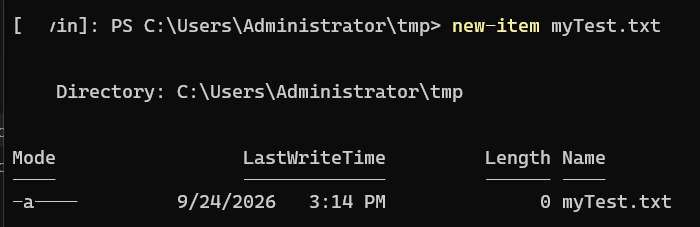
Screenshot 3: the remote file exists; it is initially empty.

Screenshot 4: Edit starts but cannot use the console handle exposed by this remoting session.
Together, these establish that package installation, PATH lookup, and file creation worked. Reinstalling Edit, changing the current directory, or granting extra file permissions does not address the failing layer. The error occurs while Edit tries to initialize its interactive terminal interface.
The fifth screenshot shows the same file open successfully in Edit during a direct SSH terminal session. That comparison confirms the key point: Edit works on the host when it has an interactive terminal; it is the Enter-PSSession console environment that prevents it from starting.
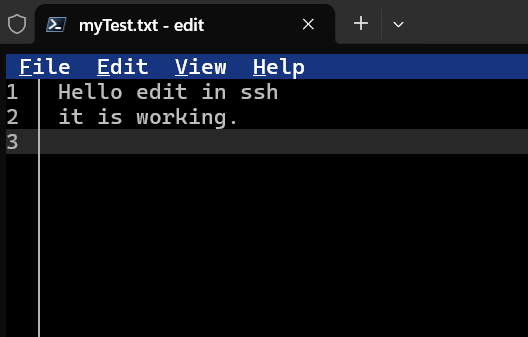
Screenshot 5: the same myTest.txt is editable in the direct SSH terminal session.
Why Edit Returns Error 0x80070006 in Enter-PSSession
0x80070006 corresponds to an invalid handle (ERROR_INVALID_HANDLE, wrapped as an HRESULT). In this case, Edit needs usable terminal input/output so it can draw its interface, read key presses, move the cursor, and update the screen. The remote session shown in the screenshots is a PowerShell remoting session (PSSession), not a remote console window.
PowerShell remoting transports PowerShell commands and their output between two PowerShell hosts. With the traditional WinRM/WSMan transport, it does not attach the remote process to a normal interactive Windows console in the way a local terminal does. PowerShell commands still work, and many native programs that print ordinary text work, but a TUI that expects console handles and terminal control behavior can fail. Microsoft’s PowerShell remoting FAQ describes the distinction: remote commands can start Windows programs, but their graphical UI does not appear in the remoting session. Microsoft Edit’s own issue tracker has an exact report of this error when launched through a WinRM-based session; it was closed as not planned.
This is not an Edit-only problem. vim, vi, pagers, interactive installers, and other console UI applications can also need terminal capabilities absent from a PSRP session. Replacing edit with vim while staying in the same Enter-PSSession is therefore not a fix. A plain text command such as Get-Content can work because it writes normal output; a full-screen editor needs more.
The file in screenshot 3 is empty, but that is not the cause. Edit should be able to open an empty file in a supported terminal. Similarly, the path is valid and where.exe edit.exe resolves the binary. If the file were missing, you would see a path/file error rather than the invalid console handle on startup.
Fix One: Use a Real Interactive SSH Terminal
For interactive editing on the remote machine, connect through OpenSSH in a terminal that allocates a pseudo-terminal (PTY). The fifth screenshot demonstrates this working with myTest.txt. This is distinct from entering a PowerShell remoting session over SSH: Enter-PSSession -HostName still creates a PowerShell remoting session. To get the working ordinary interactive shell, use the SSH client directly:
ssh -t Administrator@server01Authenticate, then check which shell the server starts. If the SSH server’s default shell is PowerShell, you can run the editor directly. If it starts Command Prompt, PowerShell can be started first:
pwsh
edit C:\Users\Administrator\tmp\myTest.txt
If you only have Windows PowerShell 5.1 installed, use powershell.exe in place of pwsh. When connecting to an SSH server that is configured to start PowerShell as its default shell, the extra pwsh command is unnecessary.
The PTY allocation matters. In OpenSSH, -t requests a pseudo-terminal for an interactive session. A noninteractive command such as ssh server01 edit file.txt may not allocate one, depending on how it is invoked, so Edit can still fail. Use a terminal emulator with interactive input and do not pipe the editor’s input/output through another process. Once in the remote terminal, invoke edit and verify the save before disconnecting.
PowerShell supports SSH-based remoting, but note the difference in command shape:
# This creates a PowerShell remoting session (PSRP), not a regular SSH shell.
Enter-PSSession -HostName 'Administrator@server01'
If your goal is an interactive TUI, test a direct SSH shell rather than assuming that switching the PSSession transport to SSH gives the same terminal behavior. Security setup for SSH is separate: install/configure OpenSSH Server on the Windows host, restrict inbound access to trusted networks, use secure authentication, and follow your organization’s policy. Do not expose SSH to the public internet merely to edit one file.
Fix Two: Copy the File to Your Workstation, Edit It, and Copy It Back
If WinRM is the required management transport, it is often simplest to keep using it for file transfer and use a local editor on your workstation. This works with Edit, Notepad, VS Code, or another editor because the editor runs where you have a real interactive desktop/terminal. The remote file is copied to the workstation, edited locally, and copied back over the existing PSSession.
Create or reuse the session, then define the exact remote and local paths. The following example creates a backup on the remote host before copying the file down:
$session = New-PSSession -ComputerName 'server01'
$remotePath = 'C:\Users\Administrator\tmp\myTest.txt'
$localPath = Join-Path $env:TEMP 'myTest-server01.txt'
$backupPath = "$remotePath.bak"

Invoke-Command -Session $session -ScriptBlock {
    param($Path, $Backup)
    if (-not (Test-Path -LiteralPath $Path)) {
        throw "Remote file not found: $Path"
    }
    Copy-Item -LiteralPath $Path -Destination $Backup -Force
} -ArgumentList $remotePath, $backupPath

Copy-Item -FromSession $session -LiteralPath $remotePath -Destination $localPath
Edit the local copy. For example, use the local Microsoft Edit or Notepad executable from your workstation’s own terminal or desktop. Then inspect the saved local file before uploading it:
Get-Item -LiteralPath $localPath | Select-Object FullName, Length, LastWriteTime
Get-Content -LiteralPath $localPath -TotalCount 20
When the content is correct, copy it back through the same session and verify the remote file:
Copy-Item -ToSession $session -LiteralPath $localPath -Destination $remotePath -Force
Invoke-Command -Session $session -ScriptBlock {
    param($Path)
    Get-Item -LiteralPath $Path |
        Select-Object FullName, Length, LastWriteTime
    Get-FileHash -LiteralPath $Path -Algorithm SHA256
} -ArgumentList $remotePath

Remove-PSSession $session
The Copy-Item -FromSession and -ToSession parameters transfer files over PowerShell remoting without requiring an SMB share. Keep a backup when editing important configuration, and validate the file syntax before restarting a service. Some editors change encoding or line endings, so check what the application expects, especially for scripts and configuration formats with strict encoding requirements. If Copy-Item fails due to permissions, investigate the remoting account’s file access separately; that is a different problem from Edit’s invalid console handle.
For a one-off file that you can access through a secure administrative share, you can also edit a path such as \\server01\c$\Users\Administrator\tmp\myTest.txt directly from your local editor. This requires that SMB is allowed and the account has administrative share access. Prefer the PSSession transfer method where SMB is unavailable or prohibited.
What Not to Try
Do not reinstall Edit just because this message appears. The screenshots show Get-Command resolves the installed executable and where.exe finds it. Reinstallation would not create the console handles missing from the session.
Do not change NTFS permissions on the file without evidence of an access-denied error. The file was created successfully, and the failure appears when Edit initializes the UI. Avoid broad permission changes such as granting Everyone write access; they weaken security and do not supply a terminal.
Do not assume Vim will solve it. Vim is another terminal application that needs input and screen control. Try Vim if you prefer it in a supported SSH terminal, but within the same WinRM PSSession it may fail for the same reason.
Do not try to launch the editor as a detached GUI process with Start-Process and expect the window to appear on your own computer. The remote process runs on the remote host; PSRP does not forward its desktop UI. Use Remote Desktop when a remote graphical desktop is genuinely required, or use a terminal editor over SSH for text files.
Troubleshooting Checklist
If you still see an error after switching to direct SSH, test the editor locally on the Windows host first. Confirm the file path exists, run edit --help if supported by the installed build, and verify that the terminal session is interactive. If direct SSH works but a script or automation invocation fails, the latter may not allocate a PTY. Return to an interactive SSH login rather than changing file ACLs. For the WinRM Enter-PSSession case shown in this post, stop trying to repair Edit in place: use direct SSH for interactive editing, or transfer the file through the PSSession and edit it locally.
If local editing and file transfer are preferred, verify which side each command runs on. Inside Enter-PSSession, $env:COMPUTERNAME identifies the remote host; outside, it identifies the workstation. Use explicit paths and inspect file timestamps and hashes after transfer. For production changes, retain a backup and test the application configuration before service restart.
If Copy-Item -FromSession or -ToSession is unavailable, check the PowerShell version and remoting configuration, or use an approved secure file transfer channel. Do not paste a large configuration into the interactive prompt: quoting, encoding, and line-ending changes make that fragile.
💬 Comments