I manage two different types of remote computers every week: Windows hosts that I access through Remote Desktop Protocol (RDP), and Linux hosts that I access through Secure Shell (SSH). Instead of putting every connection into one large application, I use two focused tools: Microsoft Sysinternals RDCMan for Windows RDP connections and Tabby for Linux SSH connections.
This arrangement keeps the connection type visible. When I need a Windows desktop, I open RDCMan. When I need a Linux shell, I open Tabby. Both applications are lightweight enough to leave available during the day, and both let me organize a growing list of hosts into named groups.
Quick answer
Use RDCMan to organize Windows hosts by RDP. Use Tabby to organize Linux hosts by SSH. A practical layout is:
- RDCMan:
Production,Test,Domain Controllers,File Servers, andLab Windows. - Tabby:
Production Linux,Test Linux,Jump Hosts, andDevelopment.
RDCMan stores RDP servers in groups and can show connected sessions as thumbnails. Tabby stores SSH profiles and opens them in tabs or split panes. Together, they cover the two main operating-system families without requiring one large, expensive remote-connection suite.
Why use two tools?
RDP and SSH are different protocols with different workflows. RDP provides a graphical Windows desktop, keyboard and mouse input, clipboard support, drive or printer redirection options, and a session that behaves like sitting in front of the remote computer. SSH provides a text shell, command execution, port forwarding, file transfer options, and efficient access to Linux servers.
An RDP manager is good at showing the state of several graphical sessions. A terminal manager is good at keeping several shells open, switching between tabs, and arranging panes. Trying to force both workflows into an application designed for only one of them often creates extra configuration and unnecessary complexity.
The split also reduces mistakes. I can name Windows groups with terms such as Domain Controllers and File Servers, while Linux groups can use terms such as Web, Database, and Monitoring. The application itself becomes a visual reminder of which operating system and connection method I am about to use.
RDCMan for Windows RDP hosts
Remote Desktop Connection Manager, usually called RDCMan, is part of Microsoft Sysinternals. It is designed to manage multiple Remote Desktop connections and organize them into named groups. The official documentation describes file groups, nested groups, server settings, inherited configuration, and thumbnail views.
RDCMan is useful when I need regular access to several Windows servers. Instead of opening a separate mstsc.exe window for every host, I keep the servers in one .rdg file. The tree on the left gives me a predictable inventory, and selecting a group can show the sessions belonging to that group.
Suggested RDCMan groups
I normally organize Windows hosts by environment and role:
Windows Hosts
├── Production
│   ├── Domain Controllers
│   │   ├── dc1
│   │   └── dc2
│   └── File Servers
│       ├── files01
│       └── files02
└── Test
    └── Lab Windows
        ├── lab-win01
        └── lab-win02
The exact hierarchy depends on the environment. A small home lab may only need Windows and Test. A larger environment may benefit from groups for Production, Disaster Recovery, Development, and Customer Sites.
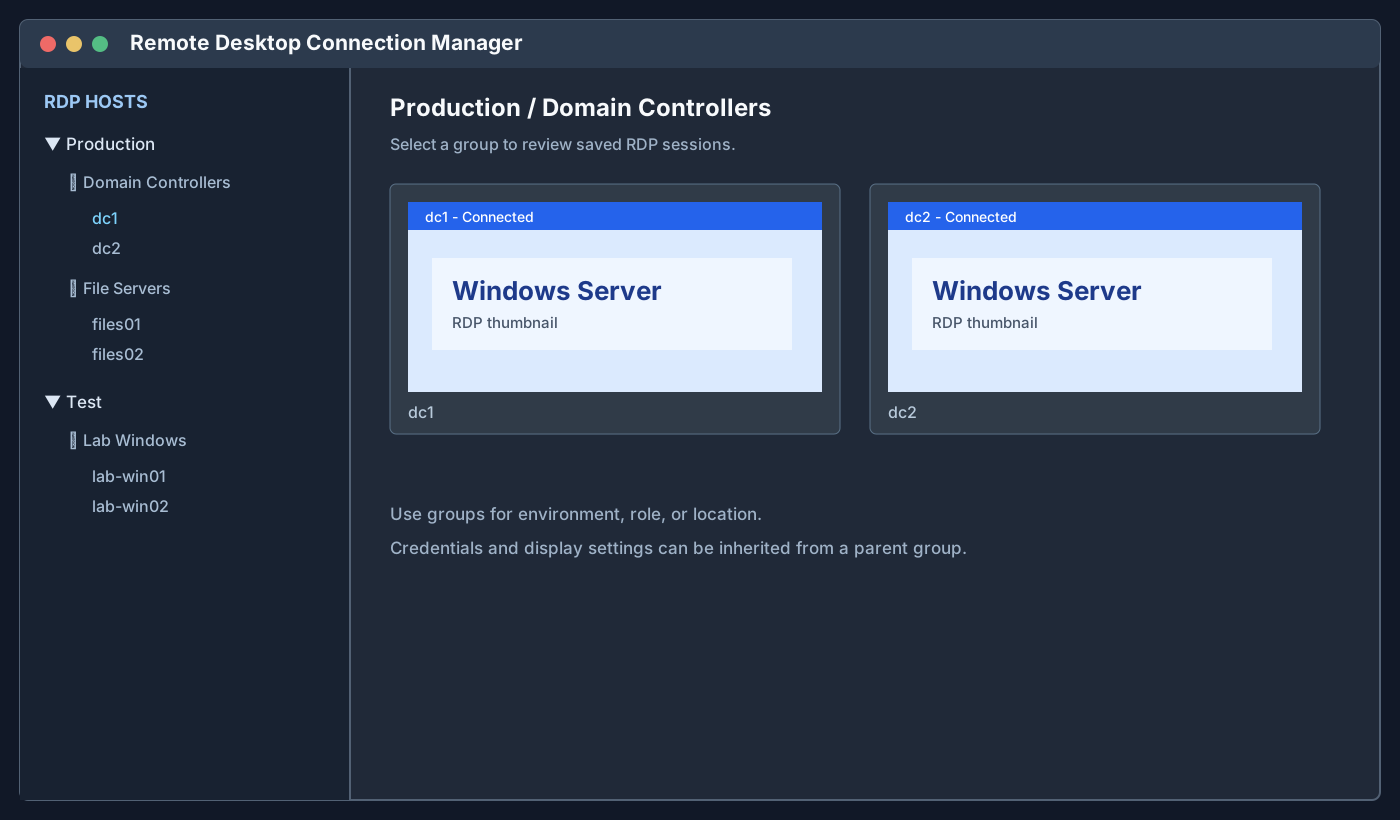
Example RDCMan-style layout showing Windows RDP hosts organized by environment and server role.
When a group is selected, RDCMan can show server thumbnails. This is useful when several graphical sessions are open and I need to identify which server is displaying an alert or a maintenance prompt. The thumbnail view is also a quick visual check that the intended hosts are connected.
Keep RDCMan credentials under control
RDP connection files can contain sensitive connection settings. Treat the .rdg file as administrative configuration, not as an ordinary document. Store it in a protected folder, do not publish it to a public repository, and do not send it through an unprotected chat or email message.
Use separate credentials for different environments when possible. Avoid using a highly privileged domain account for routine administration. If a credential profile is inherited by a group, verify the inheritance before adding a new host to that group.
RDCMan helps organize connections, but it does not replace network access controls, multifactor authentication, privileged access management, or normal RDP security practices. Use a VPN, bastion host, or Remote Desktop Gateway when the environment requires one.
Tabby for Linux SSH hosts
Tabby is a cross-platform terminal application with an integrated SSH client, connection profiles, tabs, split panes, and optional SFTP support. It can also open local PowerShell, PowerShell 7, WSL, Command Prompt, and other shells, but I mainly use its SSH profiles for Linux hosts.
Tabby is useful when I need several Linux shells open at the same time. Each host can have a profile with its hostname, username, private key, jump host, port, and terminal settings. After connecting, the sessions stay in separate tabs, so I can switch between a web server, database server, and monitoring host without opening several unrelated terminal windows.
Suggested Tabby groups
I use a profile structure similar to this:
SSH Hosts
├── Production Linux
│   ├── web01
│   ├── db01
│   └── monitor01
├── Test Linux
│   ├── lab-linux01
│   └── lab-linux02
└── Jump Hosts
    └── bastion01
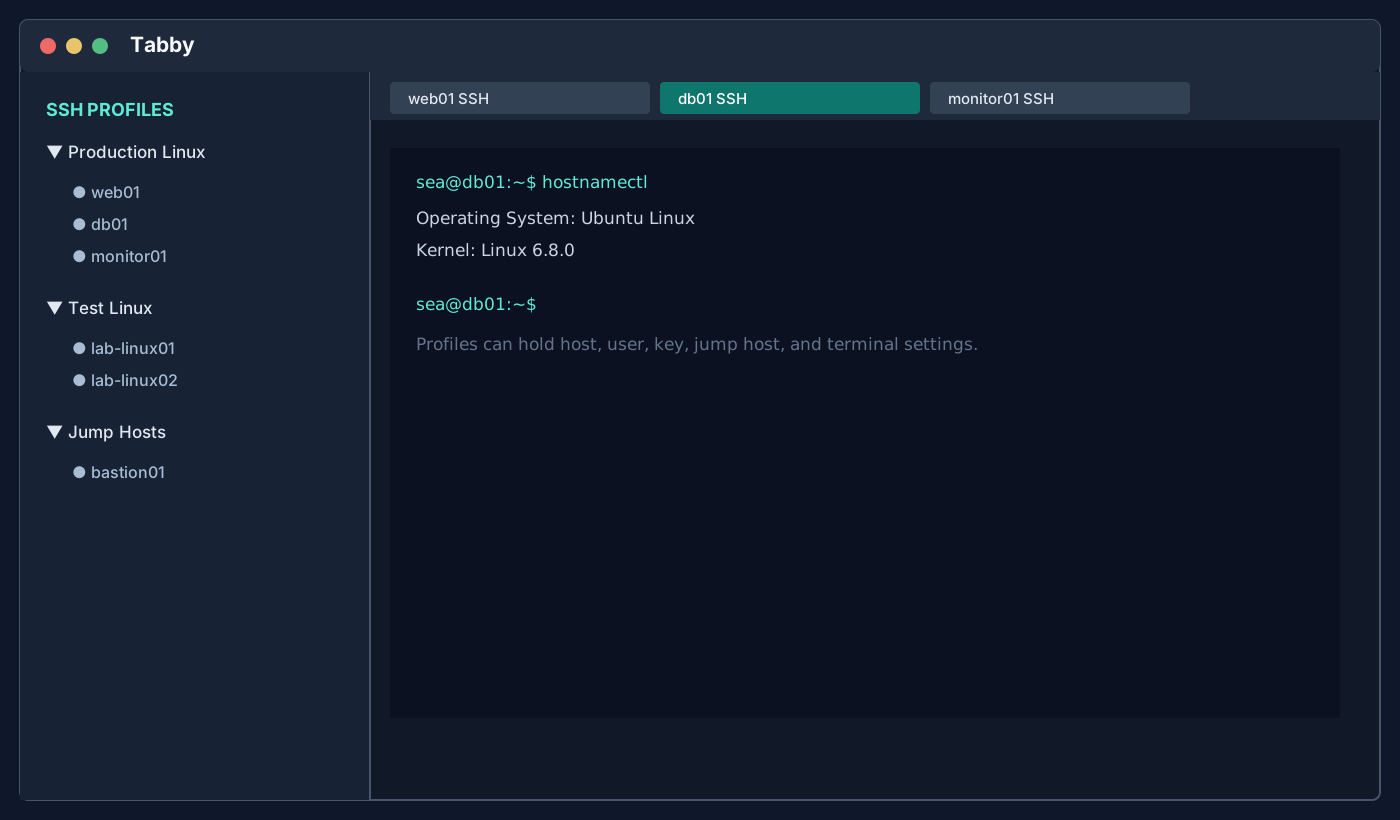
Example Tabby-style layout showing Linux SSH profiles grouped into production, test, and jump-host folders.
Tabby can keep the host profiles organized while the terminal tabs show the current work. I use short, consistent names in the profile list and put the full hostname, username, key, and jump-host details in the profile settings. This keeps the list scannable without losing connection details.
Use SSH keys instead of passwords when the environment supports them. Protect private keys with a passphrase and use the Windows OpenSSH agent or another approved key-management method. A terminal application can make a connection easier to select, but it should not encourage storing production passwords in plain text.
RDCMan and Tabby manage two operating systems
The division is simple:
| Host type | Protocol | Tool | Typical groups |
|---|---|---|---|
| Windows Server or workstation | RDP | RDCMan | Production, Domain Controllers, File Servers, Test |
| Linux server | SSH | Tabby | Production Linux, Web, Database, Monitoring, Test |
There are exceptions. Windows can run an OpenSSH server, and Linux can run Samba or a graphical remote-desktop service. The table describes the normal workflow, not a technical restriction. Select the tool based on the protocol and the experience you need for the task.
For example, I may use Tabby to connect to a Windows host through OpenSSH when I only need PowerShell commands. I may use an RDP client to access a Linux desktop when the host is configured for it. The normal arrangement still keeps the common case easy to recognize.
Lightweight, smooth, stable, and free
The main reason for this setup is practicality. RDCMan and Tabby are focused tools that solve the connection problems I actually have. They start quickly, remain responsive with several saved profiles, and do not require a subscription for basic RDP or SSH work.
Using two focused applications also makes troubleshooting easier. If RDP fails, I check the Windows host, RDP service, firewall, credentials, and network path. If SSH fails, I check the Linux host, SSH service, key, username, firewall, and network path. The application is not hiding several unrelated connection layers behind a large management dashboard.
I also prefer tools that do not force a paid license for a simple personal or small-team workflow. A paid connection manager can be appropriate for larger organizations that need shared secrets, auditing, session recording, approvals, or centralized policy. For my basic host-management needs, those features add cost and administration without improving the daily workflow.
This does not mean every free tool is automatically stable or secure. Download RDCMan from Microsoft Sysinternals, download Tabby from its official site or an approved package source, keep both applications updated, and review their security settings. Free is useful only when the tool is trustworthy and maintained well enough for the environment.
Launch RDCMan and Tabby together
I usually need both applications open at the beginning of an administration session. The following methods launch them together.
Method 1: Simple batch file
This is the easiest method and works with the normal Windows start command.
Open Notepad and save the following as Launch Remote Tools.bat:
@echo off
start "" "C:\Path\To\RDCMan.exe"
start "" "C:\Path\To\Tabby.exe"
Replace the paths with the actual executable paths on your computer. Common locations include:
RDCMan:
C:\Program Files\Sysinternals\RDCMan.exe

Tabby:
C:\Users\YourUsername\AppData\Local\Programs\Tabby\Tabby.exe
RDCMan may also be stored wherever the Sysinternals archive was extracted, for example:
C:\Tools\Sysinternals\RDCMan.exe
When saving from Notepad, set Save as type to All Files. Otherwise, Notepad may create Launch Remote Tools.bat.txt, which will not run as a batch file. Double-click the .bat file and both programs will start. You can also create a desktop shortcut to the batch file.
The empty quoted string after start is intentional. The Windows start command treats the first quoted argument as a window title, so start "" "C:\Path\To\RDCMan.exe" ensures that the executable path is parsed correctly.
Method 2: PowerShell script
PowerShell is cleaner when the launch script may grow later. Open Notepad and save this as Launch-Remote-Tools.ps1:
$RdcManPath = "C:\Path\To\RDCMan.exe"
$TabbyPath = "C:\Path\To\Tabby.exe"

Start-Process -FilePath $RdcManPath
Start-Process -FilePath $TabbyPath
Run it by right-clicking the file and selecting Run with PowerShell, or create a desktop shortcut that calls powershell.exe with the script path.
A slightly safer version checks that both files exist before starting anything:
$RdcManPath = "C:\Path\To\RDCMan.exe"
$TabbyPath = "C:\Path\To\Tabby.exe"

foreach ($Path in @($RdcManPath, $TabbyPath)) {
    if (-not (Test-Path -LiteralPath $Path)) {
        throw "Executable was not found: $Path"
    }
}

Start-Process -FilePath $RdcManPath
Start-Process -FilePath $TabbyPath
This version fails early with a useful path error instead of silently opening only one application because the other path is wrong.
Method 3: Two desktop shortcuts
No script is required. Create one shortcut for RDCMan and one shortcut for Tabby, then place them next to each other on the desktop or in a folder called Remote Tools. This is the simplest and most reliable choice when the executable paths rarely change.
The disadvantage is that the two applications must be opened separately. The advantage is that each shortcut can have its own icon, startup option, or working directory.
A practical daily workflow
My normal workflow is:
- Start RDCMan and Tabby together.
- Open the required RDCMan group, such as
Production / Domain Controllers. - Open the required Tabby profile group, such as
Production Linux. - Confirm the hostname and environment before running a change.
- Keep production and test sessions visually distinct with clear profile names and terminal colors.
- Close or disconnect sessions when the work is complete.
The group names matter more than the exact application settings. Avoid vague names such as Server1, Server2, and New Host. Use names that show the environment and role, such as prod-dc1, prod-web01, test-linux01, or lab-win02.
Final recommendation
For a small or medium collection of Windows and Linux hosts, RDCMan and Tabby provide a clean division of responsibility. Use RDCMan for Windows RDP sessions, Tabby for Linux SSH sessions, and group the profiles by environment, role, or location.
Both tools are lightweight, smooth, stable for this workflow, and free to use. They avoid the cost and complexity of a large remote-connection suite while still giving me organized host lists, quick access, and predictable daily operation.
The important part is to keep the connection files and credentials protected. A simple tool can still provide access to critical infrastructure, so use secure keys, least-privilege accounts, VPN or bastion controls, and sensible file permissions.
💬 Comments