The laptop was closed, asleep in a bag, twenty minutes from home. The home server needed one small fix: a stuck service, a config typo, the kind of thing that takes ninety seconds at a keyboard and ruins an evening when you cannot reach one.
The old answers to this problem all have a catch. Port forwarding works until you remember you just punched a hole in your home firewall for the entire internet to probe. A traditional VPN works until you are behind hotel Wi-Fi that blocks it, or until you get tired of maintaining the server it runs on. A cloud jump box works and charges monthly rent forever.
There is a simpler shape to this problem: your phone is already with you, and your server is already on your tailnet. Put Tailscale on the phone and the two talk directly, wherever both happen to be.
That is the whole trick. The rest of this post is the fifteen minutes of setup and the details that make it reliable.
What this gets you
Once the phone joins the tailnet, it is a first-class node on your private network:
- SSH into the server from a phone terminal app: full shell, keys and all.
- Open any web UI the server hosts: admin panels, monitoring dashboards, dev previews like a Hugo server on port 1313.
- Copy files back and forth over the same encrypted path.
- Do it from mobile data, coffee-shop Wi-Fi, or the couch. The address never changes.
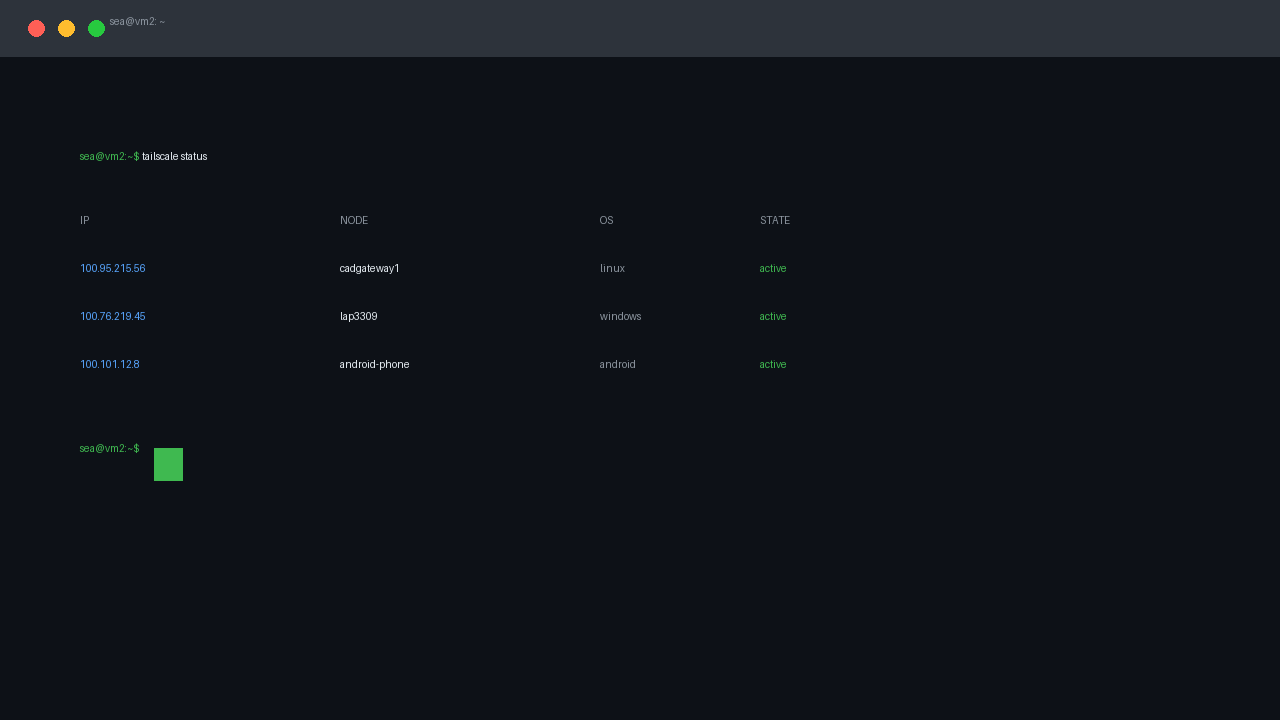
My setup for reference: a Fedora box at home (I call it vm2; its Tailscale name is cadgateway1, tailnet IP 100.95.215.56) and a Windows laptop. The phone becomes the third node. Everything below uses those names; swap in yours.
Before you touch the phone
Two things on the server side, both one-time.
1. The server must already be on your tailnet, and it must stay there. Install Tailscale on the server if you have not, authenticate it, then turn off key expiry for it. Tailscale keys expire after 180 days by default. That is fine for a laptop you touch daily and bad for a headless server you want reachable in month seven. In the Tailscale admin console: Machines, your server, the three-dot menu, Disable key expiry.
2. Services you want to reach must listen beyond localhost. Anything bound to 127.0.0.1 is invisible to the tailnet. This is the same rule that bit me with a Hugo preview earlier: the fix is binding 0.0.0.0 or the tailnet IP explicitly. Quick check from the server itself:
ss -tlnp | grep 1313You want to see 0.0.0.0:1313 or 100.95.215.56:1313 in the output, not 127.0.0.1:1313. If you see localhost, fix the service’s bind address before blaming the network.
(I wrote up the longer version of this lesson, including the WSL networking mode that must not be named, in WSL Mirrored Networking and Tailscale Do Not Mix.)
Installing Tailscale on Android
- Install Tailscale from the Play Store (published by Tailscale Inc.).
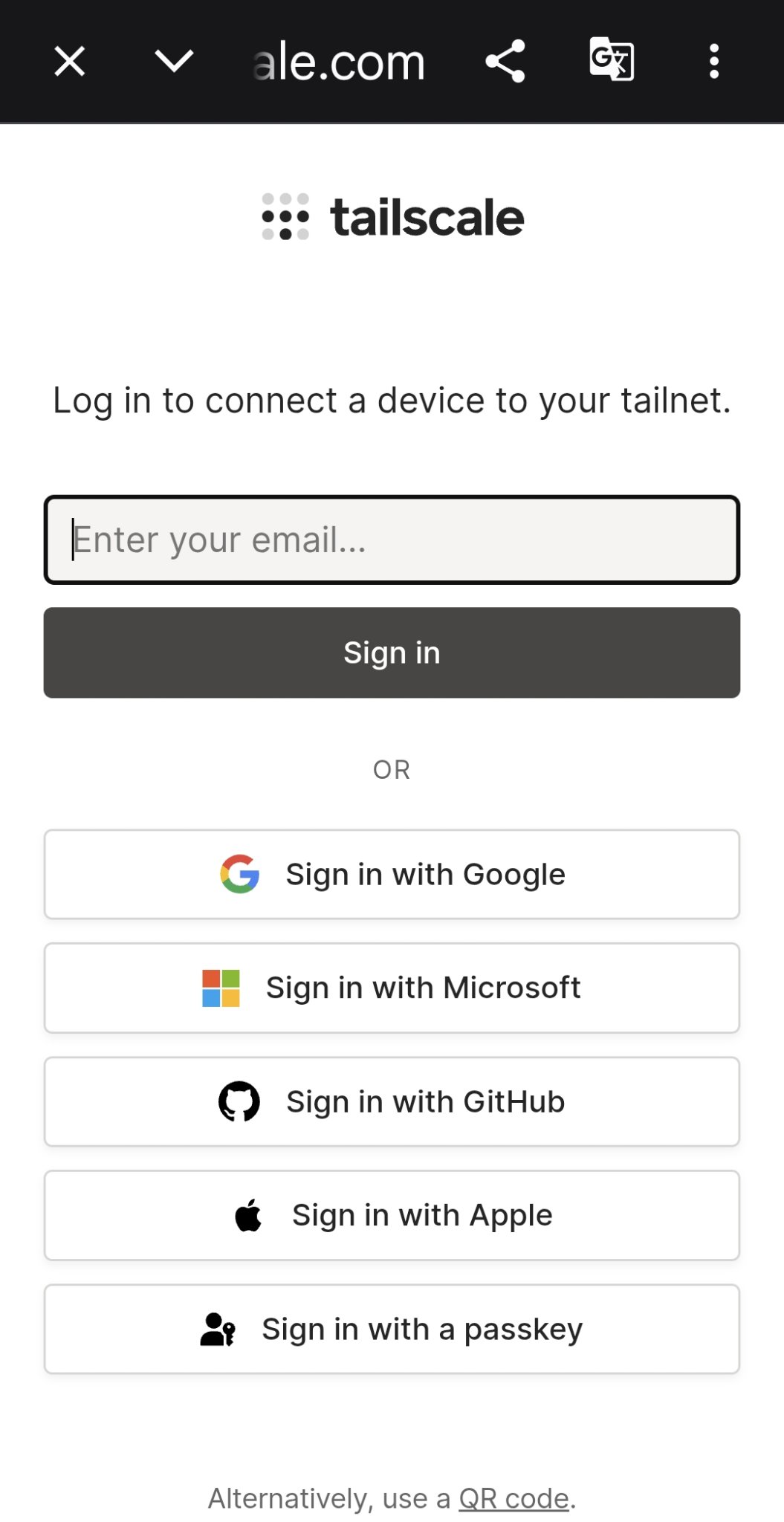
- Open it and sign in with the same identity provider your tailnet uses: the same Google, Microsoft, or GitHub account you used for your other machines. This is what puts the phone on your tailnet instead of a fresh empty one. Sign in with a different account and you will stare at an empty machine list wondering what broke.
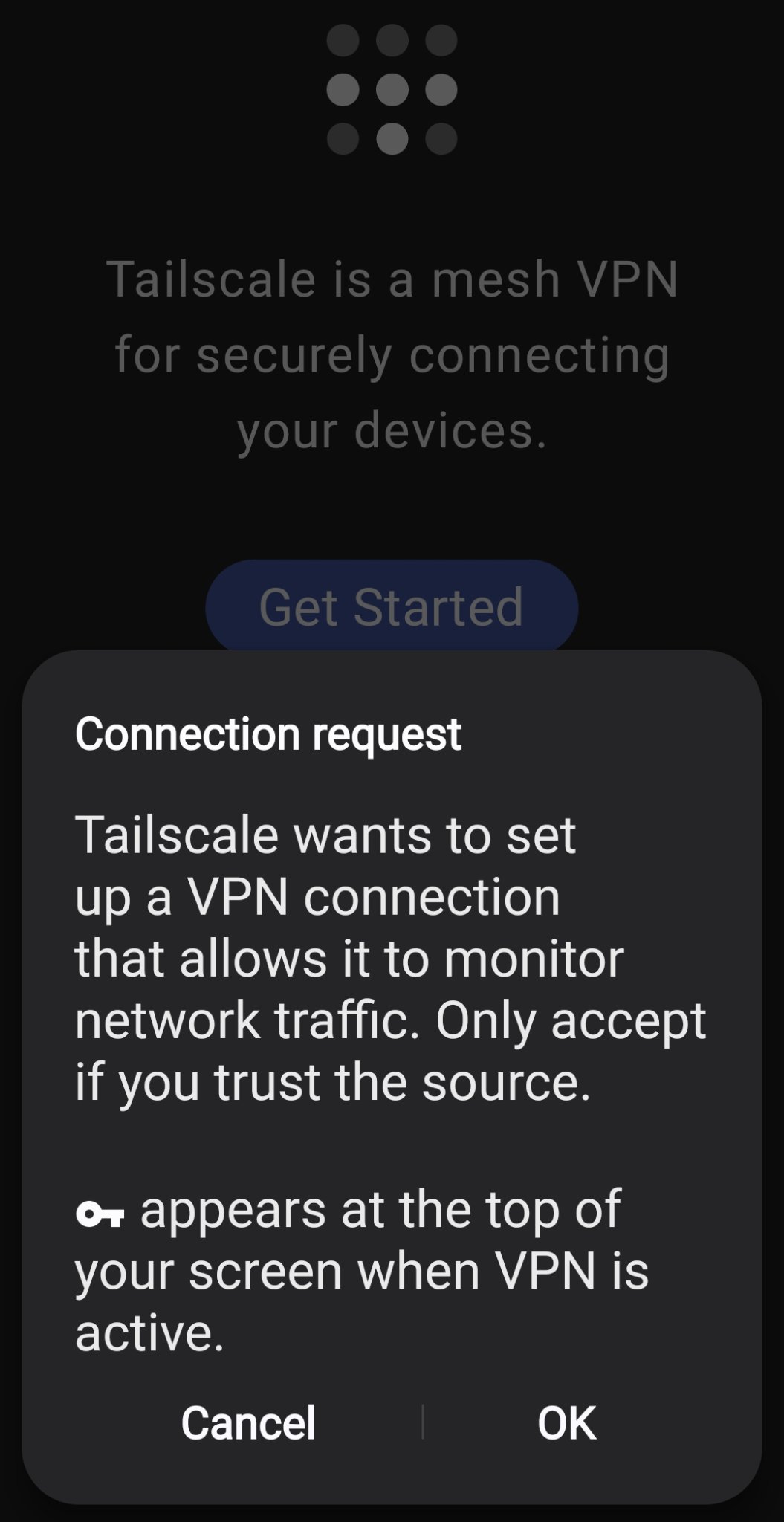
- Android shows the standard VPN connection request. Allow it. This sounds scarier than it is. Tailscale is not routing your traffic through its servers; Android simply requires every per-app tunnel to present itself as a VPN, and Tailscale uses that slot to create a local WireGuard interface. Your other apps’ traffic does not go to Tailscale.
- The app should flip to Connected and show the phone’s new tailnet address, something like
100.x.x.x. You will rarely need it, but note it down for debugging.
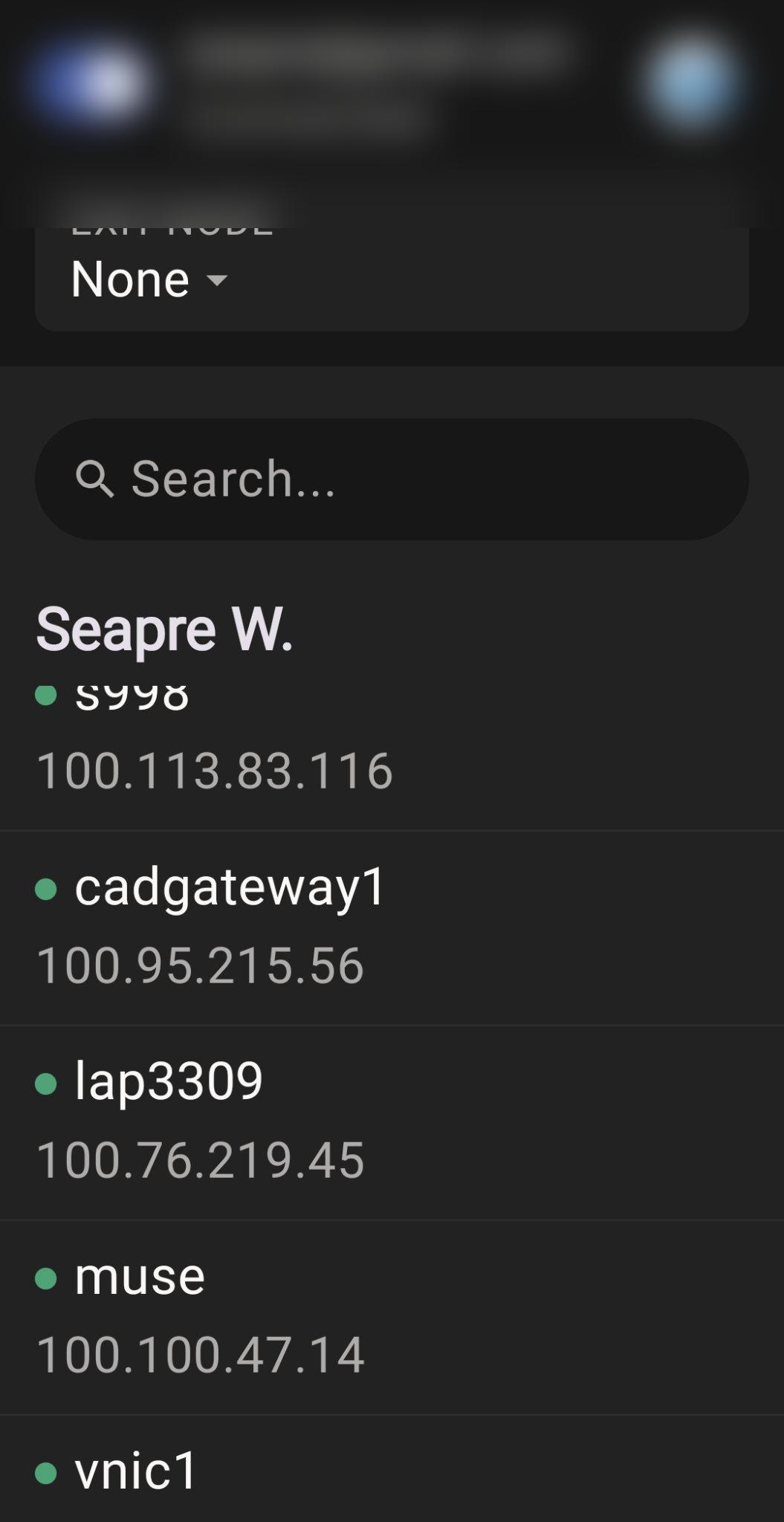
That is the whole install: one app, one sign-in, one permission.
Finding your server
Open the Tailscale app and look at the machine list. Your server should be there under its Tailscale name. Mine shows as cadgateway1, which I reach as just vm2 thanks to MagicDNS, Tailscale’s built-in DNS (on by default; check the DNS page in the admin console if yours is not). If the short name does not resolve on your phone, use the numeric tailnet IP. MagicDNS hiccups happen; the IP never lies.
Here is what that looks like from Termux on the phone: vm2 fails to resolve, but the full MagicDNS name cadgateway1 pings fine.
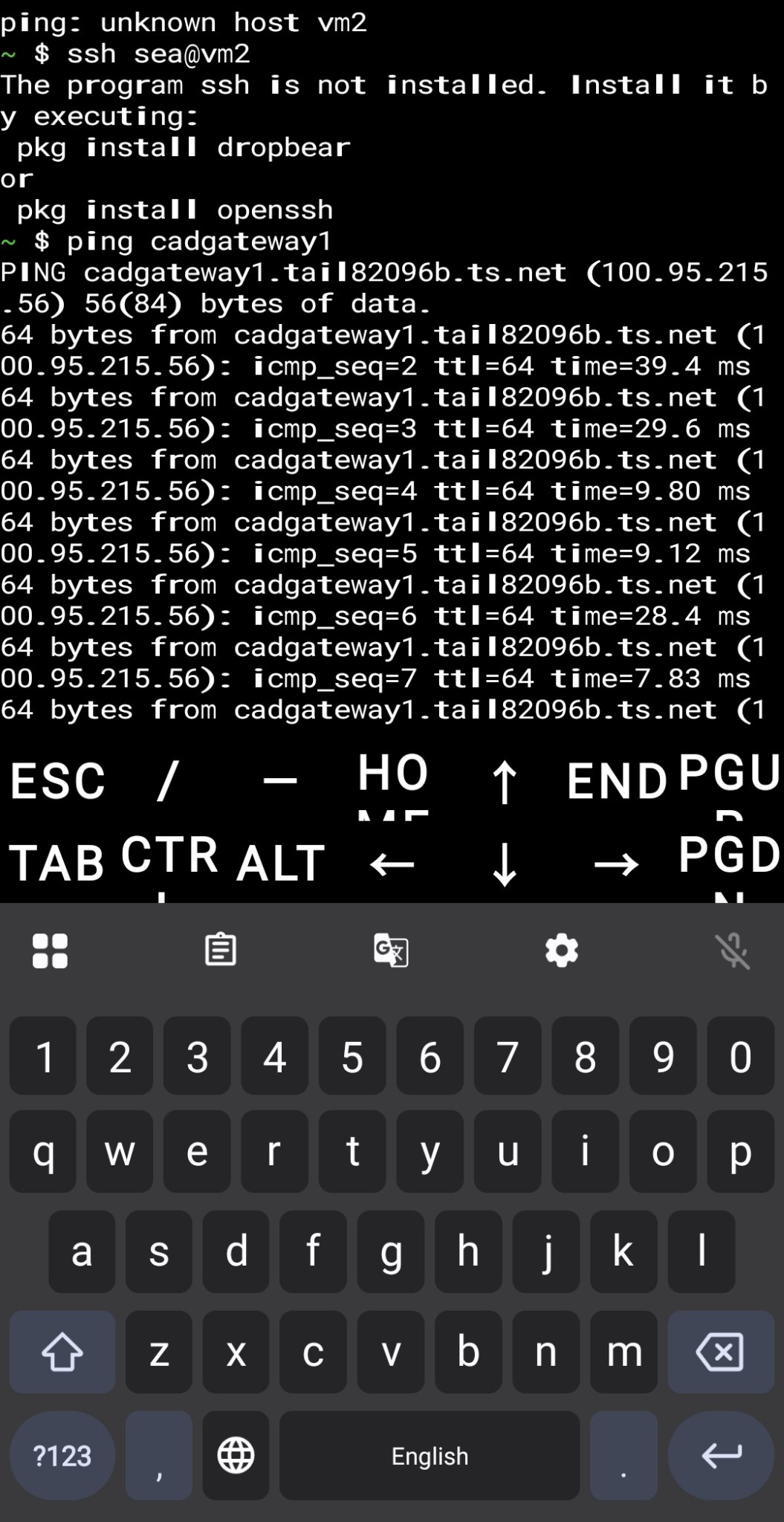
Tap the server entry and the app shows its addresses and whether the current path is direct or relayed. More on that distinction below.
SSH from the phone
Install a terminal app. I use Termius; JuiceSSH and ConnectBot are solid free alternatives. Create a host:
- Hostname:
vm2(or the tailnet IP) - Port: 22
- Username: your server user
- Auth: import your SSH private key, or password if that is how the server is set up
Connect, and you get a real shell: the same one you would get from the laptop. Restart the stuck service, fix the typo, done. The ninety-second fix is a ninety-second fix again.
Here is a real session from Termux on Android: note how cadgateway (without the 1) fails to resolve, while the full cadgateway1 connects immediately.
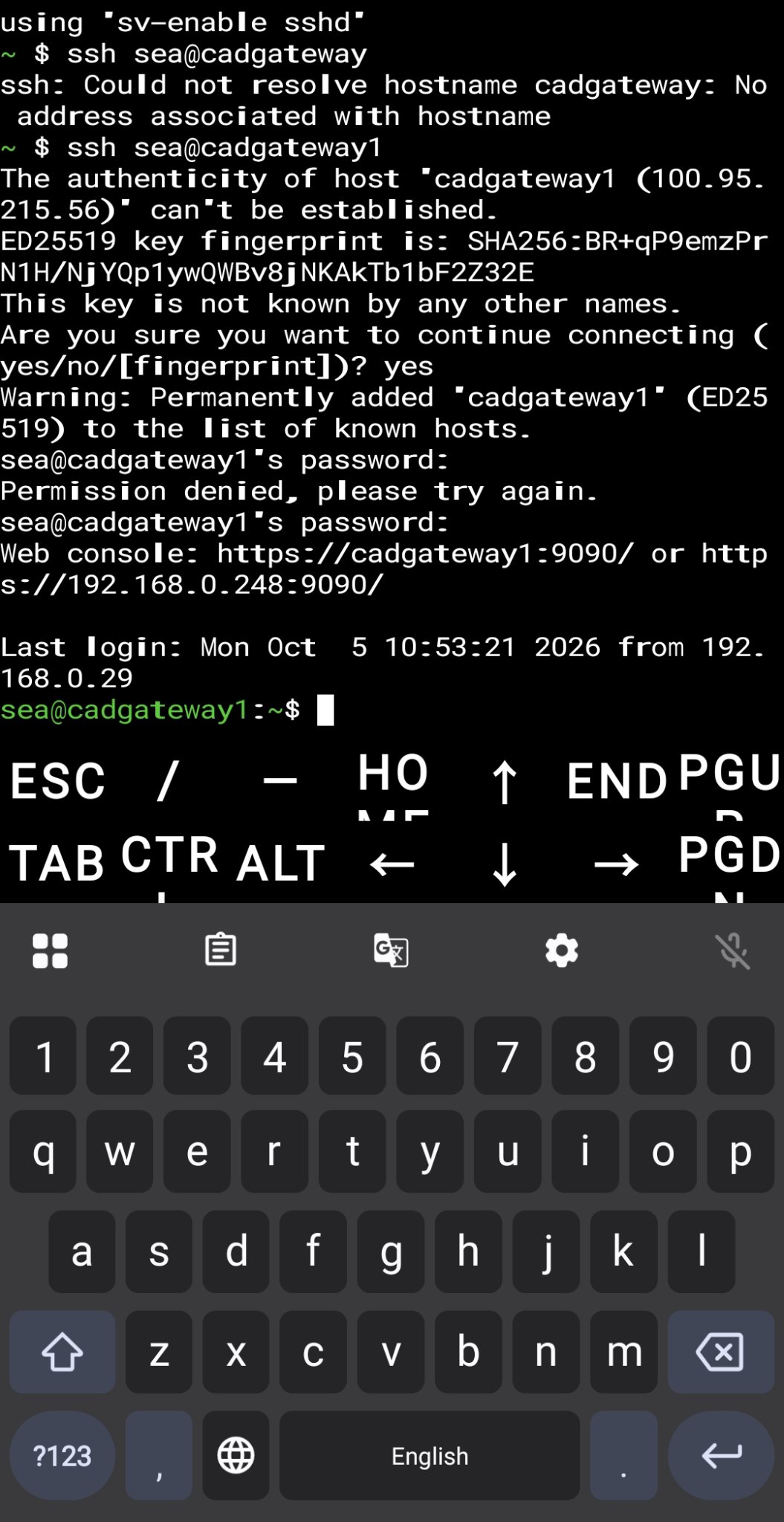
Two practical notes from actually using this:
- Keys beat passwords on a phone keyboard. Typing a long password on glass is miserable; importing the private key once is a one-time cost. Every SSH app I have tried supports key import from a file or the clipboard.
- A Bluetooth keyboard changes everything if you do this more than rarely. A phone plus a folding keyboard is a genuinely usable emergency terminal, not a toy.
For flaky mobile connections, mosh is worth knowing about: it keeps the session alive across IP changes and does not redraw the whole screen on every keystroke. It needs a UDP port range open on the server, which is a separate setup, so I treat it as an upgrade for later, not part of day one.
Web UIs and dev previews
Anything the server serves over HTTP is now a phone browser tab away. My concrete example: a Hugo dev server on the home box, started with --bind 0.0.0.0 --baseURL http://vm2:1313/. From the phone’s browser, http://vm2:1313 loads the full site preview, and I review blog drafts from the couch this way. Same treatment for monitoring dashboards, admin panels, anything listening on a port.
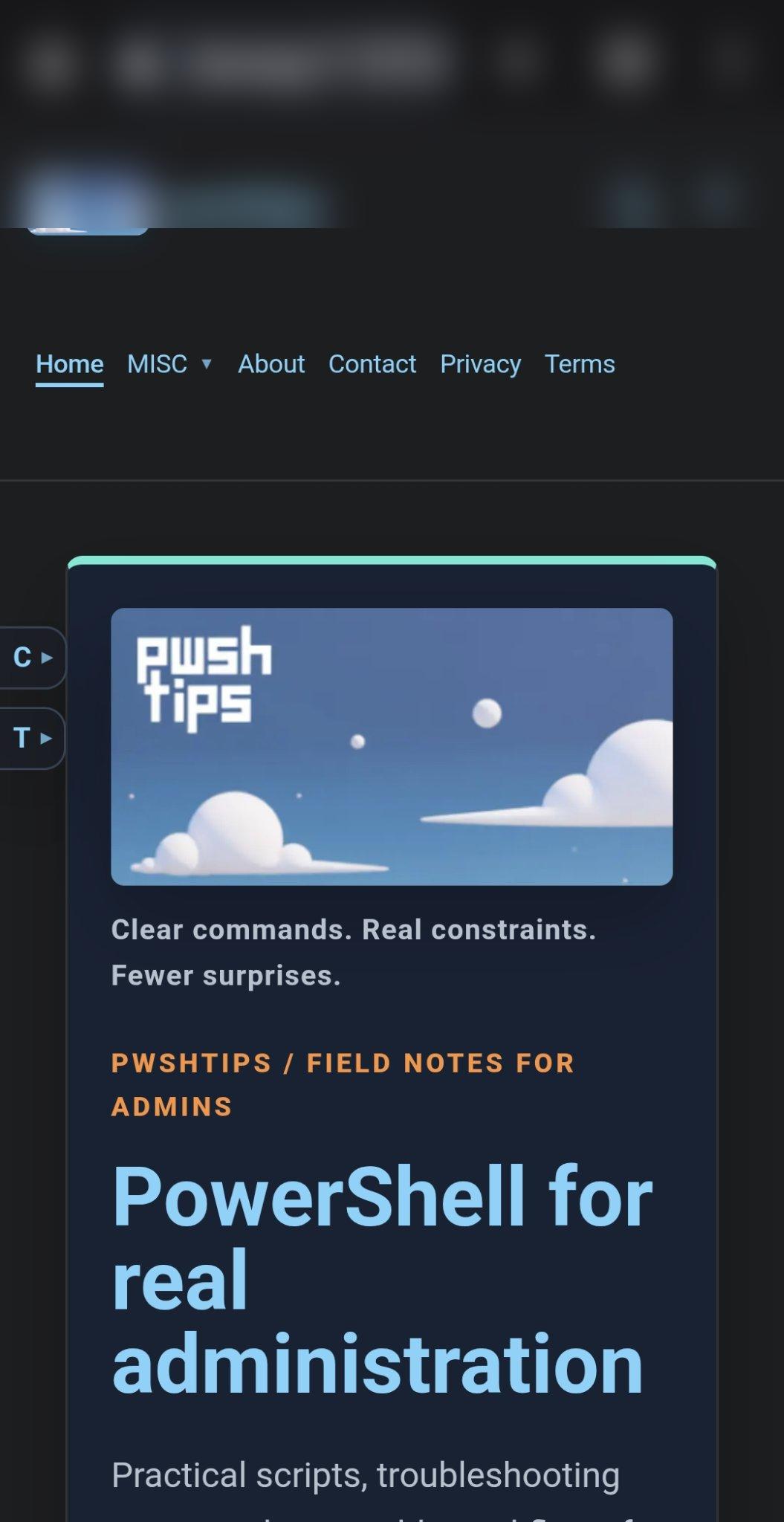
One caveat: some web UIs assume a desktop viewport and are unpleasant on a phone screen. For those, I just use them to check status, not to do real work. Reading a dashboard is fine; reconfiguring one can wait for a keyboard.
What is actually happening on the wire
Worth knowing, because it explains both the speed and the failure modes:
- The phone and the server first try to connect directly with UDP hole punching (WireGuard). At home, the phone on Wi-Fi talks to the server straight over the LAN. I measured 2ms between my laptop and server this way, identical to plain LAN traffic. Nothing leaves the house.
- On mobile data, a direct connection usually still succeeds. When both sides sit behind stubborn NATs, Tailscale falls back to DERP relays: Tailscale-hosted relay servers that forward your already-encrypted packets. Slightly slower, still end-to-end encrypted. Fine for terminal work; you will notice it on big file transfers.
- You configure none of this. It degrades gracefully on its own, which is the entire point.
Locking it down
A phone is the lossiest device you own, so treat it that way:
- Keep key expiry ON for the phone. The server gets disabled expiry because it is headless; the phone keeps the default so a lost device ages out of the network by itself. And if you lose the phone, remove it immediately in the admin console anyway: Machines, the three-dot menu, Remove. Do not wait for expiry.
- Require approval for new machines (admin console, Settings, Device authorization). Then stolen credentials alone cannot silently join a new device to your tailnet.
- The phone’s lock screen is now network security. Biometric or PIN, short auto-lock. Obvious, but the stakes changed: this device holds a key to your home network.
- Do not enable what you do not need. Exit nodes and subnet routes are powerful and irrelevant here. Leave them off.
- The default ACL lets every device reach every device. For a personal tailnet holding only your own machines, that is fine. If you later share the tailnet with family members, revisit it.
When it does not work
In rough order of likelihood:
- The Tailscale app shows Disconnected. Reopen it. Some Android vendors aggressively kill background apps; exempt Tailscale from battery optimization (Settings, Apps, Tailscale, Battery, Unrestricted). If Android revoked the VPN slot, the app will ask for permission again on next launch.
- The server is missing from the peer list. It is offline, or its Tailscale client is not running. Check
systemctl status tailscaledon the server from any machine that can still reach it. - SSH times out but the peer shows online. The service is probably bound to localhost (run the
sscheck from the prerequisites section), or the server firewall is dropping the traffic. On Fedora,firewalldcan block incoming tailnet connections:firewall-cmd --list-allshows the active zones, and you add the port to the right zone if it is missing. - The short name does not resolve. MagicDNS hiccup. Use the numeric tailnet IP and move on.
- Everything works but feels slow. You are probably on a DERP relay; the peer detail screen in the app usually says so. Usable, just not instant. Nothing to fix.
I have not yet hit a case where the fix was on Tailscale’s side rather than mine.
The takeaway
The laptop stopped being a single point of failure for reaching my home network. The phone, the thing already in my pocket on a data plan and already charged, is now a terminal that works from anywhere. Total cost: one app install, one permission dialog, and remembering the battery-optimization exemption.
The laptop still does the heavy lifting. But “I need to fix one thing on the server” no longer requires being near it, or near anything at all.
💬 Comments