Windows administration is 200 small tasks a day: check a service, unlock an account, find what’s eating the disk, restart the thing that hung at 2 AM. None of them is hard. The cost is friction — the GUI click-path you half-remember, the cmdlet parameter you always get wrong, the loop that takes ten minutes because you filtered on the wrong side of the wire.
I keep a running list of the ones that actually save me time. These 50 are the ones I reach for weekly. Every snippet runs as shown on PowerShell 5.1 and 7+ unless noted.
Console Productivity
1. Search your history with Ctrl+R. PSReadLine gives you reverse incremental search. Press Ctrl+R, type part of a command, Ctrl+R again to cycle matches, Enter to run or → to pull it onto the line for editing.
2. Turn on inline predictions. PowerShell 7.2+ suggests completions from your history as you type:
Set-PSReadLineOption -PredictionSource HistoryAccept with →. Add -PredictionViewStyle ListView if you prefer a navigable list.
3. Rerun history by number. history prints numbered entries; r 12 reruns #12. Faster than retyping that 200-character robocopy line from scratch.
4. Ctrl+Space opens the completion menu. Tab cycles through matches; Ctrl+Space shows every candidate in a menu you can arrow through — best for cmdlets with dozens of parameters.
5. Set defaults once with $PSDefaultParameterValues. Tired of typing -Encoding utf8 on every Out-File?
$PSDefaultParameterValues['Out-File:Encoding'] = 'utf8'
$PSDefaultParameterValues['Export-Csv:NoTypeInformation'] = $true
Put it in your $PROFILE and stop thinking about it.
6. Read the examples first. Get-Help <cmdlet> -Examples is the fastest way to learn a cmdlet. If the examples section is empty, run Update-Help once from an elevated prompt.
Remoting and Sessions
7. Fan out with Invoke-Command. One line, N machines:
Invoke-Command -ComputerName SRV1, SRV2, SRV3 -ScriptBlock {
    Get-Service wuauserv | Select-Object PSComputerName, Status
}
8. Reuse sessions instead of reconnecting. A -Session skips the handshake on every call:
$s = New-PSSession -ComputerName SRV1
Invoke-Command -Session $s -ScriptBlock { Get-Service bits }
Invoke-Command -Session $s -ScriptBlock { Get-Process | Sort-Object WS -Descending | Select-Object -First 5 }
Remove-PSSession $s
9. Pass local variables with using:. A remote script block can’t see your locals — unless you qualify them:
$svc = 'wuauserv'
Invoke-Command -ComputerName SRV1 -ScriptBlock { Restart-Service -Name $using:svc -Force }
10. -AsJob for parallel fan-out.
$job = Invoke-Command -ComputerName (Get-Content servers.txt) -ScriptBlock {
    Get-HotFix | Sort-Object InstalledOn -Descending | Select-Object -First 1 HotFixID, InstalledOn
} -AsJob
$job | Wait-Job | Receive-Job
11. Copy files over the session when SMB is blocked.
Copy-Item -Path .\deploy.ps1 -Destination C:\Temp\ -ToSession $sWinRM gets through where file shares don’t.
Active Directory
12. Filter at the server, not the client. -Filter runs on the domain controller; Where-Object drags every object to you first. On 50,000 users that’s seconds versus minutes:
# fast: the DC does the work
Get-ADUser -Filter "Department -eq 'IT'" -SearchBase "OU=Users,DC=corp,DC=local"
# slow: pulls everyone, then filters locally
Get-ADUser -Filter * | Where-Object Department -eq 'IT'
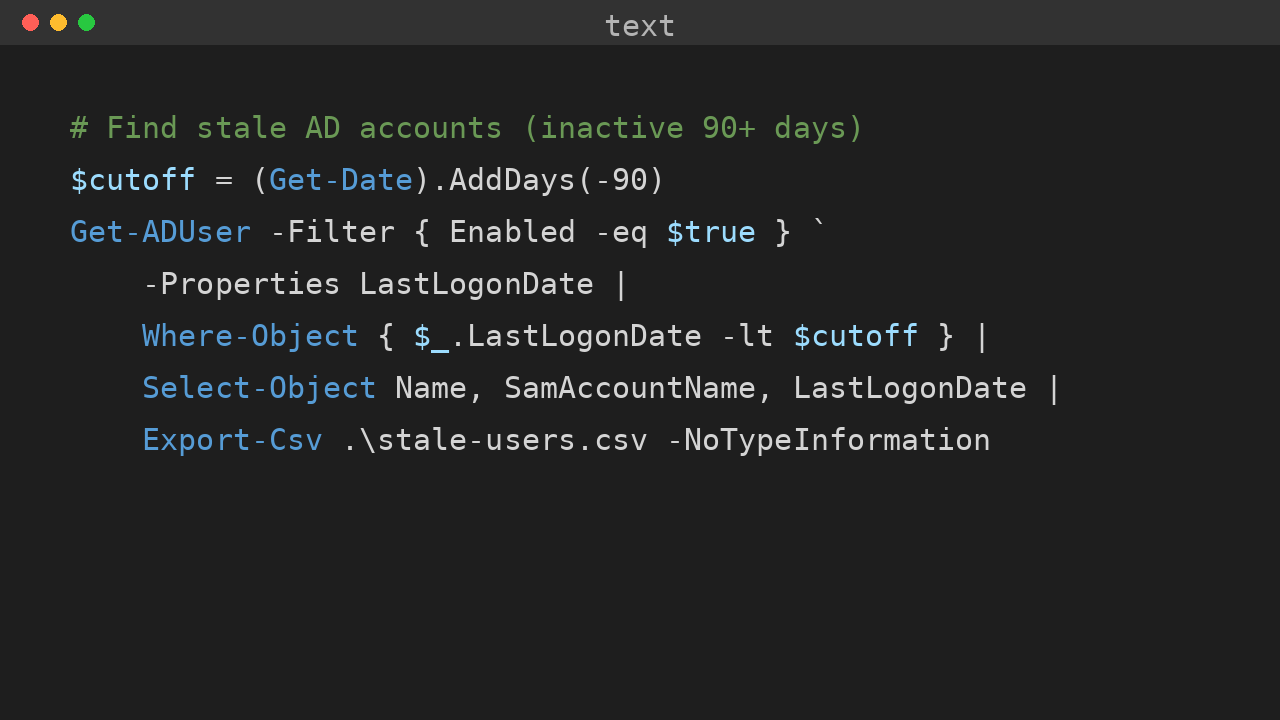
13. Find stale accounts in one pipeline.
$cutoff = (Get-Date).AddDays(-90)
Get-ADUser -Filter { Enabled -eq $true } -Properties LastLogonDate |
    Where-Object { $_.LastLogonDate -lt $cutoff } |
    Select-Object Name, SamAccountName, LastLogonDate
14. Locked out? Two cmdlets.
Search-ADAccount -LockedOut | Select-Object Name, SamAccountName
Unlock-ADAccount -Identity jdoe
15. Real password expiry needs the constructed attribute.
Get-ADUser jdoe -Properties "msDS-UserPasswordExpiryTimeComputed" |
    Select-Object Name, @{ N = 'Expires'; E = {
        [datetime]::FromFileTime($_.'msDS-UserPasswordExpiryTimeComputed') } }
16. List a user’s groups — resolved names, not DNs.
Get-ADPrincipalGroupMembership jdoe | Select-Object Name | Sort-Object Name17. Inventory OS versions across the fleet.
Get-ADComputer -Filter * -Property OperatingSystem |
    Group-Object OperatingSystem | Sort-Object Count -Descending |
    Select-Object Name, Count
Files, Folders, and Disks
18. Folder size without opening Explorer.
Get-ChildItem C:\Logs -Recurse -File |
    Measure-Object Length -Sum |
    Select-Object @{ N = 'GB'; E = { [math]::Round($_.Sum / 1GB, 2) } }
19. Top 10 disk hogs.
Get-ChildItem C:\ -Recurse -File -ErrorAction SilentlyContinue |
    Sort-Object Length -Descending |
    Select-Object -First 10 FullName,
        @{ N = 'MB'; E = { [math]::Round($_.Length / 1MB, 1) } }
20. Hash a file before you trust it.
Get-FileHash .\installer.msi -Algorithm SHA256Compare against the vendor’s published hash. Takes two seconds, saves you from tampered downloads.
21. Test before you create.
$dir = 'C:\Temp\deploy'
if (-not (Test-Path $dir)) { New-Item -ItemType Directory -Path $dir -Force | Out-Null }
22. Zip without installing anything.
Compress-Archive -Path C:\Logs\* -DestinationPath C:\Backup\logs.zip -Force
Expand-Archive -Path C:\Backup\logs.zip -DestinationPath C:\Restore\ -Force
23. Mirror with robocopy — and read the exit code. Robocopy is still king for bulk copies, but its exit codes are weird: 0–7 mean success (with notes), 8+ means real failure.
robocopy C:\Data \\SRV1\Share /MIR /R:2 /W:5 /LOG:C:\Temp\robocopy.log
if ($LASTEXITCODE -ge 8) { throw "robocopy failed: exit code $LASTEXITCODE" }
24. Find files by content.
Select-String -Path C:\Scripts\*.ps1 -Pattern 'ConvertTo-SecureString' -List |
    Select-Object Path, LineNumber
-List stops at the first match per file — much faster when you just need to know which files contain it.
Services, Processes, and Scheduled Tasks
25. What’s actually running.
Get-Service | Where-Object Status -eq 'Running' | Sort-Object DisplayName | Select-Object DisplayName, Name26. Restart without the dependency lecture.
Restart-Service -Name wuauserv -Force-Force stops dependent services first instead of failing with “cannot stop service because dependent services are running.”
27. Top memory consumers right now.
Get-Process | Sort-Object WS -Descending |
    Select-Object -First 5 Name, @{ N = 'MB'; E = { [int]($_.WS / 1MB) } }
28. Kill by name, skip the PID lookup.
Stop-Process -Name notepad -Force -ErrorAction SilentlyContinue29. Audit scheduled tasks by last result.
Get-ScheduledTask | Get-ScheduledTaskInfo |
    Where-Object LastTaskResult -ne 0 |
    Select-Object TaskName, LastRunTime, LastTaskResult
Anything non-zero failed on its last run (0x0 is success). I run this weekly on servers I inherit.
30. Create a scheduled task as SYSTEM in one block.
$action    = New-ScheduledTaskAction -Execute 'powershell.exe' -Argument '-File C:\Scripts\cleanup.ps1'
$trigger   = New-ScheduledTaskTrigger -Daily -At '02:00'
$principal = New-ScheduledTaskPrincipal -UserId 'SYSTEM' -LogonType ServiceAccount
Register-ScheduledTask -TaskName 'Nightly cleanup' -Action $action -Trigger $trigger -Principal $principal
Network Troubleshooting
31. Ping with a boolean answer.
Test-Connection -ComputerName SRV1 -Count 1 -QuietReturns $true/$false — built for if statements.
32. Is the port open? Skip telnet.
Test-NetConnection -ComputerName db01.corp.local -Port 1433 |
    Select-Object TcpTestSucceeded, RemoteAddress
33. DNS without nslookup.
Resolve-DnsName www.example.com -Type A | Select-Object Name, IPAddress
Resolve-DnsName 8.8.8.8 -Type PTR   # reverse lookup
34. IP config as objects, not text.
Get-NetIPAddress -AddressFamily IPv4 |
    Where-Object { $_.PrefixOrigin -ne 'WellKnown' } |
    Select-Object IPAddress, InterfaceAlias
Get-NetRoute -DestinationPrefix '0.0.0.0/0' | Select-Object NextHop, InterfaceAlias
35. Who has your shared files open.
Get-SmbOpenFile | Select-Object ClientComputerName, Path | Sort-Object ClientComputerNameInvaluable before rebooting a file server.
36. Check a URL end to end.
(Invoke-WebRequest -Uri https://pwshtips.com -UseBasicParsing).StatusCodeSystem Information
37. Uptime as a TimeSpan.
$os = Get-CimInstance Win32_OperatingSystem
[datetime]::Now - $os.LastBootUpTime
38. Installed updates, newest first.
Get-HotFix | Sort-Object InstalledOn -Descending |
    Select-Object -First 10 HotFixID, InstalledOn, Description
39. Query the event log — don’t scrape it.
Get-WinEvent -FilterHashtable @{
    LogName   = 'System'
    ID        = 1074
    StartTime = (Get-Date).AddDays(-7)
} | Select-Object TimeCreated, Message
Event 1074 is shutdown/restart with reason. -FilterHashtable filters inside the log service; piping Get-WinEvent into Where-Object without a filter reads the whole log first. On a busy server that’s the difference between instant and painful.
40. Am I admin? Ask, don’t guess.
([Security.Principal.WindowsPrincipal](
    [Security.Principal.WindowsIdentity]::GetCurrent()
)).IsInRole([Security.Principal.WindowsBuiltInRole]::Administrator)
41. System summary to a CSV.
$sys = Get-CimInstance Win32_ComputerSystem
[pscustomobject]@{
    Model  = "$($sys.Manufacturer) $($sys.Model)"
    RAM_GB = [math]::Round($sys.TotalPhysicalMemory / 1GB, 1)
} | Export-Csv .\system-summary.csv -NoTypeInformation
Error Handling and Debugging
42. Make errors terminating at the top of every script.
$ErrorActionPreference = 'Stop'
try {
    Get-Item C:\Nope\missing.txt -ErrorAction Stop
} catch {
    Write-Warning "Couldn't read it: $($_.Exception.Message)"
}
Without this, a failed cmdlet prints red text and the script happily continues into the wreckage.
43. $? vs $LASTEXITCODE — check the right one. $? reflects the last PowerShell statement. $LASTEXITCODE reflects the last native executable. After robocopy or ping.exe, it’s $LASTEXITCODE you want (see tip 23).
44. -WhatIf before you wreck.
Remove-Item C:\Temp\*.log -Recurse -WhatIfIf the preview looks right, drop -WhatIf and run it for real. Most destructive built-in cmdlets support it.
45. Catch typos with StrictMode.
Set-StrictMode -Version LatestReferencing an uninitialized variable now throws instead of silently evaluating to $null. Expect it to surface a few latent bugs the first time — that’s the point.
46. Watch parameter binding when a command misbehaves.
Trace-Command -Name ParameterBinding -Expression { Get-Service wua* } -PSHostVerbose, but it shows exactly how wua* binds to -Name — useful when a wildcard or pipeline input isn’t doing what you expected.
Performance and Gotchas
47. Stop using += on arrays. Every += allocates a new array and copies everything. In a loop over thousands of items, use a list:
$list = [System.Collections.Generic.List[string]]::new()
foreach ($f in Get-ChildItem C:\Logs -File) { $list.Add($f.Name) }
48. .Where() and .ForEach() beat the pipeline for in-memory collections.
$procs.Where({ $_.WS -gt 500MB }).ForEach({ $_.Name })Collection methods skip pipeline overhead. (Don’t use them to replace server-side filtering — tip 12 still applies.)
49. Say it again: filter where the data lives. Get-ChildItem -Filter *.log, Get-ADUser -Filter ..., Get-WinEvent -FilterHashtable .... If the cmdlet offers server-side filtering, use it before reaching for Where-Object.
50. $null = is the fastest way to discard output.
$null = Get-Service wuauserv # beats | Out-Null and [void]Out-Null pays pipeline overhead; $null = doesn’t. In a tight loop it adds up.
Pick five and put them in muscle memory this week — I’d start with 2, 5, 9, 12, and 43. The rest will be here when you need them.
💬 Comments