Managing a Microsoft SQL Server instance efficiently requires selecting the right management tool for the workload at hand. Database administrators, developers, and DevOps engineers often rotate between full-featured GUI consoles, lightweight cross-platform code editors, and fast command-line utilities.
This guide details how to install and configure the essential tools for SQL Server management on Windows—including SQL Server Management Studio (SSMS) and Visual Studio Code with the official SQL extension—and walks through three distinct ways to establish database connections and run T-SQL queries using SSMS, VS Code, and the sqlcmd utility.
Quick answer
To manage SQL Server on Windows, choose the tool that fits your task and workflow:
| Tool | Primary Use Case | Connection Command / Shortcut | Key Advantage |
|---|---|---|---|
| SSMS | Full database administration, backups, maintenance plans, security | GUI Object Explorer → Connect to Server | Complete feature set for DBA maintenance |
| VS Code + mssql | Schema editing, script writing, cross-platform dev | Ctrl+Alt+D or MS SQL: Connect |
Lightweight, integrated with Git and workspace files |
| sqlcmd | Automation, headless servers, batch jobs, PowerShell scripts | sqlcmd -S localhost -E or -U sa -P 'Pass' |
Fast CLI execution without graphical overhead |
For quick terminal connection via Windows Authentication, open PowerShell and run:
sqlcmd -S localhost -E -Q "SELECT @@VERSION;"
Install SSMS latest version
SQL Server Management Studio (SSMS) is Microsoft’s administrative suite for configuring, monitoring, and administering SQL Server and Azure SQL databases.
Follow these steps to download and install the latest version of SSMS on Windows:
-
Download the installer: Open a browser and navigate to the official Microsoft SSMS download page:
https://learn.microsoft.com/en-us/sql/ssms/download-sql-server-management-studio-ssmsClick Free Download for SQL Server Management Studio (SSMS) to downloadSSMS-Setup-ENU.exe. -
Launch setup as Administrator: Open your Downloads folder, right-click
SSMS-Setup-ENU.exe, and select Run as administrator. -
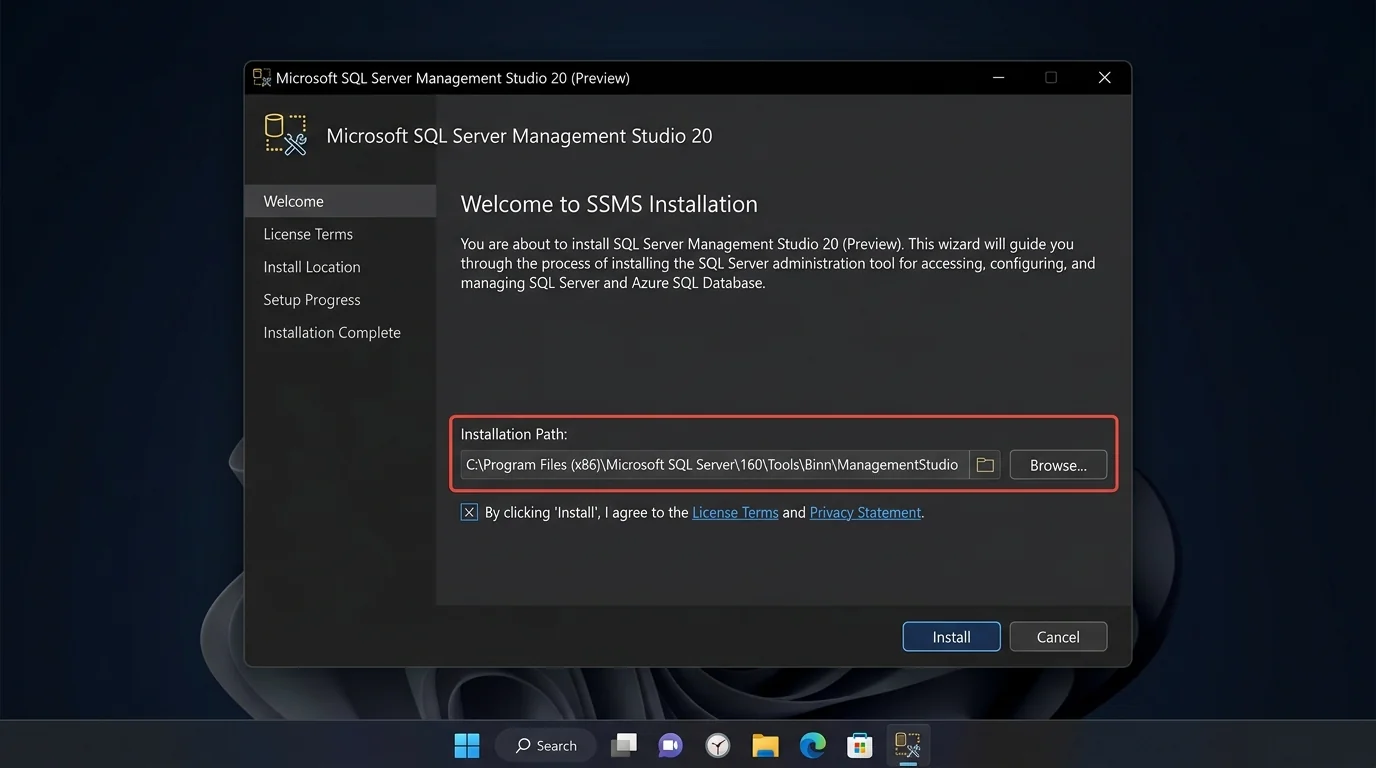
Select Installation Path: The setup wizard displays the default installation path (typically
C:\Program Files (x86)\Microsoft SQL Server Management Studio 20\). Keep the default path or click Browse to choose a custom directory. -
Begin Installation: Click Install. The setup package extracts components and installs the Shell, T-SQL parser, and management tools.
-
Complete Setup: Once the setup finishes, click Restart if prompted, or click Close to complete the installation.
Install VS Code and the mssql extension
Visual Studio Code provides a lightweight, responsive environment for writing T-SQL scripts, inspecting database schemas, and running queries across Windows, Linux, and macOS.
Follow these steps to set up VS Code and the official Microsoft SQL extension:
-
Install VS Code: If Visual Studio Code is not already installed on your system, install it via
wingetfrom PowerShell:winget install Microsoft.VisualStudioCode --silent -
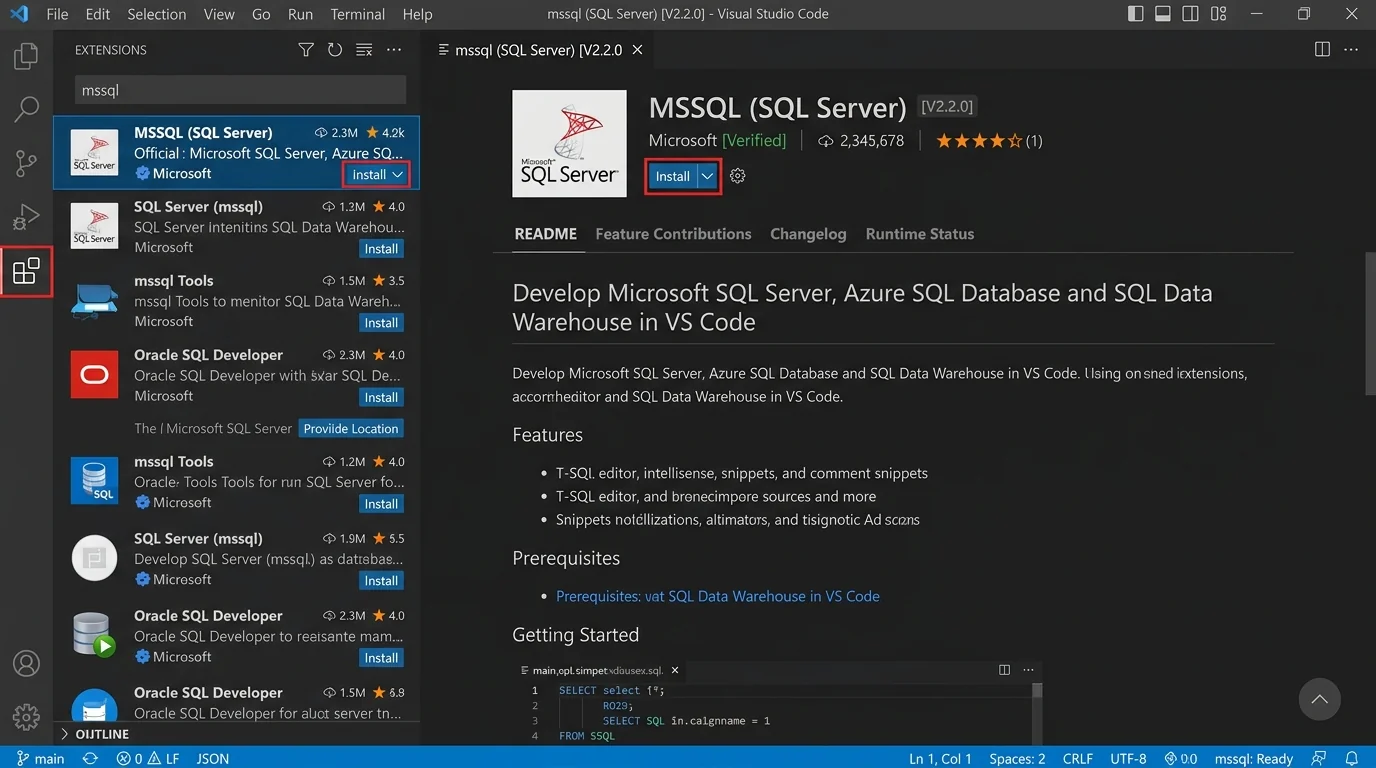
Open Extensions Viewlet: Launch VS Code and open the Extensions pane by clicking the extension icon on the left sidebar or by pressing
Ctrl+Shift+X. -
Search for mssql: In the search bar at the top of the Extensions pane, type
mssql. -
Select Official Extension: Locate MSSQL (SQL Server) published by Microsoft (look for the verified blue checkmark).
-
Click Install: Click the blue Install button. VS Code downloads the extension along with the SQL Tools Service background process.
Method 1: Connect to SQL Server using SSMS
SQL Server Management Studio is designed for deep administration, graphical execution plan inspection, index tuning, and database backup operations.
Follow these steps to connect to a local or remote SQL Server instance using SSMS:
-
Open SSMS: Click Start, search for SQL Server Management Studio, and launch the application.
-
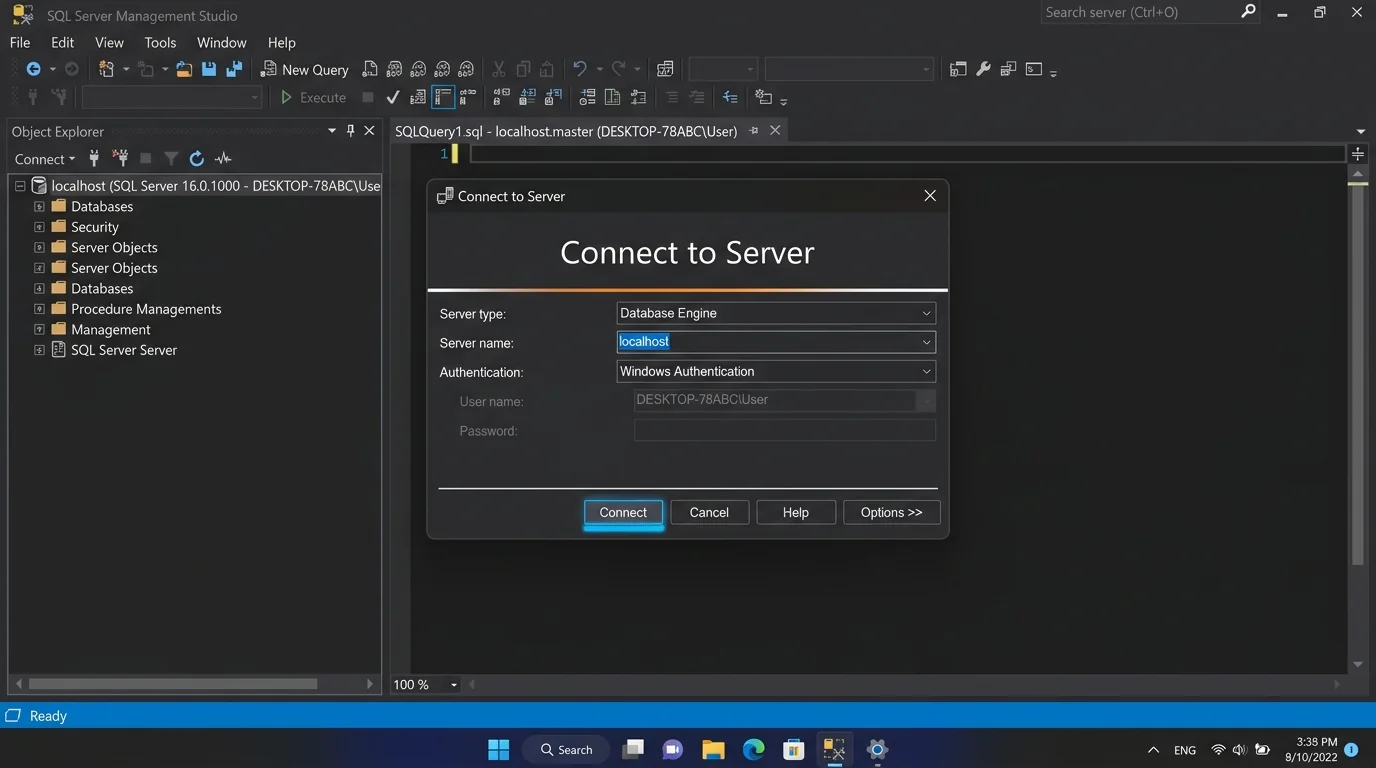
Open Connect to Server Window: If the Connect to Server modal does not open automatically, click Object Explorer → Connect → Database Engine.
-
Configure Connection Parameters:
- Server type: Select Database Engine.
- Server name: Enter
localhost(or.orlocalhost,1433) for a local default instance, or enterlocalhost\SQLEXPRESSfor a named instance. - Authentication: Choose between:
- Windows Authentication: Uses your current Windows domain or local user token.
- SQL Server Authentication: Select this if connecting via
saor another database login, then enter your Username and Password.
-
Connect: Click Connect. The Object Explorer tree populates on the left, displaying databases, security logins, server objects, and management folders.
-
Run a Query: Click New Query on the top toolbar (or press
Ctrl+N), enter the following T-SQL statement, and pressF5to execute:SELECT SERVERPROPERTY('MachineName') AS [HostName], SERVERPROPERTY('ServerName') AS [InstanceName], SERVERPROPERTY('Edition') AS [Edition], @@VERSION AS [SQLVersion];
Method 2: Connect to SQL Server using VS Code with mssql extension
The mssql extension for VS Code brings database browsing, T-SQL IntelliSense, syntax highlighting, and query execution directly into your editor workflow.
Follow these steps to create a connection profile and run queries in VS Code:
-
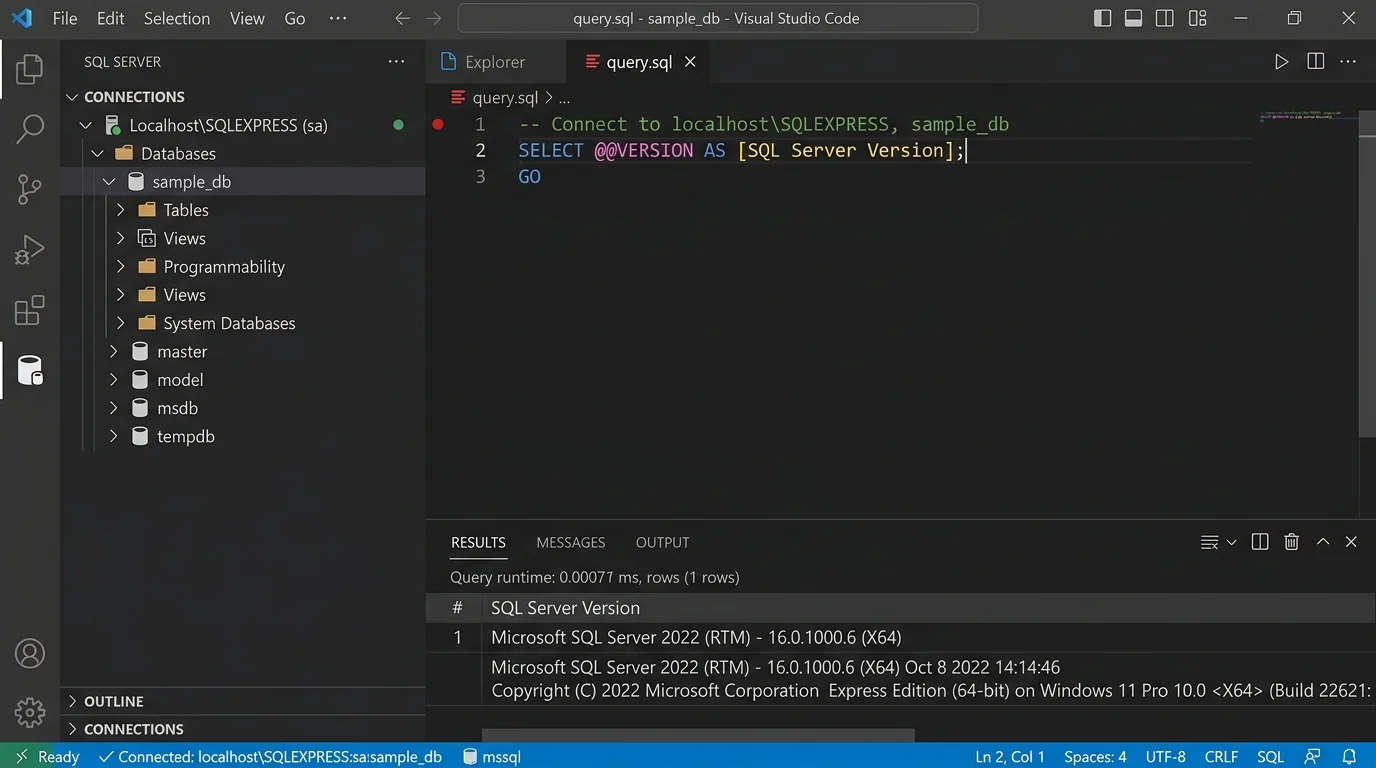
Open SQL Server Connections View: Click the SQL Server database icon on the left Activity Bar in VS Code.
-
Add Connection Profile: Click the + (Add Connection) icon in the Connections panel, or press
Ctrl+Shift+Pto open the Command Palette and typeMS SQL: Connect. -
Specify Connection Details:
- Server name / Connection string: Enter
localhostorlocalhost\SQLEXPRESS. - Database name: Enter a target database name (e.g.,
masterorsample_db), or leave blank to default tomaster. - Authentication type: Choose Integrated (Windows Authentication) or SQL Login.
- User / Password: Enter
saand your configured password if SQL Login was selected. - Save Password: Select Yes if you want VS Code to securely cache credentials.
- Profile Name: Enter a friendly name such as
Localhost-Dev.
- Server name / Connection string: Enter
-
Open a SQL File: Create a new file, save it with a
.sqlextension (for example,query.sql), and ensureSQLappears in the status bar at the bottom right. -
Execute T-SQL: Type your T-SQL query in the editor window and press
Ctrl+Shift+E(or right-click and select Execute Query):USE master; GO SELECT name, database_id, create_date FROM sys.databases ORDER BY name ASC; GOThe Results and Messages pane opens automatically at the bottom, rendering query output in a sortable, copyable table grid.
Method 3: Connect to SQL Server using sqlcmd CLI
The sqlcmd command-line utility provides a fast, lightweight mechanism to query SQL Server from Command Prompt, PowerShell, batch scripts, and automated CI/CD pipelines.
Install sqlcmd if not found
Microsoft provides both the classic C++ sqlcmd utility (bundled with Command Line Utilities) and the modern, cross-platform Go-based sqlcmd (go-sqlcmd).
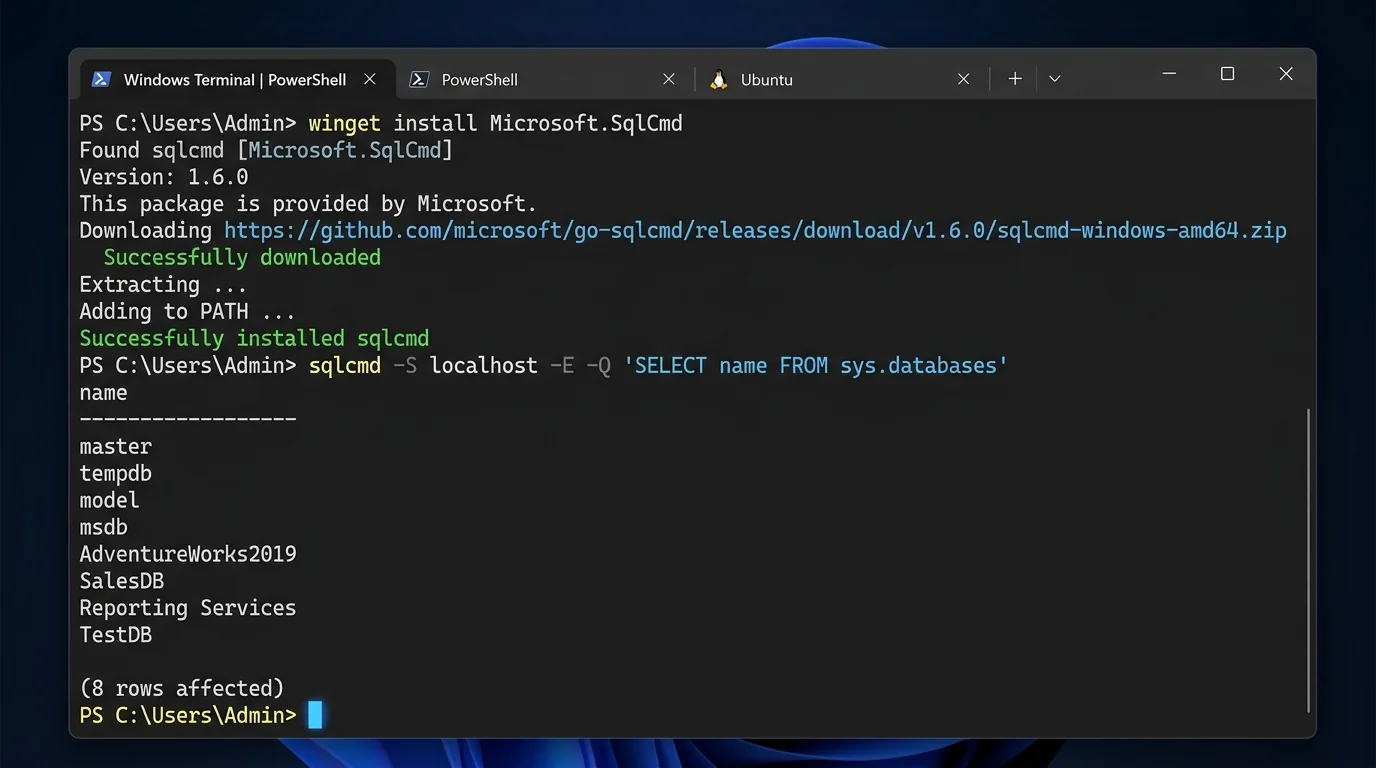
If typing sqlcmd in PowerShell returns a “command not found” error, install the modern sqlcmd tool using Windows Package Manager (winget):
# Search for sqlcmd package
winget search Microsoft.SqlCmd

# Install sqlcmd utility via winget
winget install Microsoft.SqlCmd --accept-source-agreements --accept-package-agreements
Alternatively, if you have the Go toolchain installed, build and install sqlcmd directly:
go install github.com/microsoft/go-sqlcmd/cmd/sqlcmd@latest
After installation, refresh your environment path in PowerShell or open a new terminal window, then verify sqlcmd availability:
sqlcmd --version
Connect using sqlcmd
Once sqlcmd is installed, connect to your SQL Server instance using one of the following approaches:
1. Interactive session via Windows Authentication
sqlcmd -S localhost -E
Upon entering interactive mode (1>), type your T-SQL commands followed by GO on a new line:
1> SELECT name FROM sys.databases;
2> GO
To exit interactive mode, type EXIT and press Enter.
2. Interactive session via SQL Server Authentication
sqlcmd -S localhost -U sa -P 'YourStrongPassword123!'
3. Single-command execution (-Q flag)
To run a non-interactive query directly from PowerShell and return control immediately, use the -Q parameter:
# List databases via Windows Authentication
sqlcmd -S localhost -E -Q "SELECT name, state_desc FROM sys.databases;"

# Query system version using sa account
sqlcmd -S localhost -U sa -P 'YourStrongPassword123!' -Q "SELECT @@VERSION;"
Best practices for managing SQL Server
- Use Windows Authentication when possible: Integrated Windows Authentication leverages Kerberos/NTLM tokens, eliminating the need to embed plain-text credentials in scripts or configuration files.
- Restrict sa account usage: Keep the default
saaccount disabled or renamed in production. Create dedicated logins with least-privilege permissions (e.g.,db_datareader,db_datawriter) for application pools and automated tasks. - Configure TCP/IP and SQL Server Browser: If connecting remotely across a network, open SQL Server Configuration Manager, ensure TCP/IP is enabled under Protocols for MSSQLSERVER, set TCP Port to
1433, and verify Windows Firewall allows inbound traffic on TCP port1433. - Leverage dbatools for PowerShell automation: For administrative tasks like migrations, backups, and instance auditing, combine
sqlcmdwith the open-source dbatools PowerShell module (Install-Module dbatools).
💬 Comments