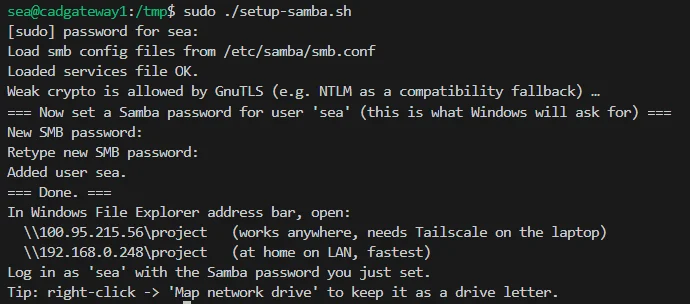
My home server runs Fedora. My daily driver is a Windows 11 laptop. Files need to flow both ways: project files edited on the laptop need to land on the server, and server-side build output needs to be browsable from Windows Explorer. Tailscale already connects the two machines on a private tailnet, so the missing piece was SMB in both directions.
I considered simpler options first. scp works but it is a manual copy step every time, and it does not give Windows Explorer a browsable view. Syncthing would sync continuously, but I did not want a background sync daemon deciding when files move — I wanted explicit, on-demand access in both directions, with each side’s filesystem remaining the authority for its own files. SMB gives that: the Fedora box serves its project directory, the laptop serves its own, and each side mounts the other only when needed.
This post covers both halves. The Fedora-to-Windows direction is done and tested. The Windows-to-Fedora direction is designed and scripted but still in staging at the time of writing — I say exactly which steps are verified and which are not.
A note on addressing: every IP in this post is a Tailscale tailnet address (100.x) or a home LAN address (192.168.0.x). The tailnet addresses work from anywhere — coffee shop, hotel, anywhere the laptop has Tailscale running. The LAN addresses only work at home but are faster because the traffic stays on the local switch instead of hairpinning through a DERP relay. I give both wherever it matters.
A note on distros: the server in this post runs Fedora, so you will see dnf and SELinux commands. On Debian/Ubuntu, swap dnf install -y for apt install -y. The SELinux labeling step is Fedora/RHEL-specific – on Debian/Ubuntu with AppArmor, Samba generally works without extra mandatory-access-control steps, but check dmesg if you hit permission denied after a clean config. The smb.conf itself, the Windows-side steps, and the CIFS mount options are identical everywhere.
Direction 1: Fedora shares to Windows via Samba
The goal: type \\100.95.215.56\project in Windows Explorer and get read/write access to /home/sea/project on the Fedora box (vm2). The Tailscale IP works from anywhere; the LAN IP \\192.168.0.248\project is faster at home.
Install and configure
Fedora does not ship Samba by default. Install it:
sudo dnf install -y sambaOn this box the sea user has passwordless sudo for dnf only, so the install needed no password prompt. Everything after that runs under sudo normally.
The share definition goes in /etc/samba/smb.conf. I keep a backup of the original first, then write a minimal config:
sudo cp -n /etc/samba/smb.conf /etc/samba/smb.conf.bak

sudo tee /etc/samba/smb.conf > /dev/null <<'SMBEOF'
[global]
        workgroup = WORKGROUP
        server string = vm2 project share
        security = user
        map to guest = never
        log file = /var/log/samba/log.%m
        max log size = 50

[project]
        path = /home/sea/project
        valid users = sea
        writable = yes
        browsable = yes
        create mask = 0644
        directory mask = 0755
SMBEOF

testparm -s > /dev/null && echo "smb.conf OK"
testparm validates the config syntax. If it complains, fix it before going further — a broken smb.conf means smb will not start, and the error in the journal is less helpful than testparm output.
The SELinux step everyone forgets
This is where a plain Fedora install bites. SELinux is in Enforcing mode on vm2, and Samba is denied access to arbitrary home directory content by default. Without the labeling step, Windows connects fine, authenticates fine, and then every file operation fails with permission denied. The Samba logs show the denial; nothing in the Windows error dialog points at SELinux.
Two commands fix it:
sudo chcon -R -t samba_share_t /home/sea/project
sudo setsebool -P samba_enable_home_dirs on
The chcon labels the shared tree with the Samba share type. The boolean allows Samba to touch home directories at all. The -P makes it persistent across reboots — without it, the setting evaporates on the next boot and the share silently breaks weeks later, which is exactly the kind of failure that wastes a Saturday.
If you ever move the share path, re-run chcon on the new location. If you restorecon the filesystem for any reason, re-run it too.
Firewall and service
On vm2, firewalld is currently off, so no firewall change was needed. If yours is on:
sudo firewall-cmd --permanent --add-service=samba
sudo firewall-cmd --reload
Then enable and start:
sudo systemctl enable --now smbThe Samba password
Samba does not use the Linux login password. It has its own password database, and the user must exist as a Linux user first (which sea does). Set it:
sudo smbpasswd -a seaThis prompts interactively for the new Samba password. This is the password Windows will ask for — it can differ from the Linux login password, and I recommend making it different.

The screenshot above is the actual run on vm2: testparm validating the config, then smbpasswd -a sea creating the Samba user.
Connect from Windows
In File Explorer’s address bar:
\\100.95.215.56\project— Tailscale IP, works from anywhere the laptop has Tailscale running\\192.168.0.248\project— LAN IP, fastest at home
Log in as sea with the Samba password just set. Right-click the share and choose “Map network drive” to keep it as a drive letter across reboots.
From PowerShell, note that cd \\server\share alone does not prompt for credentials — it tries the current Windows user and fails with “Cannot find path”. Establish the connection first with explicit credentials:
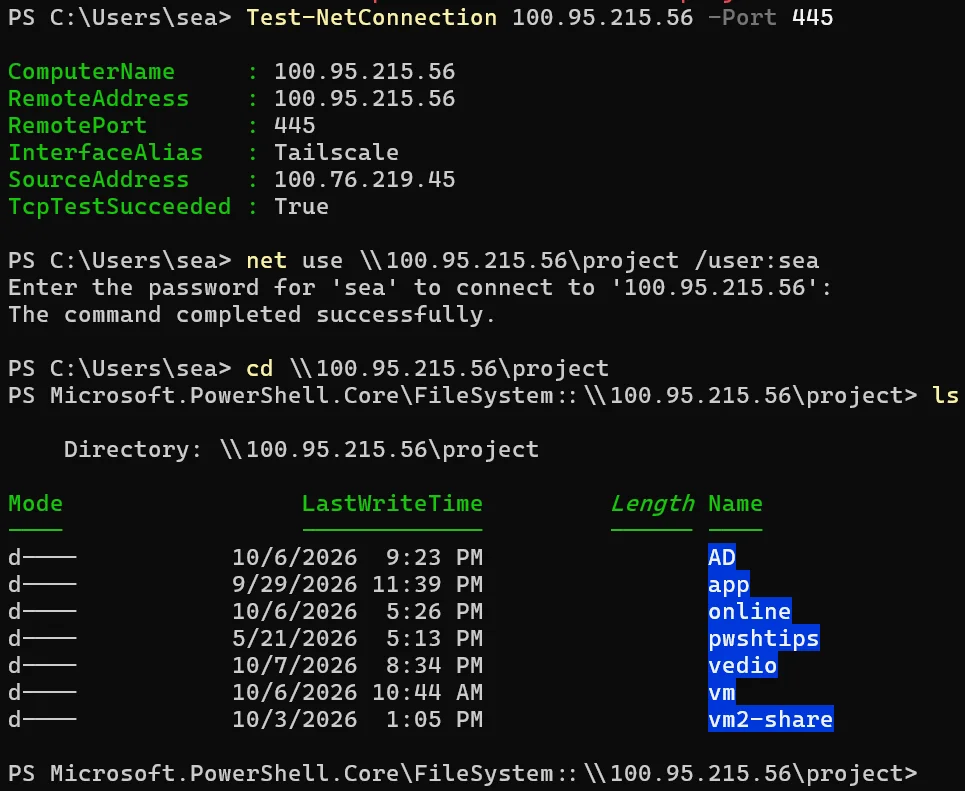
The screenshot above is the real thing: Test-NetConnection confirming TCP 445 is reachable over the tailnet, net use \\100.95.215.56\project /user:sea completing successfully, then cd and ls showing the share contents.
Once the credential is established with net use, File Explorer browses the share normally — no repeated password prompts:
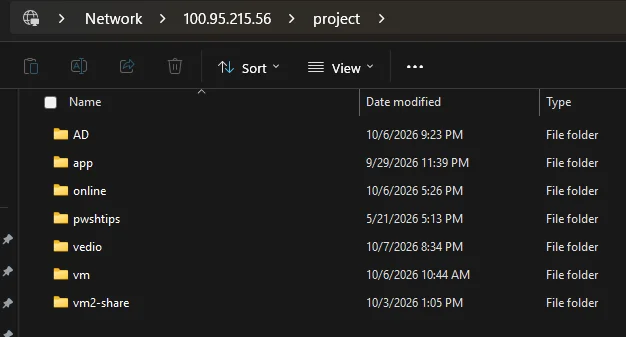
The key insight: establish the SMB session first (via net use or by opening the UNC path in Explorer and entering credentials), then everything else — cd in PowerShell, Explorer browsing, mapped drives — just works.
Verified: this direction works — the script was run on vm2 on 2026-10-08, systemctl is-active smb returns active, and the [project] share is live. Files created in Explorer appear in /home/sea/project with the expected 0644/0755 masks, and edits from the Fedora side are immediately visible in Windows.
I tested the obvious failure modes too. Creating a file in Explorer and then ls -la on the Fedora side shows the file owned by sea with the create mask applied. Editing a file from both sides in quick succession behaves like any SMB share — last writer wins, no locking magic. Deep paths and filenames with spaces work fine. The one thing I did not test is concurrent writes to the same file from both sides, because that is a data-loss scenario on any network share and the answer is “don’t do that” regardless of protocol.
Direction 2: Windows shares to Fedora via CIFS
The reverse: the laptop’s D:\project shared over Windows SMB, mounted on vm2 at /home/sea/laptop-project. Useful when the authoritative copy of something lives on the laptop and the server needs to read it — or when I want server-side scripts to process laptop-local files without a manual copy step.
Status: staging. The design and scripts below are complete, but at the time of writing the Windows-side steps had not been executed yet. I mark each step accordingly.
Windows side (not yet run)
In an elevated PowerShell:
New-SmbShare -Name "project" -Path "D:\project" -FullAccess "$env:USERNAME"Then a firewall rule to allow TCP 445 from the tailnet. The Tailscale CGNAT range is 100.64.0.0/10:
New-NetFirewallRule -DisplayName "SMB from Tailscale" `
    -Direction Inbound -Protocol TCP -LocalPort 445 `
    -RemoteAddress "100.64.0.0/10" -Action Allow
Scoping the rule to the tailnet range instead of opening 445 to the world is the entire security model here. SMB exposed to the internet is a non-starter; SMB restricted to the tailnet is fine.
Fedora side (scripted, not yet run)
Install the CIFS utilities:
sudo dnf install -y cifs-utilsCredentials go in a root-readable-only file, not on the command line and not in a world-readable fstab:
printf 'username=%s\npassword=%s\n' "$WINUSER" "$WINPASS" > /home/sea/.smb-laptop
chmod 600 /home/sea/.smb-laptop
The fstab entry uses x-systemd.automount so the share mounts on first access rather than at boot. This matters: if the laptop is asleep or off the tailnet at boot time, a plain fstab mount would hang the boot sequence waiting for a server that is not there. With automount, boot proceeds normally and the first ls of the mount point triggers the mount attempt:
//100.76.219.45/project /home/sea/laptop-project cifs credentials=/home/sea/.smb-laptop,uid=sea,gid=sea,file_mode=0644,dir_mode=0755,_netdev,noauto,x-systemd.automount 0 0
The _netdev tells systemd this mount needs networking. The noauto plus x-systemd.automount combination means “don’t mount at boot, mount on demand.” The uid=sea,gid=sea maps everything to the local user so file ownership behaves sanely.
The laptop address here is the Tailscale IP 100.76.219.45, which works from anywhere. At home, swapping it for the LAN IP would be faster — one edit to fstab.
The scripts
Both directions are captured in scripts so the setup is reproducible. The forward script configures Samba end to end (interactive only for the Samba password). The reverse script takes the Windows credentials interactively, writes the credential file with mode 600, adds the fstab entry idempotently, and mounts.
setup-samba.sh (forward: Fedora shares to Windows)
Run once on vm2 with sudo. Verified working.
#!/bin/bash
# vm2 Samba share: exposes /home/sea/project to Windows File Explorer.
# Run ONCE on vm2 as:  sudo bash /tmp/setup-samba.sh
# (you'll type your sudo password, then choose a Samba password for 'sea')
set -e

# --- smb.conf: keep a backup, write minimal share config ---
cp -n /etc/samba/smb.conf /etc/samba/smb.conf.bak 2>/dev/null || true
cat > /etc/samba/smb.conf <<'SMBEOF'
[global]
        workgroup = WORKGROUP
        server string = vm2 project share
        security = user
        map to guest = never
        log file = /var/log/samba/log.%m
        max log size = 50

[project]
        path = /home/sea/project
        valid users = sea
        writable = yes
        browsable = yes
        create mask = 0644
        directory mask = 0755
SMBEOF
testparm -s > /dev/null

# --- SELinux is Enforcing on this box: label the share ---
chcon -R -t samba_share_t /home/sea/project
setsebool -P samba_enable_home_dirs on

# --- firewalld is currently off; if ever enabled, open samba:
# firewall-cmd --permanent --add-service=samba && firewall-cmd --reload

# --- enable + start ---
systemctl enable --now smb

# --- Samba password for 'sea' (interactive, used from Windows) ---
echo "=== Now set a Samba password for user 'sea' (this is what Windows will ask for) ==="
smbpasswd -a sea

echo "=== Done. ==="
echo "In Windows File Explorer address bar, open:"
echo "  \\\\100.95.215.56\\project   (works anywhere, needs Tailscale on the laptop)"
echo "  \\\\192.168.0.248\\project   (at home on LAN, fastest)"
echo "Log in as 'sea' with the Samba password you just set."
echo "Tip: right-click -> 'Map network drive' to keep it as a drive letter."
mount-laptop.sh (reverse: Fedora mounts the Windows share)
Run once on vm2 with sudo. Prompts for the Windows username and password; the password is written only to /home/sea/.smb-laptop (mode 600). Staging — not yet executed end to end.
#!/bin/bash
# Mount the laptop's D:\project on vm2 at /home/sea/laptop-project (read/write).
# Run ONCE on vm2 as:  sudo bash /tmp/mount-laptop.sh
# You'll type your sudo password, then your WINDOWS username/password
# (the password is written only to /home/sea/.smb-laptop, mode 600).
set -e

read -p "Windows username [sea]: " WINUSER
WINUSER=${WINUSER:-sea}
read -s -p "Windows password for '$WINUSER': " WINPASS
echo

printf 'username=%s\npassword=%s\n' "$WINUSER" "$WINPASS" > /home/sea/.smb-laptop
chmod 600 /home/sea/.smb-laptop
chown sea:sea /home/sea/.smb-laptop
unset WINPASS

mkdir -p /home/sea/laptop-project
chown sea:sea /home/sea/laptop-project

# fstab entry, idempotent; automount on first access so boot never hangs
if ! grep -q 'laptop-project' /etc/fstab; then
  echo '//100.76.219.45/project /home/sea/laptop-project cifs credentials=/home/sea/.smb-laptop,uid=sea,gid=sea,file_mode=0644,dir_mode=0755,_netdev,noauto,x-systemd.automount 0 0' >> /etc/fstab
fi
systemctl daemon-reload
mount /home/sea/laptop-project

echo "=== Mounted OK. Contents of /home/sea/laptop-project: ==="
ls /home/sea/laptop-project | head -20
echo "=== Notes ==="
echo "- Address used: 100.76.219.45 (laptop Tailscale IP; works anywhere)."
echo "- At home you can also mount via LAN IP for more speed (edit /etc/fstab)."
echo "- Windows side must have D:\\project shared as 'project' with a firewall rule for TCP 445 from 100.64.0.0/10."
Pitfalls worth knowing
SELinux is the silent killer on Fedora. Everything about the Samba setup can be correct — config valid, service running, password set, Windows authenticating — and file access still fails. If you see access denied after a successful login, check /var/log/samba/log.<client> and ausearch -m avc -ts recent before touching anything else.
The -P on setsebool is not optional. Without it the boolean resets on reboot. I have seen shares “mysteriously break” weeks after setup for exactly this reason.
Automount, not boot-mount, for the reverse direction. A laptop is not a server. It sleeps, it leaves the house, it drops off the tailnet. Any fstab entry that blocks on it at boot is a future 90-second boot hang. noauto,x-systemd.automount costs nothing and avoids the problem entirely.
Credential files, not command lines. The Windows password appears in mount-laptop.sh only inside a read -s prompt and is written straight to a 600-mode file. It never appears in shell history, process listings, or logs. The unset WINPASS at the end is belt and suspenders.
Tailscale IPs over LAN IPs for reliability. The tailnet addresses work identically at home and away. LAN IPs are faster but stop working the moment the laptop leaves the house. I default to tailnet and only switch to LAN for bulk transfers.
SMB signing and performance. Modern Windows negotiates SMB signing by default, which adds a small CPU cost on both ends. For a home tailnet this is fine — the bottleneck is the network, not the signing overhead. I did not disable signing and I would not recommend doing so; the security margin is worth more than the negligible speed gain on a gigabit LAN.
One share per purpose. I exposed exactly one directory (/home/sea/project) rather than the whole home directory. The narrower the share, the smaller the blast radius if a credential leaks. If I need another directory shared later, I will add a second share stanza rather than widening this one.
Current status
| Direction | Status |
|---|---|
| Fedora → Windows (Samba) | Working. Read/write verified from Explorer over both Tailscale and LAN. |
| Windows → Fedora (CIFS) | Staging. Scripts complete, Windows-side share and firewall rule not yet created. |
I will update this post when the reverse direction is verified. The design is done; what remains is running the two Windows commands and the mount script, then confirming read/write both ways.
Related: the Tailscale setup that makes the 100.x addresses work is covered in the tailnet posts on this site.
💬 Comments