I needed League of Legends blocked on a Windows machine. Not mine — a machine I administer. My first instinct was the obvious one: block the game’s ports on the router. Twenty minutes later the game was still loading into matches like nothing happened.
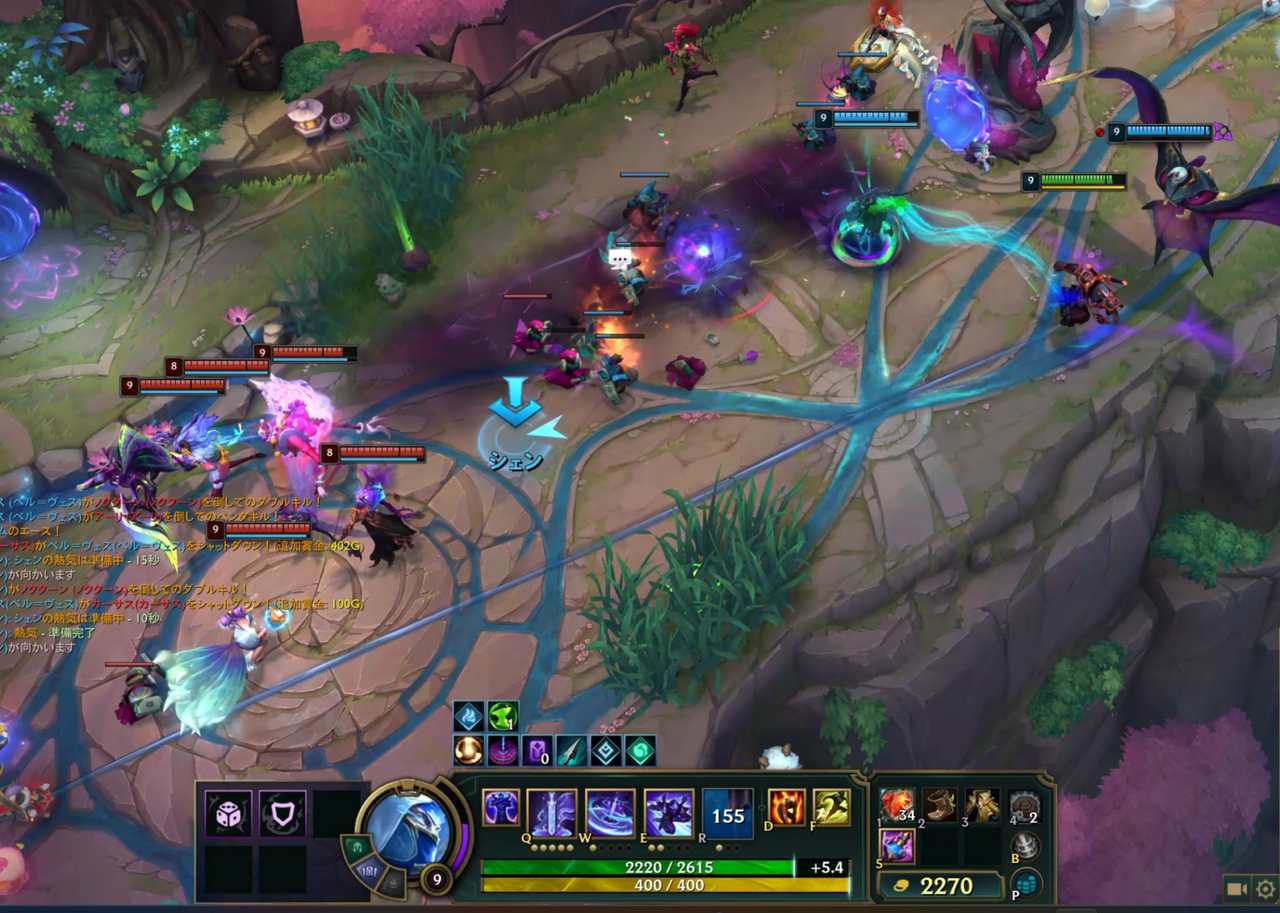 The thing we’re blocking: a League of Legends match in progress.
This post is the full story: what I tried on the router, why it was doomed from the start, the PowerShell script that actually works — Windows Firewall application rules, deployable to remote machines over WinRM or SSH — and the missing piece I added later: taking away the user’s admin rights without breaking daily use.
What I tried: blocking ports on the router
Riot publishes the ports League uses. The list looks like this:
- TCP 80, 443 — launcher, patcher, login, store
- TCP 2099 — PVP.net platform
- TCP 5223 — chat (XMPP)
- TCP 8393–8400 — game client
- UDP 5000–5500 — in-game traffic
So I added outbound rules on the router blocking all of them, saved, rebooted the router for good measure — and watched the game client log in, patch, and queue for a match without a hiccup. The only thing my rules accomplished was making me feel productive for twenty minutes.
Why router port blocking fails
It’s not a misconfiguration. Port-blocking LoL at the router is broken by design, for five reasons:
1. You can’t block 80 and 443. The launcher, patcher, login flow, and store all run over HTTPS. Block 443 outbound and you haven’t blocked League of Legends — you’ve blocked the entire web. No router rule can distinguish “LoL’s HTTPS” from “everyone else’s HTTPS” because it’s all TLS to various hosts.
2. The game ports are UDP and the client is resilient. Blocking UDP 5000–5500 outbound sounds surgical, but most consumer routers have crude outbound filtering to begin with, and the client treats blocked ports as damage to route around, not a wall.
3. Server IPs rotate. Riot runs on AWS and their own points of presence with IPs that change constantly. Any IP-based blocklist you build rots within days. I considered maintaining one for about thirty seconds.
4. Consumer routers are bad at outbound rules. Most home routers are built for inbound NAT filtering — keeping the outside out. Their outbound controls, where they exist at all, are blunt: block a port for the whole LAN or don’t.
5. You can’t fingerprint the traffic. It’s encrypted. A $80 router cannot look at a UDP flow and determine “this is League of Legends.” Deep packet inspection at home-router scale is a fantasy.
The fundamental mistake: I was trying to identify the traffic by where it goes (ports, IPs). The robust identifier is what program sends it — and that information only exists on the machine itself.
What works: Windows Firewall application rules
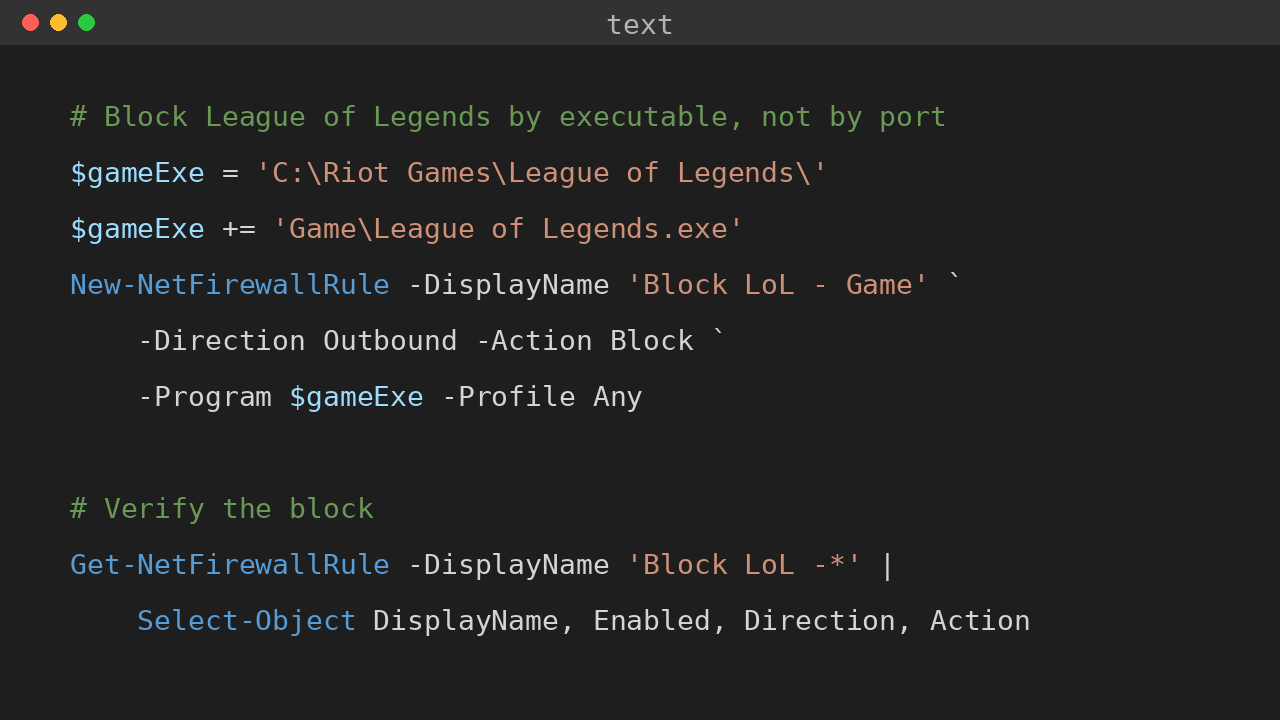
Windows Firewall can filter by executable path. A rule that says “block all outbound traffic from League of Legends.exe” doesn’t care about ports, IPs, CDNs, or Riot’s infrastructure changes. The process can’t talk, period.
League actually has three executables that matter, and they do different things:
| Executable | Role |
|---|---|
RiotClientServices.exe |
Riot Client — launcher, patching, store |
LeagueClient.exe |
League client UI — lobby, champ select, chat |
League of Legends.exe |
The actual game — in-match only |
This gives you a useful granularity: block all three and the game is fully dead. Block only League of Legends.exe and the client can still patch, log in, and chat — but matches can’t start. Handy if you want it updated but not playable.
The script
Block-LeagueOfLegends.ps1 discovers the install location (registry first, well-known paths as fallback), then creates outbound block rules. It’s idempotent — run it twice and the second run changes nothing. -GameOnly blocks just the in-match executable; -Remove tears the rules back down; -DemoteUser makes an account a standard user (more on that below). -WhatIf is supported throughout.
#Requires -RunAsAdministrator
<#
.SYNOPSIS
    Blocks League of Legends with Windows Firewall; optionally demotes a user.
.DESCRIPTION
    Creates outbound Windows Firewall block rules matching the Riot/League
    executables by path — not by port or IP — so the rules survive Riot's
    rotating server IPs and port changes, which is exactly why router-level
    port blocking fails.

    With -DemoteUser, the named account is created if missing and removed
    from Administrators otherwise. The script refuses to strand the machine:
    at least one other enabled administrator must remain. Demotion does not
    touch the user's profile, files, or installed apps — daily use (browsing,
    schoolwork, most games) keeps working; only admin tasks (installing
    software, changing system settings) will then ask for another
    administrator's credentials.
.PARAMETER GameOnly
    Block only the in-match executable (League of Legends.exe). The client can
    still patch, log in and chat, but matches cannot start.
.PARAMETER Remove
    Remove the block rules (unblock). Does not restore admin rights.
.PARAMETER DemoteUser
    Ensure this local account is a standard user: create it if missing,
    remove it from Administrators if present.
.PARAMETER NewPassword
    Password used when -DemoteUser has to create the account. If omitted in
    an interactive session you will be prompted; remote/non-interactive runs
    must pass it explicitly.
.EXAMPLE
    .\Block-LeagueOfLegends.ps1 -DemoteUser user1
    .\Block-LeagueOfLegends.ps1 -DemoteUser user1 -GameOnly
    .\Block-LeagueOfLegends.ps1 -DemoteUser user1 -Remove
#>
[CmdletBinding(SupportsShouldProcess)]
param(
    [switch]$GameOnly,
    [switch]$Remove,
    [string]$DemoteUser,
    [SecureString]$NewPassword
)

$ErrorActionPreference = 'Stop'

$isAdmin = ([Security.Principal.WindowsPrincipal](
    [Security.Principal.WindowsIdentity]::GetCurrent()
)).IsInRole([Security.Principal.WindowsBuiltInRole]::Administrator)
if (-not $isAdmin) { throw 'Run this from an elevated prompt (Administrator).' }

$allDefs = @(
    @{ Name = 'Block LoL - Riot Client Services'; Exe = 'RiotClientServices.exe'; GameOnly = $false }
    @{ Name = 'Block LoL - League Client';         Exe = 'LeagueClient.exe';         GameOnly = $false }
    @{ Name = 'Block LoL - Game';                  Exe = 'League of Legends.exe';    GameOnly = $true  }
)
$ruleDefs = if ($GameOnly) { $allDefs | Where-Object GameOnly } else { $allDefs }

function Find-InstallRoots {
    $roots = @()
    foreach ($hive in 'HKLM:\SOFTWARE\Microsoft\Windows\CurrentVersion\Uninstall\*',
                      'HKLM:\SOFTWARE\WOW6432Node\Microsoft\Windows\CurrentVersion\Uninstall\*') {
        Get-ItemProperty $hive -ErrorAction SilentlyContinue |
            Where-Object { $_.DisplayName -match 'Riot|League of Legends' -and $_.InstallLocation } |
            ForEach-Object { $roots += $_.InstallLocation }
    }
    foreach ($p in 'C:\Riot Games', 'D:\Riot Games',
                "$env:ProgramFiles\Riot Games", "${env:ProgramFiles(x86)}\Riot Games") {
        if (Test-Path $p) { $roots += $p }
    }
    $roots | Where-Object { $_ -and (Test-Path $_) } | Select-Object -Unique
}

function Find-GameExes {
    $found = @()
    foreach ($root in (Find-InstallRoots)) {
        foreach ($def in $ruleDefs) {
            Get-ChildItem -Path $root -Filter $def.Exe -Recurse -File -ErrorAction SilentlyContinue |
                Select-Object -ExpandProperty FullName -Unique |
                ForEach-Object {
                    $found += [pscustomobject]@{ RuleName = $def.Name; Path = $_ }
                }
        }
    }
    $found | Sort-Object Path -Unique
}

function Set-StandardUser {
    [CmdletBinding(SupportsShouldProcess)]
    param([string]$Username, [SecureString]$NewPassword)

    $adminMembers = Get-LocalGroupMember -Group 'Administrators'
    $user = Get-LocalUser -Name $Username -ErrorAction SilentlyContinue

    if (-not $user) {
        $msAcct = $adminMembers | Where-Object {
            ($_.Name -split '\\')[-1] -eq $Username -and $_.PrincipalSource -eq 'MicrosoftAccount'
        }
        if ($msAcct) {
            throw ("'{0}' is a Microsoft account. Demote it in Settings > Accounts > " +
                   "Other users > Change account type > Standard.") -f $Username
        }
        if (-not $NewPassword -and [Environment]::UserInteractive) {
            $NewPassword = Read-Host "Set a password for new user '$Username'" -AsSecureString
        }
        if (-not $NewPassword) {
            throw "Local user '$Username' not found. Re-run with -NewPassword to create it."
        }
        if ($PSCmdlet.ShouldProcess($Username, 'Create local standard user')) {
            New-LocalUser -Name $Username -Password $NewPassword -AccountNeverExpires | Out-Null
            Write-Host "Created standard user: $Username"
        }
        $user = Get-LocalUser -Name $Username -ErrorAction SilentlyContinue
        if (-not $user) { throw "Could not create user '$Username'." }
    }

    if (-not $user.Enabled -and $PSCmdlet.ShouldProcess($Username, 'Enable account')) {
        Enable-LocalUser -Name $Username
    }

    $isAdminMember = $adminMembers | Where-Object { ($_.Name -split '\\')[-1] -eq $Username }
    if (-not $isAdminMember) { Write-Host "Already a standard user: $Username"; return }

    # Safety: never remove the last enabled administrator.
    $otherEnabled = $adminMembers | Where-Object {
        ($_.Name -split '\\')[-1] -ne $Username -and $_.ObjectClass -eq 'User'
    } | Where-Object {
        $lu = Get-LocalUser -Name (($_.Name -split '\\')[-1]) -ErrorAction SilentlyContinue
        -not $lu -or $lu.Enabled
    }
    if (-not $otherEnabled) {
        throw ("Refusing to demote '{0}': it is the last enabled administrator. " +
               "Create or keep another admin account first.") -f $Username
    }

    if ($PSCmdlet.ShouldProcess($Username, 'Remove from Administrators')) {
        Remove-LocalGroupMember -Group 'Administrators' -Member "$env:COMPUTERNAME\$Username"
        Write-Host "Demoted to standard user: $Username"
    }
}

# Firewall rules first: a demote failure must not skip the block.
$targets = Find-GameExes
if (-not $targets) {
    Write-Warning 'No Riot/League executables found. Is the game installed on this machine?'
}
foreach ($t in $targets) {
    $existing = Get-NetFirewallRule -DisplayName $t.RuleName -ErrorAction SilentlyContinue |
        Where-Object {
            (($_ | Get-NetFirewallApplicationFilter).Program -eq $t.Path) -and
            $_.Direction -eq 'Outbound' -and $_.Action -eq 'Block'
        }
    if ($Remove) {
        Get-NetFirewallRule -DisplayName $t.RuleName -ErrorAction SilentlyContinue |
            Remove-NetFirewallRule
        Write-Host "Removed: $($t.RuleName)"
        continue
    }
    if ($existing) { Write-Host "Already blocked: $($t.Path)"; continue }
    if ($PSCmdlet.ShouldProcess($t.Path, 'Create outbound block rule')) {
        New-NetFirewallRule -DisplayName $t.RuleName -Direction Outbound `
            -Action Block -Program $t.Path -Profile Any -Enabled True |
            Out-Null
        Write-Host "Blocked: $($t.Path)"
    }
}

if ($DemoteUser) { Set-StandardUser -Username $DemoteUser -NewPassword $NewPassword }
A few design notes:
- Application rules, not port rules.
-Program $t.Pathis the whole trick. Ports and IPs are never mentioned. - Discovery, not hardcoding. Install paths vary (
C:\Riot Games,D:\Riot Games, custom). The registry uninstall keys are checked first. - The
#Requiresline plus an explicit admin check.#Requires -RunAsAdministratordoesn’t fire when the script arrives over SSH stdin, so the manual check covers that path. - Demotion is guarded and one-way. The script will not remove the last enabled administrator — it throws instead. Re-granting admin later is a deliberate manual step:
Add-LocalGroupMember -Group Administrators -Member user1. -WhatIfsupport comes free from[CmdletBinding(SupportsShouldProcess)]— dry-run with-WhatIfbefore touching a real machine.
Deploying it remotely
Locally is just .\Block-LeagueOfLegends.ps1 -DemoteUser user1 from an elevated prompt.
Over WinRM (PSSession) — no file copy needed, the script text rides along:
$computers = 'KID-PC', 'LAB-PC02'
$code = Get-Content .\Block-LeagueOfLegends.ps1 -Raw
Invoke-Command -ComputerName $computers -ScriptBlock {
    $using:code | Out-File "$env:TEMP\Block-LoL.ps1" -Encoding utf8
    & "$env:TEMP\Block-LoL.ps1" -DemoteUser user1
}
# unblock later:
Invoke-Command -ComputerName $computers -ScriptBlock {
    & "$env:TEMP\Block-LoL.ps1" -Remove
}
WinRM needs to be enabled on the targets (Enable-PSRemoting), and your account needs local admin on each.
Over SSH — pipe the script straight into the remote PowerShell:
Get-Content .\Block-LeagueOfLegends.ps1 -Raw | ssh admin@kid-pc powershell -NoProfile -Command -The SSH account must be a local administrator on the target. (This is also why the script checks admin rights explicitly instead of relying on #Requires — stdin scripts don’t trigger it.)
The missing piece: take away admin, keep daily use
Firewall rules stop the game — but the first version of this post left a hole open. Anyone with local admin rights can open Windows Firewall and delete the rules in about ten seconds. If the person you’re blocking is an administrator on that machine, the block is a suggestion, not a lock.
The fix isn’t another rule. It’s taking away admin rights — and the part everyone worries about mostly doesn’t happen:
- Untouched: files, desktop, browser, documents, installed apps and games. Demotion doesn’t move or delete anything; the profile stays exactly as it was.
- Still works: web browsing, schoolwork, Office, Steam and most other games.
- Now asks: installing software, changing system settings, anything needing elevation. Windows prompts for another administrator’s credentials instead of clicking straight through.
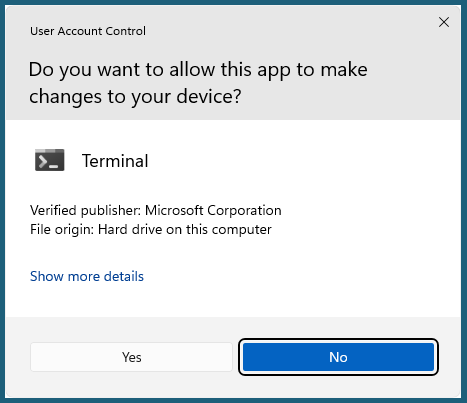 After demotion, elevation looks like this. (Admins see a Yes/No variant; standard users get a username/password box asking for an administrator’s credentials.)
That’s what -DemoteUser user1 does: create the account if it’s missing, strip Administrators if it’s there, and refuse to strand the machine — if it’s the last enabled administrator, the script stops and tells you to keep another admin first. The firewall block runs before the demote step, so even if the demote is refused, the game stays blocked.
Two things worth knowing:
Firewall rules are machine-wide. They apply to every account on the PC, including yours. If you play League yourself on the same machine, you’ll need -Remove to lift the block for your own sessions — the rules can tell programs apart, not players.
If an older game breaks after demotion, it’s almost always one cause: the game writes saves or settings into its own folder under Program Files, which standard users can’t write to. The fix is a folder permission, not admin rights back:
icacls "C:\Games\OldGame" /grant Users:(OI)(CI)MTry that before handing admin back. And if the account is a Microsoft account rather than a local one, the script won’t touch it — *-LocalUser cmdlets can’t — and tells you to demote it via Settings → Accounts → Other users instead.
Verifying the block
Get-NetFirewallRule -DisplayName 'Block LoL -*' |
    Select-Object DisplayName, Enabled, Direction, Action

# and the account:
Get-LocalGroupMember -Group Administrators | Select-Object Name, PrincipalSource
Then the real test: launch the game. The client will fail to connect — no error about firewall, just a game that can’t reach its servers. If you used -GameOnly, confirm the client still patches and logs in, then watch a match fail to start. Log in as user1 and confirm daily stuff works while installing anything asks for the admin password.
Honest limitations
- The firewall rules stop the program;
-DemoteUserstops the person from deleting the rules. Use both — either one alone is half a solution. - Reinstalls to a new path need a rerun. The script discovers paths at run time; if the game moves, run it again.
- DNS-based blocking (Pi-hole and friends) has the same rot problem as IP lists, plus DNS-over-HTTPS bypasses it trivially. Application rules don’t have this weakness — a VPN doesn’t help the game either, because the block is on the process, not the route.
I spent twenty minutes learning that you can’t block League of Legends by where its packets go. You block it by which program sends them — and that question can only be answered on the machine itself. Three firewall rules, one script, one demoted user, deployable to a whole lab in a single Invoke-Command.
💬 Comments