When an application cannot connect, I usually test the port before changing firewall rules or blaming DNS. A quick TCP test tells me whether the client can reach the service at all.
These are the Windows tools I use most often: Test-NetConnection, a small .NET TcpClient check, Telnet, and PortQry.
Short answer
To test whether a TCP port is open from Windows, run Test-NetConnection -ComputerName servername -Port 443 and check TcpTestSucceeded. True means the client reached the service on that port. False means the port is closed, blocked by a firewall, the service is not listening, or the network path is unavailable. On older systems, use Telnet, PortQry, or a .NET TcpClient test.
1. PowerShell Methods
PowerShell is usually the first option on modern Windows systems because it is already installed and gives structured output.
Method 1: Test-NetConnection (The Best Way)
The Test-NetConnection cmdlet is the recommended method for testing port connectivity. It is built-in on Windows 8.1/Server 2012 R2 and newer and provides clear, detailed output.
# Replace server2 with my target hostname or IP
Test-NetConnection -ComputerName server2 -Port 1420
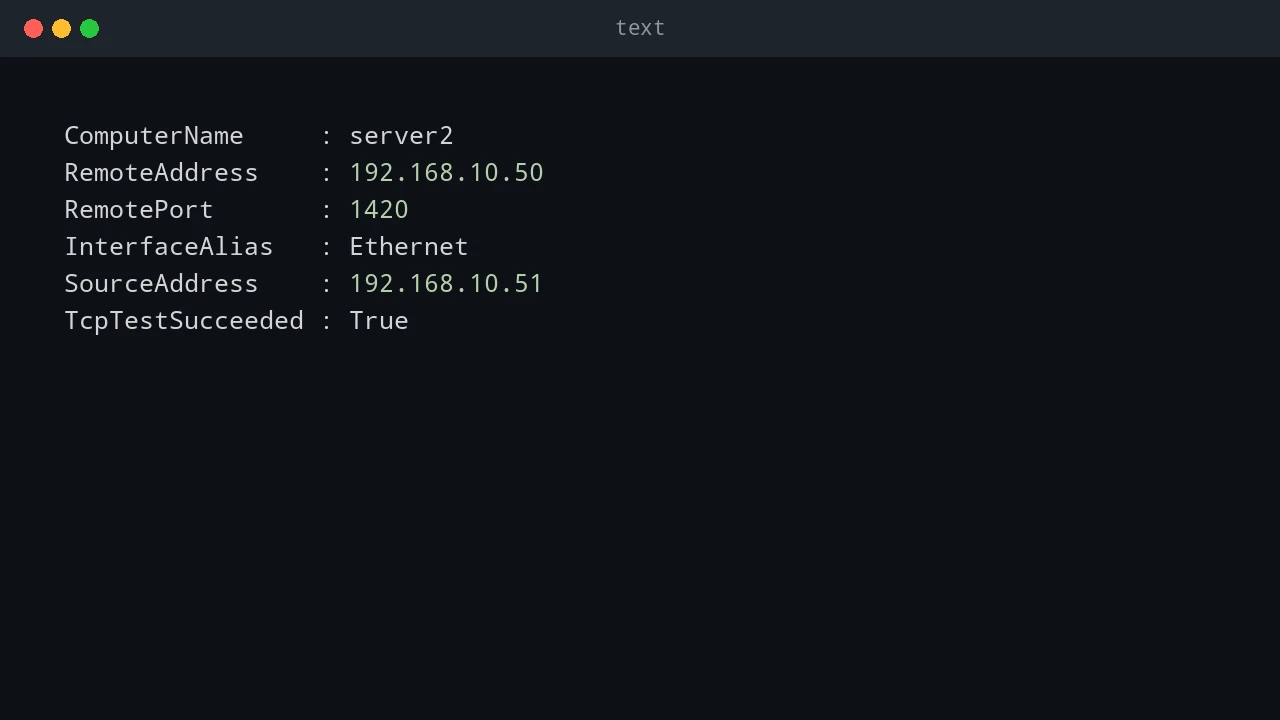
Example Output (Port OPEN):
ComputerName     : server2
RemoteAddress    : 192.168.10.50
RemotePort       : 1420
InterfaceAlias   : Ethernet
SourceAddress    : 192.168.10.51
TcpTestSucceeded : TrueTcpTestSucceeded: True result means the TCP connection reached the target service.
Example Output (Port CLOSED or BLOCKED):
If the port is closed or blocked by a firewall, the output will show TcpTestSucceeded: False.
Method 2: Pure PowerShell Script (Using .NET)
For older systems without Test-NetConnection or for more granular control, I can use the .NET TcpClient class directly in PowerShell.
$socket = New-Object System.Net.Sockets.TcpClient
try {
    # Set a timeout (e.g., 1 second) to avoid long waits
    $result = $socket.BeginConnect("server2", 1420, $null, $null)
    $success = $result.AsyncWaitHandle.WaitOne(1000, $true)
    if ($success) {
        Write-Host "Port 1420 is OPEN" -ForegroundColor Green
        $socket.EndConnect($result)
    } else {
        throw "Timeout"
    }
} catch {
    Write-Host "Port 1420 is CLOSED or blocked: $($_.Exception.Message)" -ForegroundColor Red
} finally {
    $socket.Close()
}
2. Classic Command-Line Tools
These tools have been around for a long time and are still useful, especially in environments where PowerShell is not available.
Method 1: telnet
Telnet is a simple way to check if a port is open. If the connection is successful, I will see a blank screen with a cursor, indicating that the port is open.
telnet server2 1420- Black screen with cursor: Port is OPEN.
- “Could not open connection”: Port is CLOSED or BLOCKED.
If telnet is not installed, I can enable it with:
Enable-WindowsOptionalFeature -Online -FeatureName TelnetClientMethod 2: PortQry.exe (Microsoft Tool)
PortQry is a more advanced command-line tool from Microsoft that provides more detailed information than telnet.
- Download PortQryV2 from the Microsoft Download Center.
- Run the command:
portqry -n server2 -e 1420
Example Output (Port OPEN):
TCP port 1420 (unknown service): LISTENING3. Advanced Troubleshooting: When the Port Test Fails
If Test-NetConnection returns TcpTestSucceeded: False, it means the TCP handshake failed. This could be for several reasons. Here’s how to diagnose the problem.
Step 1: Check if the Service is Listening on the Remote Host
First, confirm that the application is actually running and listening on the expected port on the remote server (server2).
Run this command on server2:
netstat -an | findstr "1420"
# or, for more structured output:
Get-NetTCPConnection -LocalPort 1420 -State Listen
Good Output (Listening on all interfaces):
TCP 0.0.0.0:1420 0.0.0.0:0 LISTENINGProblem: No Output If the command returns no output, the application isn’t running or isn’t listening on port 1420. My Fix: Start the service.
Problem: Bound to localhost only
If I see this, the service is only accepting connections from the server itself, not from the network.
TCP 127.0.0.1:1420 0.0.0.0:0 LISTENING0.0.0.0 (all interfaces).
Step 2: Check for Firewalls
If the service is listening correctly, the issue is likely a firewall.
- Windows Firewall on the server: Check for inbound rules blocking port 1420.
- Network Firewall: A hardware firewall, router ACL, or cloud security group (like an AWS Security Group or Azure NSG) between the client and server could be blocking the port.
I can check for other open ports (like RDP on 3389 or SSH on 22) to see if the issue is specific to port 1420.
Test-NetConnection server2 -Port 3389Step 3: Verify DNS and IP Address
Ensure that the hostname resolves to the correct IP address.
Resolve-DnsName server24. Which Method Should I Choose?
| Method | Best For | Pros | Cons |
|---|---|---|---|
Test-NetConnection |
Most modern Windows environments | Built-in, detailed output, reliable | Not available on older Windows versions |
Pure PowerShell (TcpClient) |
Scripting and automation, older systems | Highly customizable, no external tools | More complex syntax |
telnet |
Quick and simple checks | Universally understood, simple | Not installed by default, minimal output |
PortQry.exe |
Detailed diagnostics | Provides more info than telnet |
Requires a separate download |
5. Practical Troubleshooting Workflow
When a port check fails, avoid jumping straight to the firewall. A closed port can mean several different things, and each one has a different fix.
Start on the destination server. Confirm that the service is actually running and listening on the expected port. For example, a web server may be installed but stopped, or it may be listening on port 8080 instead of port 443. If the service is not listening locally, no firewall change will solve the issue.
Next, test from the same subnet if possible. A successful same-subnet test but failed remote-subnet test points toward routing, network ACLs, VLAN rules, or perimeter firewalls. A failed local-subnet test points more strongly toward the host firewall, service binding, or the application itself.
Also verify name resolution. If server2 resolves to an old IP address, the port test may be hitting the wrong machine. Testing both the hostname and the IP address helps separate DNS problems from network connectivity problems.
In production, document these details when opening a ticket:
- Source host and IP address.
- Destination host and IP address.
- Destination port and protocol.
- Exact command used for testing.
- Error message or command output.
- Whether the service is listening locally on the destination.
That information gives network, firewall, and server teams enough context to act without repeating the same basic checks.
Common Mistakes
Do not assume that a failed TCP test proves the server is offline. ICMP, TCP, and UDP are handled differently. A server can block ping but still accept HTTPS, RDP, or WinRM.
Do not assume that a successful port test proves the application is healthy. It only proves that something accepted a TCP connection. The service might still return application-level errors after the connection is established.
For UDP services such as DNS, NTP, or some VPN protocols, TCP-style tests are not enough. Use protocol-specific tools when possible, such as Resolve-DnsName for DNS or vendor tools for VPN validation.
Conclusion
Testing for open ports is a fundamental skill for network troubleshooting.
- For modern Windows systems,
Test-NetConnectionis the best and most reliable tool. - If a port test fails, systematically check if the service is listening, if it’s bound to the correct network interface, and if a firewall is blocking the connection.
By following these steps, I can quickly and accurately diagnose and resolve most port connectivity issues.
💬 Comments