Standardizing the Windows taskbar sounds like a small desktop task, but it gets awkward fast when you need to automate it. Windows does not provide a clean built-in command for managing pinned items, partly to stop applications from pinning themselves without user consent.
The methods below are the ones I use when I need to inspect or clean up pinned taskbar items with PowerShell.
The fix, briefly
Windows stores user-pinned taskbar shortcuts under the user’s profile, but it does not provide a clean supported cmdlet for fully managing pins. With PowerShell, you can list pinned .lnk files from the TaskBar folder and remove unwanted shortcuts. After changes, restart Explorer for the taskbar to refresh. Test this per Windows version because taskbar behavior changes across releases.
Warning: Important Note: I found that most of these methods require PowerShell to be run as Administrator. After making changes, I need to restart the Explorer process for them to take effect.
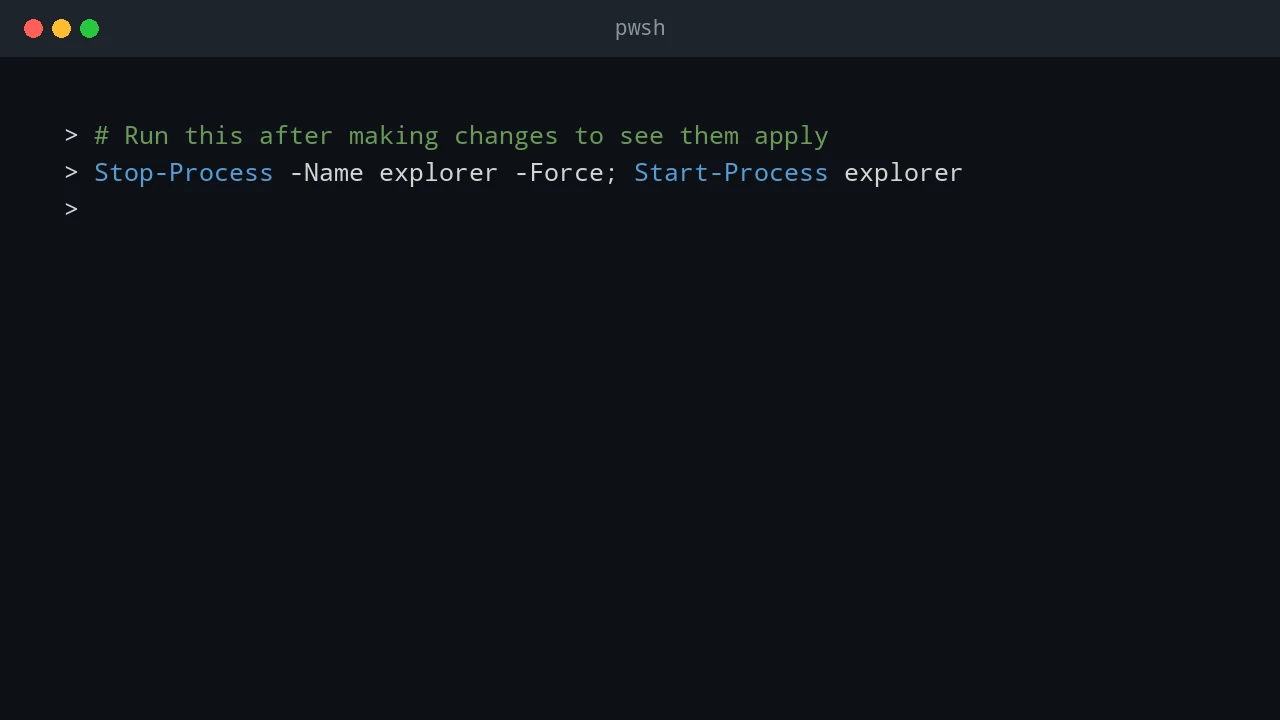
> # Run this after making changes to see them apply
> Stop-Process -Name explorer -Force; Start-Process explorer
>
1. How I List Pinned Taskbar Items
The most reliable way I found to see which applications a user has pinned is to inspect the folder where Windows stores these shortcuts.
> # Path to the user-pinned taskbar items folder
> $pinnedPath = "$env:APPDATA\Microsoft\Internet Explorer\Quick Launch\User Pinned\TaskBar"
>
> # Check if the path exists
> if (Test-Path $pinnedPath) {
>     # List all .lnk files and resolve their target paths
>     Get-ChildItem -Path $pinnedPath -Filter "*.lnk" |
>         Select-Object Name, @{Name='TargetPath'; Expression={
>             (New-Object -ComObject WScript.Shell).CreateShortcut($_.FullName).TargetPath
>         }} | Format-Table -AutoSize
> } else {
>     Write-Warning "Pinned items folder not found. No custom items are pinned."
> }
Example Output:
Name               TargetPath
----               ----------
File Explorer.lnk  C:\Windows\explorer.exe
Microsoft Edge.lnk C:\Program Files (x86)\Microsoft\Edge\Application\msedge.exe
Notepad.lnk        C:\WINDOWS\system32\notepad.exe
I noticed this method lists only the items pinned by the current user. System-default pins (like the Microsoft Store on a fresh installation) are stored elsewhere and are best managed via the methods below.
2. How I Unpin Items from the Taskbar
Since there is no Unpin-TaskbarItem cmdlet, I have to use more creative methods.
Method 1: The COM Verb Method (Recommended)
This is the cleanest method as it programmatically invokes the same “Unpin from taskbar” action that I would perform by right-clicking an icon.
Here is a reusable PowerShell function I use to do this:
> function Unpin-FromTaskbar {
>     param(
>         [Parameter(Mandatory = $true)]
>         [string]$AppName
>     )
>
>     try {
>         # Get the Shell Application object
>         $shell = New-Object -ComObject Shell.Application
>
>         # Find the application in the Start Menu namespace
>         # This is the most reliable way to find an application's verbs
>         $startMenu = $shell.Namespace('shell:::{4234d49b-0245-4df3-b780-3893943456e1}')
>         $app = $startMenu.Items() | Where-Object { $_.Name -eq $AppName }
>
>         if ($app) {
>             # Find the "Unpin from taskbar" verb
>             $unpinVerb = $app.Verbs() | Where-Object { $_.Name.Replace('&', '') -match 'Unpin from taskbar' }
>
>             if ($unpinVerb) {
>                 # Execute the verb
>                 $unpinVerb.DoIt()
>                 Write-Host "Successfully unpinned '$AppName' from the taskbar." -ForegroundColor Green
>             } else {
>                 Write-Warning "Could not find the 'Unpin from taskbar' verb for '$AppName'. It might be a system app or already unpinned."
>             }
>         } else {
>             Write-Error "Application '$AppName' not found in the Start Menu namespace."
>         }
>     } catch {
>         Write-Error "An error occurred: $($_.Exception.Message)"
>     }
> }
>
> # --- Example Usage ---
> Unpin-FromTaskbar -AppName "Microsoft Edge"
> Unpin-FromTaskbar -AppName "File Explorer"
>
> # Remember to restart Explorer to see the changes
> # Stop-Process -Name explorer -Force; Start-Process explorer
How It Works:
This function uses the Shell.Application COM object to find an application by its name (as it appears in the Start Menu) and then programmatically “clicks” the “Unpin from taskbar” verb associated with it.
Method 2: The “Nuke Everything” Method (Resetting the Taskbar)
If I want to remove all user-pinned items and reset the taskbar to its default state, I can do so by deleting the registry key that stores the pinned item cache.
Warning: Warning: This is a destructive action and will remove all custom pins. I always back up my registry before proceeding.
> # Path to the registry key that stores the taskbar pin cache
> $regPath = "HKCU:\\Software\\Microsoft\\Windows\\CurrentVersion\\Explorer\\Taskband"
>
> # Check if the key exists before trying to remove properties
> if (Test-Path $regPath) {
>     Write-Host "Removing taskbar pin cache from the registry..."
>     # These two values store the list of pinned items
>     Remove-ItemProperty -Path $regPath -Name "Favorites" -ErrorAction SilentlyContinue
>     Remove-ItemProperty -Path $regPath -Name "FavoritesChanges" -ErrorAction SilentlyContinue
>
>     Write-Host "Cache removed. Restarting Explorer to apply changes." -ForegroundColor Yellow
>     Stop-Process -Name explorer -Force; Start-Process explorer
> } else {
>     Write-Warning "Taskband registry key not found. No custom items to remove."
> }
This method is effective for resetting the taskbar to a clean state but offers no granular control.
Automation Example: Creating a Standard Taskbar
Here is how I combine these techniques to enforce a standard taskbar layout by unpinning a specific list of applications.
> # (Paste the Unpin-FromTaskbar function from Method 1 here)
>
> # --- Main Script ---
> $appsToUnpin = @(
>     "Microsoft Edge",
>     "File Explorer",
>     "Microsoft Store",
>     "Mail"
> )
>
> Write-Host "Starting taskbar cleanup..."
> foreach ($app in $appsToUnpin) {
>     Unpin-FromTaskbar -AppName $app
> }
>
> Write-Host "Cleanup complete. Restarting Explorer to apply all changes."
> Stop-Process -Name explorer -Force; Start-Process explorer
Conclusion
While Windows doesn’t offer a straightforward way to manage pinned taskbar items, PowerShell provides the necessary tools to automate the process.
- For listing items, inspecting the
User Pinned\TaskBarfolder is the most direct method. - For unpinning specific items, using the
Shell.ApplicationCOM object to invoke the “Unpin” verb is the most reliable and non-destructive approach. - For a complete reset, deleting the
Taskbandregistry key is a quick but blunt solution.
Operational Notes for Enterprise Use
Taskbar customization looks simple, but it affects the first thing users see after signing in. Treat it like any other user-experience change: test it, document it, and provide a rollback path.
For shared workstations, classrooms, labs, kiosks, or frontline devices, a standard taskbar can reduce support calls because users see the same pinned applications everywhere. For personal productivity devices, be more conservative. Removing a user’s pinned applications without warning can create friction, especially when the machine is assigned to a long-term employee.
Before deploying a taskbar cleanup script broadly, validate these points:
- Test with a new user profile and an existing user profile. Windows can behave differently depending on whether Explorer has already created the pinned-items folder and Taskband registry values.
- Confirm the application names on the target operating system language. The shell verb and application display name may vary between localized Windows builds.
- Run the script once manually, then run it a second time. A good endpoint script should be idempotent and should not fail just because an item is already unpinned.
- Avoid restarting Explorer during active work unless the user expects it. Restarting Explorer can close File Explorer windows and briefly interrupt the desktop shell.
- Keep a record of default pins for each Windows release you manage. Microsoft changes the default taskbar layout between feature updates.
For Intune, Configuration Manager, or a logon script, log the actions your script takes. At minimum, write which app names were searched, which pins were found, and whether Explorer was restarted. That makes troubleshooting much easier when a user reports that the layout did not apply.
Safer Rollout Strategy
Start with a detection-only version of the script. It should list current pinned items and write the result to a log file without changing anything. After you understand the layouts already in use, enable unpinning for a pilot group. Only after the pilot succeeds should you apply it to a larger device collection.
For highly controlled environments, consider pairing the script with Group Policy or provisioning packages. PowerShell is useful for cleanup and remediation, while policy is better for enforcing a long-term standard. Combining both approaches gives you a practical balance: PowerShell fixes drift, and policy keeps the baseline consistent.
Troubleshooting
If the script does not remove an item, first confirm the app name exactly as Windows displays it in the taskbar context menu. Some pinned items use a friendly display name that differs from the executable name or shortcut file name.
If the item disappears and then returns after sign-in, another management layer is probably reapplying the layout. Check Group Policy, Intune device configuration profiles, provisioning packages, and any logon scripts that customize the Start menu or taskbar.
If Explorer does not refresh after the change, sign out and sign back in before assuming the script failed. Restarting Explorer is faster during testing, but a full sign-out gives you a cleaner view of what the user will see during a normal session.
When troubleshooting, also check whether the shortcut still exists under the user’s pinned-items folder. If the shortcut is gone but the icon remains visible, Explorer is likely showing cached state. If the shortcut remains, the COM verb may not have matched the localized action name or the application may use a packaged-app shortcut that behaves differently from a standard .lnk file.
For repeatable support, capture the before-and-after state in a log. Record the pinned shortcut names, the actions attempted, and whether Explorer was restarted. That small amount of evidence usually separates a script problem from a policy refresh or profile-specific issue.
By using these PowerShell techniques carefully, you can script and enforce a standardized taskbar layout across multiple machines while still protecting the user experience.
💬 Comments