Oracle Cloud Infrastructure (OCI) can run Linux virtual machines under its Free Tier, but “free VPS” does not mean every shape, disk, IP address, or service is free forever. You need to choose resources marked Always Free eligible, stay within tenancy limits, and check the estimated cost before creating anything. Account verification and compute capacity can also vary by country and region.
Quick answer
Register at Oracle’s Free Tier signup page, choose your home region carefully, and verify the account. In the OCI Console, create a VCN and a public subnet with an Internet Gateway, a route rule for 0.0.0.0/0 to that gateway, and an ingress rule for SSH from your own public IP address only. Launch a Linux Compute instance in that subnet using a shape marked Always Free eligible, provide your SSH public key, and assign a public IPv4 address. Connect with OpenSSH, update the operating system, and monitor billing and resource eligibility in the Console.
Understand the Free Tier First
Oracle describes its Free Tier as a limited-time promotional trial plus a set of Always Free offers. Its current documentation lists trial credits with a time limit and explains that Always Free resources can continue after the trial, while paid resources provisioned during a trial can be reclaimed if the account is not upgraded. The exact offers and limits can change, so use the current OCI Free Tier page as the source of truth before you create a resource.
During signup, select the home region you intend to use. Oracle notes that some Always Free services are available only in that region. Once the tenancy is created, the home region is not a casual setting to change. Compute availability is separate from price eligibility: a shape can be eligible for an Always Free allowance and still be temporarily out of capacity in the selected availability domain. The VM.Standard.A1.Flex shape in particular is an ARM-based option; verify that your software and installation images support the architecture you select.
Free-tier terms are not a substitute for billing checks. On the review screen, check the shape, boot volume, network resources, and any displayed estimate. Do not click an account upgrade or enable paid features unless you intend to do so. Never create duplicate accounts to work around capacity or eligibility restrictions.
Register for Oracle Cloud Free Tier
Start from Oracle’s official Free Tier signup page. The signup flow asks for account and contact information, including a working email address and phone verification. Oracle may require a payment card for identity and fraud checks. Its documentation says the card is not charged unless you upgrade, but read the current signup wording and your card issuer’s authorization details carefully; verification practices can vary by location.
Use your own accurate information. Verify the email address, confirm the phone prompt, accept the applicable terms, and choose the home region deliberately. Oracle may decline a signup or fail payment verification; do not repeatedly submit different card or identity details to evade those checks. Use Oracle’s account support path if the signup flow reports a verification problem.
After account creation, sign in to the OCI Console. The Console is organized by region and compartment. A compartment is an organizational and access-control boundary; new users commonly work in the root compartment, but a separate compartment can keep a lab environment easier to identify and clean up. Confirm that the Console’s selected region matches the tenancy’s home region before provisioning Always Free compute.
Oracle’s Free Tier signup guide walks through the current account flow. Console labels can change, so use the official guide if a button or field has moved.
Build the Network for a Public Linux VPS
A public instance needs more than a public IP. Its VNIC (virtual network interface) must attach to a subnet, and the VCN, route table, gateway, and security rules must all permit the traffic. OCI offers a VCN wizard that creates a VCN with internet connectivity, including public and private subnets and the supporting route and gateway resources. For a first server, that guided workflow is usually less error-prone than creating every resource by hand. You should still inspect what it made.
Create a VCN and subnet
In the Console navigation menu, open Networking > Virtual Cloud Networks and select the compartment where you want the network. Choose Start VCN Wizard and the option for a VCN with Internet Connectivity. Give the VCN a clear name, such as lab-vcn, and select a private IPv4 CIDR that does not overlap with your home LAN, VPN, or another VCN. For example, 10.0.0.0/16 is common in small labs, but check your other networks before adopting it.
The wizard normally creates a public subnet and a private subnet. The public subnet is the one that can contain VNICs with public addresses, subject to the subnet and instance settings. A CIDR such as 10.0.1.0/24 gives the public subnet addresses from within the VCN range. You can use the private subnet later for a database or other service that should not accept direct internet connections. A subnet is regional or availability-domain-specific depending on the setting you select; for a basic tutorial, follow the wizard’s default regional option when offered.
Check the Internet Gateway and route table
An Internet Gateway (IGW) is the VCN component that permits internet routing for public resources. The public subnet’s route table needs a rule similar to:
| Destination CIDR | Target type | Target |
|---|---|---|
0.0.0.0/0 |
Internet Gateway | The IGW created for this VCN |
The VCN also has a built-in local route for traffic within the VCN. The default route above sends destinations outside the VCN to the Internet Gateway. Without the correct route table association or target, an instance may have an assigned public address but no working path to the internet. Oracle’s Internet Gateway documentation explains the routing requirements for public subnets.
Restrict security rules
OCI security lists apply at the subnet level; network security groups (NSGs) can instead group rules around selected VNICs. For a small first VPS, the default security list may be easiest, but inspect its rules. Add only the inbound protocols you need. For SSH, create a stateful ingress rule with:
| Setting | Value |
|---|---|
| Source type | CIDR |
| Source CIDR | Your current public IPv4 address followed by /32 |
| IP protocol | TCP |
| Destination port | 22 |
| Stateless | No |
If your public address changes, update the rule from a trusted connection. Do not leave SSH open to 0.0.0.0/0 just because it makes a connection test convenient. The screenshots below are real captures from my OCI lab while diagnosing a tunnel. They document an initial rule mistake and a temporary broad test rule; they are not the policy to copy for a new VPS.
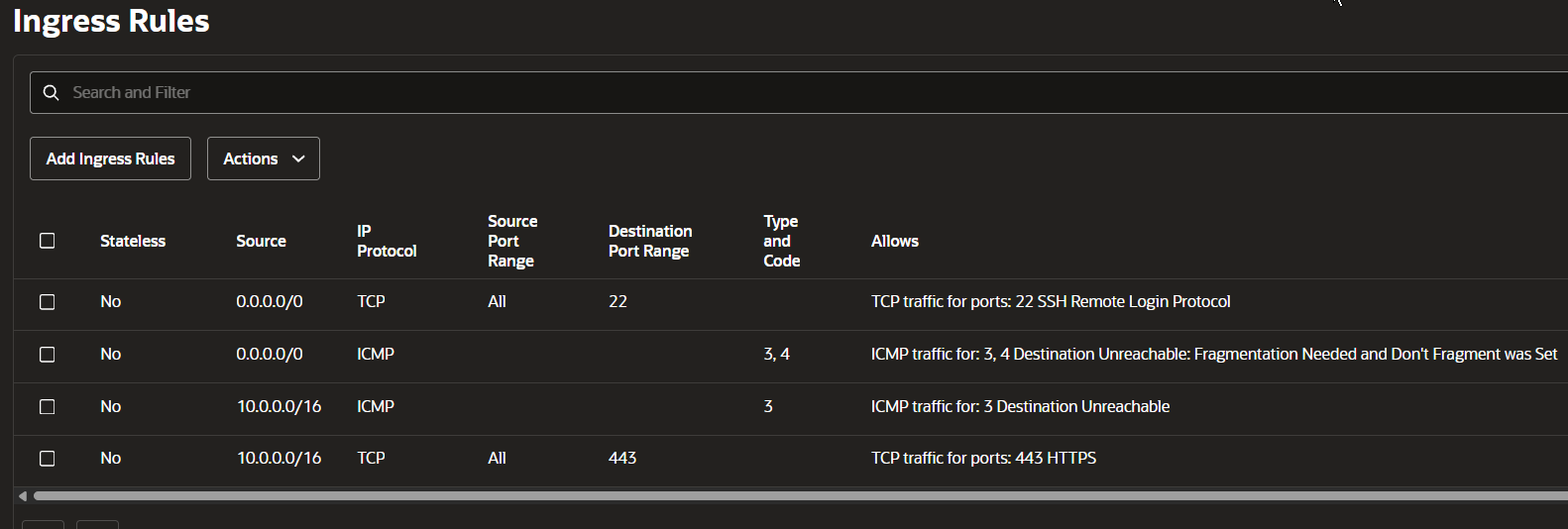
Actual OCI Console capture from the lab: the port 443 source is limited to 10.0.0.0/16, while port 22 is open to all IPv4 sources. The 443 source was too narrow for an outside client; the global SSH rule is also broader than recommended.
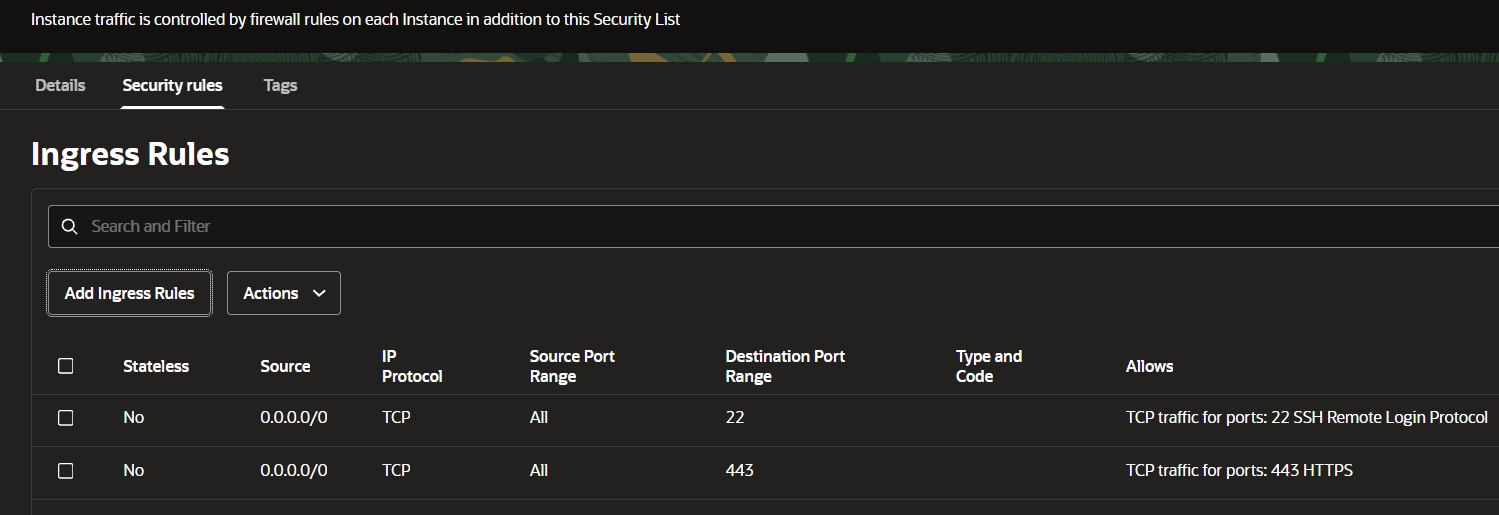
Actual follow-up capture from the same lab showing temporary public source rules. Restrict SSH ingress to your administrator IP or an approved VPN/bastion. Remove any temporary rule immediately after testing.
Both security lists and NSGs are network firewalls, but the Linux instance can also run a host firewall. Both layers must allow a connection. Avoid opening 443 for SSH unless you have a specific reason; changing the port does not make SSH into HTTPS and does not improve its security by itself.
Create the Compute Instance
Open Compute > Instances and choose Create instance. Select the correct compartment and give the instance a recognizable name, such as lab-ubuntu-01. For the image, choose an Ubuntu release supported in the selected region and check whether the image is ARM64 or x86_64. The instance shape must match the image architecture and your software requirements.
In the shape selector, inspect the Always Free eligible label and the limits shown by the Console. Do not infer eligibility from a tutorial written for an older shape. A flexible shape may let you choose OCPUs and memory; stay inside the currently displayed free allowance, and check what happens when the free trial ends. If the desired shape reports an out-of-capacity error, try a different availability domain or retry later rather than increasing limits blindly or assuming a paid shape is free.
Under networking, choose the VCN and public subnet created above. Enable assignment of a public IPv4 address for a directly reachable test VPS. The public address is the endpoint you will use from your computer; the private address is for communication inside the VCN. A reserved public IP can be useful when the address must persist, but verify its current pricing and lifecycle before allocating one. An ephemeral address is simpler for a short-lived lab.
For Linux authentication, paste the public half of an SSH key pair into the instance form. Generate a key locally if you do not already have one. Never upload or paste the private key. The public key normally ends in a comment and is safe to register with the instance; keep the private key readable only by your account and back it up securely. Oracle’s instance creation documentation describes the launch options and public IP behavior.
Review the boot volume, network, shape, and any estimated cost one more time. Select Create and wait for the instance state to become Running. Open the instance details and copy its public IPv4 address. If no public address appears, check that the VNIC is attached to a public subnet and that public IP assignment was enabled. Then verify the route table, Internet Gateway, and security list/NSG rules.
Connect to and Maintain the VPS
On Windows, open PowerShell or Windows Terminal with OpenSSH available. If you created an ED25519 key in PowerShell, the command looks like this:
ssh-keygen -t ed25519 -f "$env:USERPROFILE\.ssh\oracle_free_vps" -C "oracle-free-vps"If you supplied the public key during instance creation, connect with the private key and the username for the selected image. For Ubuntu images, the default account is commonly ubuntu; Oracle Linux images commonly use opc. Confirm the image documentation if you selected another distribution.
ssh -i "$env:USERPROFILE\.ssh\oracle_free_vps" ubuntu@YOUR_PUBLIC_IP

# example, run from wsl or windows
 ssh -i ~/workspace/vps-tunnel/vps_tunnel.pem [email protected]
On first connection, OpenSSH shows the server host-key fingerprint. Verify it through a trusted channel if you have one, then accept it. A timeout usually points to a route, security rule, host firewall, or reachability issue. A Permission denied (publickey) response means the network connection reached SSH, but authentication did not accept the key or username. Check the correct public key and account before changing firewall rules.
After login, update packages and inspect the system:
sudo apt update
sudo apt full-upgrade
sudo systemctl --failed
df -h
free -h
If you enable Ubuntu’s UFW firewall, first allow SSH and keep your current session open while testing a second connection. For example, sudo ufw allow OpenSSH followed by sudo ufw enable can prevent accidental lockout when configured carefully. Check the security list/NSG and host firewall together; an allow at one layer cannot override a deny at another.
Use the VPS for a small web service, a test Linux environment, learning system administration, or a controlled jump host. Keep SSH key-based, disable password login only after verifying key access in a second session, use an unprivileged account for everyday work, and keep packages patched. Do not store credentials in scripts or expose databases and admin panels directly to the public internet. Set up backups for data you care about; a boot volume is not a backup by itself.
Monitor Costs and Clean Up
Check the Console’s billing or cost-management pages periodically, especially if you created resources during a trial. Always Free eligibility applies to specific resources and tenancy limits, not every feature attached to an instance. Review boot-volume size, reserved IPs, load balancers, block volumes, snapshots, and any paid networking or monitoring service before leaving a lab running.
When you are finished, terminate the instance and decide whether its boot volume should be deleted. Then remove unused public IP reservations, gateways, subnets, route tables, security lists, and the VCN. A VCN by itself may not be a chargeable compute resource, but associated services can have separate pricing or limits. Confirm the final resource list and billing page rather than assuming that stopping a VM deletes everything.
Summary
The path to a working Oracle free VPS is: create the account in the right home region, verify current Free Tier limits, build a VCN with a public subnet and Internet Gateway, route 0.0.0.0/0 through the gateway, allow SSH only from a trusted source, launch a compatible Always Free eligible Linux shape, assign its public IP, and connect with your own SSH key. The networking pieces are independent: public addressing, routing, cloud security rules, and the guest firewall all have to agree. Check current Oracle documentation and estimated costs before each deployment because offers, capacity, and Console screens can change.
💬 Comments