Overview
When I logged into Windows, I saw a system popup:
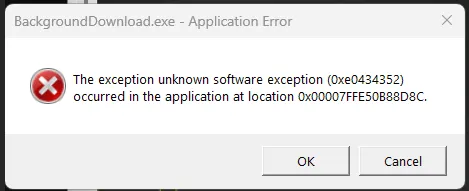
Unknown software exception (0xe0434352)Tried to copy a file to C: drive and failed-no enough space, then discovered:
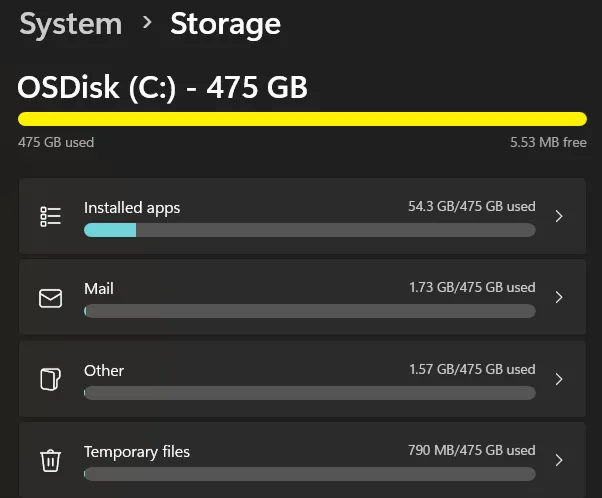
C: Drive: -475GB
475 GB used, 5.53 MB free
This issue was caused by BackgroundDownload.exe failing during a Windows Update/Store download, temporarily filling the C: drive with update cache files. After a reboot, disk space returned to normal.
What Is BackgroundDownload.exe?
BackgroundDownload.exe is a legitimate Windows 11 system component used for:
- Downloading Windows Updates
- Downloading Microsoft Store apps and updates
- Caching files for feature updates (e.g., 23H2, 24H2)
- Preloading drivers and optional components
It is part of the Delivery Optimization system (DOClient / dosvc service).
Official location:
C:\Windows\System32\BackgroundDownload.exe
It is safe if:
- Located in System32
- Digitally signed by Microsoft
- File size ~100–200 KB
To verify:
- Open Task Manager
- Right-click process → Open file location
- Right-click file → Properties → Digital Signatures → Microsoft Corporation
Why I Saw the Error
The exception:
The exception unknown software exception (0xe0434352) occurred in the application at location 0x00007FFE50B88D8C
The code 0xe0434352 is a .NET CLR (Common Language Runtime) error indicating an unhandled .NET exception. BackgroundDownload.exe uses .NET internally; a crash here means:
- .NET Runtime corruption
- Windows Update system file corruption
- A failed or incomplete feature-update download
- Delivery Optimization service conflict
This is not malware—it’s a Windows system component crashing.
Why My C: Drive Became Full
When BackgroundDownload.exe fails while downloading updates:
-
Huge temporary files accumulate in:
C:\Windows\SoftwareDistribution\Download%TEMP%
-
Downloads are not cleaned up due to the crash
-
Disk space can drop to 0 MB, making Windows misreport storage
After a reboot, Windows cleanup routines removed orphaned update files, restoring nearly 400GB of free space.
This behavior is common during large feature updates.
How to Fix the Error and Prevent Recurrence
Follow these steps (in order). Run as administrator where required.
1. Repair Windows Update System Files
Run DISM and SFC:
DISM /Online /Cleanup-Image /RestoreHealth
sfc /scannow
Reboot when finished.
2. Repair .NET Framework and Runtime (Main fix for 0xe0434352 crashes)
Install and run the Microsoft .NET Framework Repair Tool.
I also ensured my .NET runtimes were installed:
- Settings → Apps → Optional features → Add a feature → search “.NET”
3. Clear Windows Update Cache
-
Pause updates for 1 week (optional)
-
Run Disk Cleanup → check:
- Windows Update Cleanup
- Temporary Files
-
Delete contents of:
C:\Windows\SoftwareDistribution\Download
Reboot after clearing.
4. Limit BackgroundDownload.exe Activity
Go to: Settings → Windows Update → Advanced options → Delivery Optimization
- Disable “Allow downloads from other PCs”
- Reduce bandwidth limits
I also temporarily set Delivery Optimization service to Manual.
5. Update Drivers
Update GPU/display drivers via Device Manager or Windows Update.
6. Reset Windows Update Components (if issue persists)
Run these commands:
net stop wuauserv
net stop cryptSvc
net stop bits
net stop msiserver
ren C:\Windows\SoftwareDistribution SoftwareDistribution.old
ren C:\Windows\System32\catroot2 Catroot2.old
net start wuauserv
net start cryptSvc
net start bits
net start msiserver
Advanced Diagnosis
Check logs:
- Event Viewer → Windows Logs → Application (look for BackgroundDownload.exe crashes)
- Run Windows Security Quick Scan to rule out impostor files
If the issue repeats consistently, perform an in-place repair install using Windows 11 ISO (keeps files/apps).
Conclusion
BackgroundDownload.exe is a legitimate part of Windows Update. The disk space drop occurred because it crashed while downloading a large update, leaving behind temporary files. A reboot cleared them, but the underlying .NET/Update corruption should still be addressed to avoid future occurrences.
These steps will prevent recurrence and stabilize Windows Update operations.