Sometimes Windows leaves strange folder names directly under C:\. They often look like random hexadecimal strings, for example 2b5da985a5f78e4b5d0c3b89, feba7..., or another long mix of numbers and letters. I usually see this after installing or repairing Microsoft Visual C++ Redistributable packages, .NET components, drivers, or other Windows installer packages.
Most of the time these folders are temporary extraction folders. The installer should clean them up when it finishes. When an installer crashes, is interrupted, runs under a different security context, or leaves files locked until reboot, the folder can remain on the root of the system drive.
Quick answer
Random hex-looking folders under C:\ are usually temporary installer extraction folders. Deleting them can fail because the folder may be owned by SYSTEM or protected by installer permissions. If you confirm the folder is only leftover installer content, run PowerShell as Administrator, take ownership, grant Administrators full control, and then remove the folder. Do not blindly delete every short folder under C:\; verify the name, contents, and age first.
The error
When I tried to delete one of these folders from File Explorer, Windows showed this message:
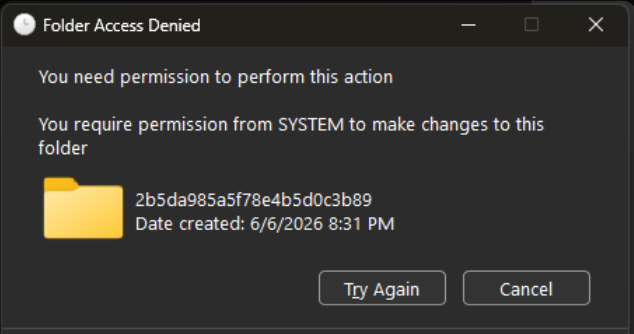
The important line is:
You require permission from SYSTEM to make changes to this folder
That means my current user account, even if it is an administrator account, does not currently have the permission needed to delete the folder. Windows administrators are powerful, but they do not automatically own every file and folder. Some folders are owned by SYSTEM, TrustedInstaller, or an installer service account.
Why installers create these folders
Many Windows installers unpack files before they install them. A common pattern is:
- Download or start the installer.
- Extract the real setup files into a temporary folder.
- Run MSI, EXE, CAB, or patch files from that location.
- Copy files into
C:\Windows,C:\Program Files, WinSxS, or another target. - Delete the temporary extraction folder.
Usually this happens under %TEMP%, but some installers extract to the root of a drive with enough free space. On a normal workstation that may be C:\.
The folder name is often random so it does not collide with another install. Hex-looking names are common because they are easy for installers to generate.
Examples of content you might see inside these folders:
.msifiles.cabfiles.dllfiles- setup bootstrapper files
- Visual C++ runtime files
- .NET installer files
- log files from setup
If the installer finishes cleanly, the folder should disappear. If the cleanup step fails, or if the install step crashes, hangs, or is interrupted for some reason, the folder can remain.
Why normal delete fails
The File Explorer error is not usually caused by a damaged folder. It is normally a permissions issue.
Common reasons:
- The folder owner is
SYSTEM. - The folder owner is
TrustedInstaller. - The ACL does not grant your administrator account delete permission.
- Files inside the folder inherited restrictive permissions.
- An installer service created the folder with a different security context.
- A process still has a file open.
Running File Explorer as your normal account does not automatically fix that. Even if the account is in the local Administrators group, the folder can still deny deletion until ownership and permissions are changed.
That is why the final cleanup script uses three steps:
takeownchanges ownership.icaclsgrants Administrators full control.Remove-Itemdeletes the folder.
Check before deleting
Do not delete folders from C:\ only because the name looks strange. Some software uses short or unusual folder names. A safe cleanup process starts with inspection.
First list suspicious root folders:
Get-ChildItem -Path 'C:\' -Directory |
    Where-Object {
        $_.Name -match '^[0-9a-fA-F]{8,}$'
    } |
    Select-Object FullName, CreationTime, LastWriteTime
This filters for folders whose names are only hexadecimal characters and at least eight characters long. That is safer than matching every folder beginning with 2, 6, or 8.
Then inspect the contents:
$folder = 'C:\2b5da985a5f78e4b5d0c3b89'

Get-ChildItem -Path $folder -Force |
    Select-Object Name, Length, LastWriteTime
If it contains installer files and has not changed recently, it is probably leftover temporary content. If it contains application data, user files, database files, or anything you do not recognize, stop and investigate before deleting.
Cleanup script
Run this script from an elevated PowerShell window. Right-click PowerShell or Windows Terminal and choose Run as administrator.
This version keeps your original pattern idea, but adds a hex-name filter and a confirmation prompt. That matters because patterns like 2* or 6* can match legitimate folders if they are used alone.
You can change or add starting-letter patterns if you see different temporary folder names on your machine. Be careful with broad prefixes. Do not add normal Windows folder prefixes such as pro*, win*, users*, program*, or anything that could match real system or application folders. The pattern list is only the first pass; the hex-name filter below is the second safety check.
# ================================================
# Clean Temporary Hex Folders from C:\
# Run as Administrator.
# ================================================

$patterns = @('1b*', '2b*', '2*', '6*', '8*', 'd9*', '59*', 'feba7*', 'e5*')

Write-Host 'Searching for matching folders on C:\...' -ForegroundColor Yellow

$folders = foreach ($pattern in $patterns) {
    Get-ChildItem -Path "C:\$pattern" -Directory -ErrorAction SilentlyContinue
}

$folders = $folders |
    Sort-Object FullName -Unique |
    Where-Object {
        $_.Name -match '^[0-9a-fA-F]{8,}$'
    }

if ($folders.Count -eq 0) {
    Write-Host 'No matching temporary hex folders found.' -ForegroundColor Green
    exit
}

Write-Host "`nFound $($folders.Count) folder(s):" -ForegroundColor Cyan
$folders | ForEach-Object {
    Write-Host "   $($_.FullName)  Created: $($_.CreationTime)" -ForegroundColor White
}

Write-Host "`nThis will take ownership and DELETE the folders listed above." -ForegroundColor Red
Write-Host 'Check the list carefully before continuing.' -ForegroundColor Yellow
$confirm = Read-Host "Type 'YES' to continue"

if ($confirm -ne 'YES') {
    Write-Host 'Operation cancelled.' -ForegroundColor Yellow
    exit
}

foreach ($folder in $folders) {
    Write-Host "`nProcessing: $($folder.FullName)" -ForegroundColor Cyan

    try {
        takeown /F $folder.FullName /R /D Y | Out-Null
        icacls $folder.FullName /grant Administrators:F /T /C | Out-Null

        Remove-Item -LiteralPath $folder.FullName -Recurse -Force -ErrorAction Stop

        Write-Host "Deleted: $($folder.Name)" -ForegroundColor Green
    }
    catch {
        Write-Host "Failed: $($folder.Name) - $($_.Exception.Message)" -ForegroundColor Red
    }
}

Write-Host "`nOperation completed." -ForegroundColor Green
The important safety check is this line:
$_.Name -match '^[0-9a-fA-F]{8,}$'That makes the script target folders that look like random hex installer folders, not every folder that starts with a matching number or letter.
What the commands do
takeown changes the owner of the folder and its child items:
takeown /F $folder.FullName /R /D Y/R works recursively. /D Y answers yes for prompts where the current user does not have list permission.
icacls grants the local Administrators group full control:
icacls $folder.FullName /grant Administrators:F /T /C/T applies the change to files and subfolders. /C continues if some files return errors.
Then PowerShell removes the folder:
Remove-Item -LiteralPath $folder.FullName -Recurse -Force -ErrorAction StopI use -LiteralPath because folder names can contain characters that PowerShell might otherwise treat as wildcard characters. -ErrorAction Stop makes failures enter the catch block so the script prints a clear message.
If deletion still fails
If the script still cannot delete a folder, check these items:
- Reboot once, then try again.
- Confirm PowerShell is running as Administrator.
- Check whether antivirus or an installer process is holding a file open.
- Use Resource Monitor or Process Explorer to search for open handles.
- Confirm the folder is not a mount point or junction.
- Check whether the path is too long for older tooling.
You can check for reparse points with:
Get-Item -LiteralPath 'C:\2b5da985a5f78e4b5d0c3b89' -Force |
    Select-Object FullName, Attributes, LinkType, Target
If LinkType or Target shows that the folder is a link, do not treat it like a normal temporary folder until you understand where it points.
Final notes
These folders are usually harmless leftovers, but they are messy and sometimes consume real disk space. The right approach is not to delete everything that looks strange. The right approach is to identify likely installer extraction folders, verify the contents, take ownership only when needed, and delete only the confirmed leftovers.
For a one-time cleanup, the script above is enough. For repeated cleanup across many machines, I would add logging, export the folder list before deletion, and test with a reporting-only mode first.
💬 Comments